Features · 04 Trackers
See the trackers. Choose.
Outbound’s Tracking Report shows which of your Mac apps contacted known tracker servers and how much they sent, by app or by company. Block the trackers an app can work without.
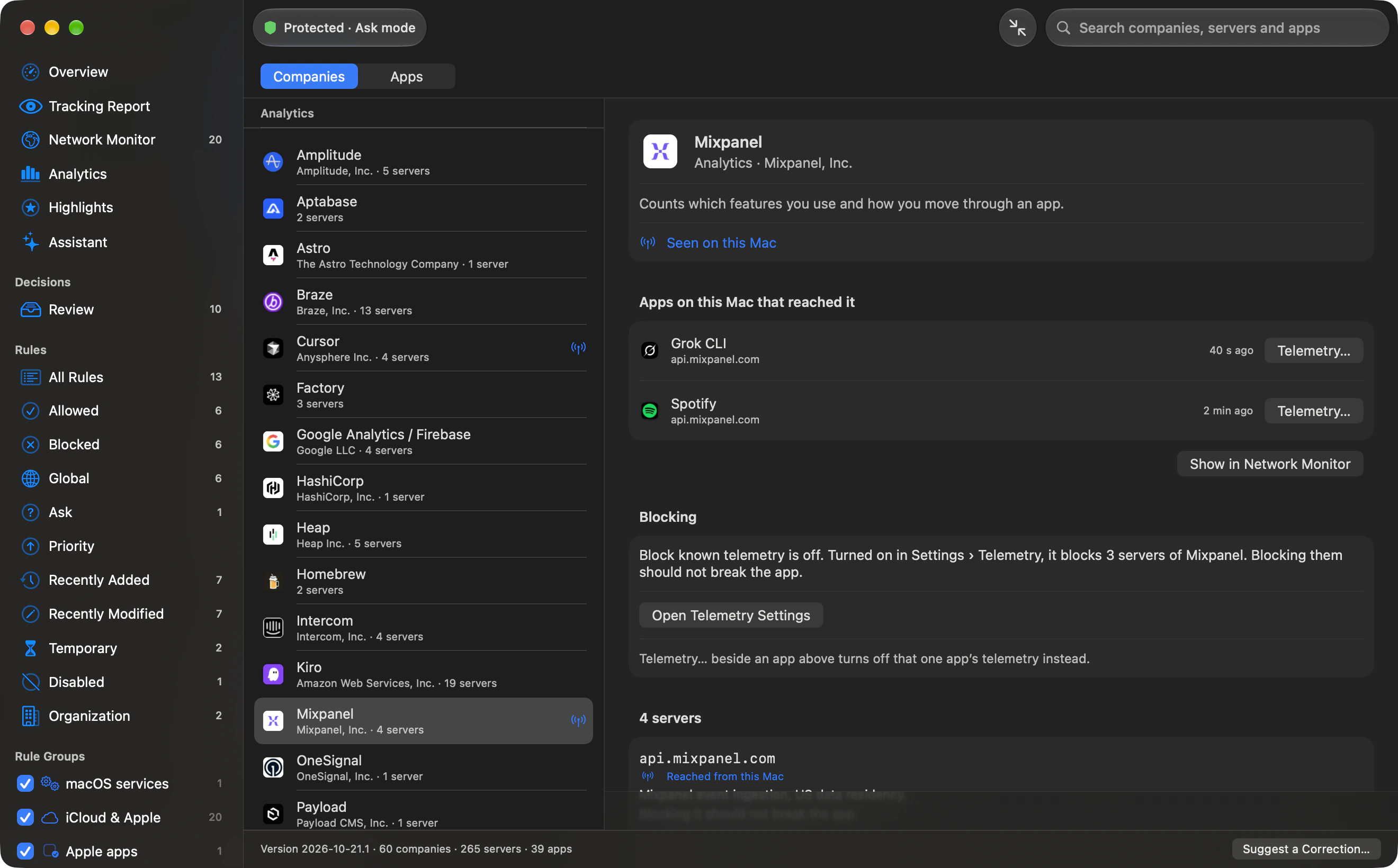
Tracking Report
Who’s tracking, by app or company.
Outbound matches your connection history against its tracker catalogue. Only catalogue matches count.
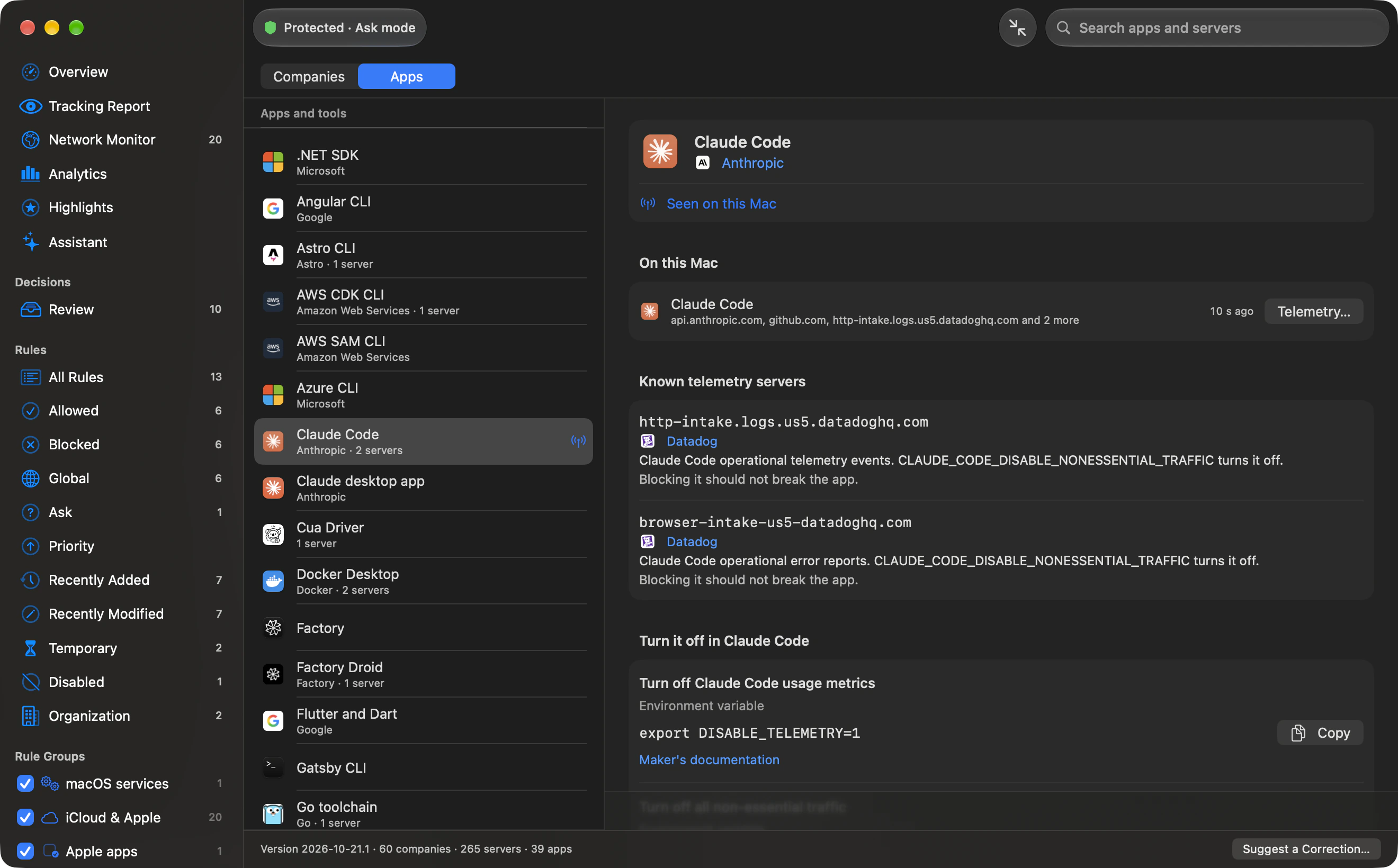
The catalogue views shown here put names to the servers your apps reach. The Tracking Report counts catalogue matches over your chosen range, from Last Hour to Since Install.
Tracker Database
Get to know your trackers.
The catalogue ships with Outbound. Looking something up reads its built-in files and sends nothing.
In depth
Tracking Report
Who’s tracking, by app or by company.
Outbound matches your connection history against its tracker catalogue. Only catalogue matches count.
Pick a range from Last Hour to Since Install. Open an app for the tracker servers it contacted and how much it sent, where measured. Block This App’s Trackers blocks the servers Outbound can block for that app without breaking it. How to stop apps phoning home ›
Choose the view and range
- By App
- The default view. Expand an app to see its servers, companies and last contact. Servers Outbound only labels say “not blocked by Outbound”.
- By Company
- See connections, last contact, apps that contacted the company and its servers. Show in Trackers opens the company’s catalogue entry and sources.
- Time Range
- Last Hour, Last 24 Hours, Last 7 Days, Last 30 Days or Since Install. Last 24 Hours is the default.
- Search apps, companies and servers
- Narrow the report by any of the three. Its headline counts Apps, Tracker servers, Companies and Connections.
Sent, where measured appears when byte totals exist. Bytes are measured only for connections the filter saw close since Outbound started. Today in the menu bar is a calendar day, separate from the report’s ranges.
Tracker Database
Read what sits behind a label.
The catalogue ships with Outbound. Looking something up reads its built-in files and sends nothing.
- A company label
- A database entry checked against the company’s own documentation. Why this label shows its owner, category, whether it sends events or fetches settings, blocking impact and sources.
- Possible telemetry
- A guess from the server’s name alone. Outbound does not know the company. It is separate from the catalogue matches counted in the Tracking Report.
- Companies and Apps
- Open Lists › Trackers, then browse either view. Companies are grouped by category. Seen on this Mac marks entries your traffic has reached; search covers names and servers.
- Servers and Sources
- Read what each server is for and what blocking it would do. Sources show Last checked dates where available. The footer gives the database version and company, server and app counts.
Read the same catalogue from the terminal
outboundctl telemetry classify example.comlabels a host. Add--appwith a signing identifier or path to refine the match for one app.outboundctl telemetry app, followed by a signing identifier or path, prints the maker’s documented opt-outs.outboundctl telemetry infoprints the version and counts of vendors, endpoints and apps. These three commands are read-only and each accepts--json.
Connection labels
Read the label, then check the decision.
The Network Monitor and connection alerts can show a tracker label. Open Why this label to see the evidence behind it.
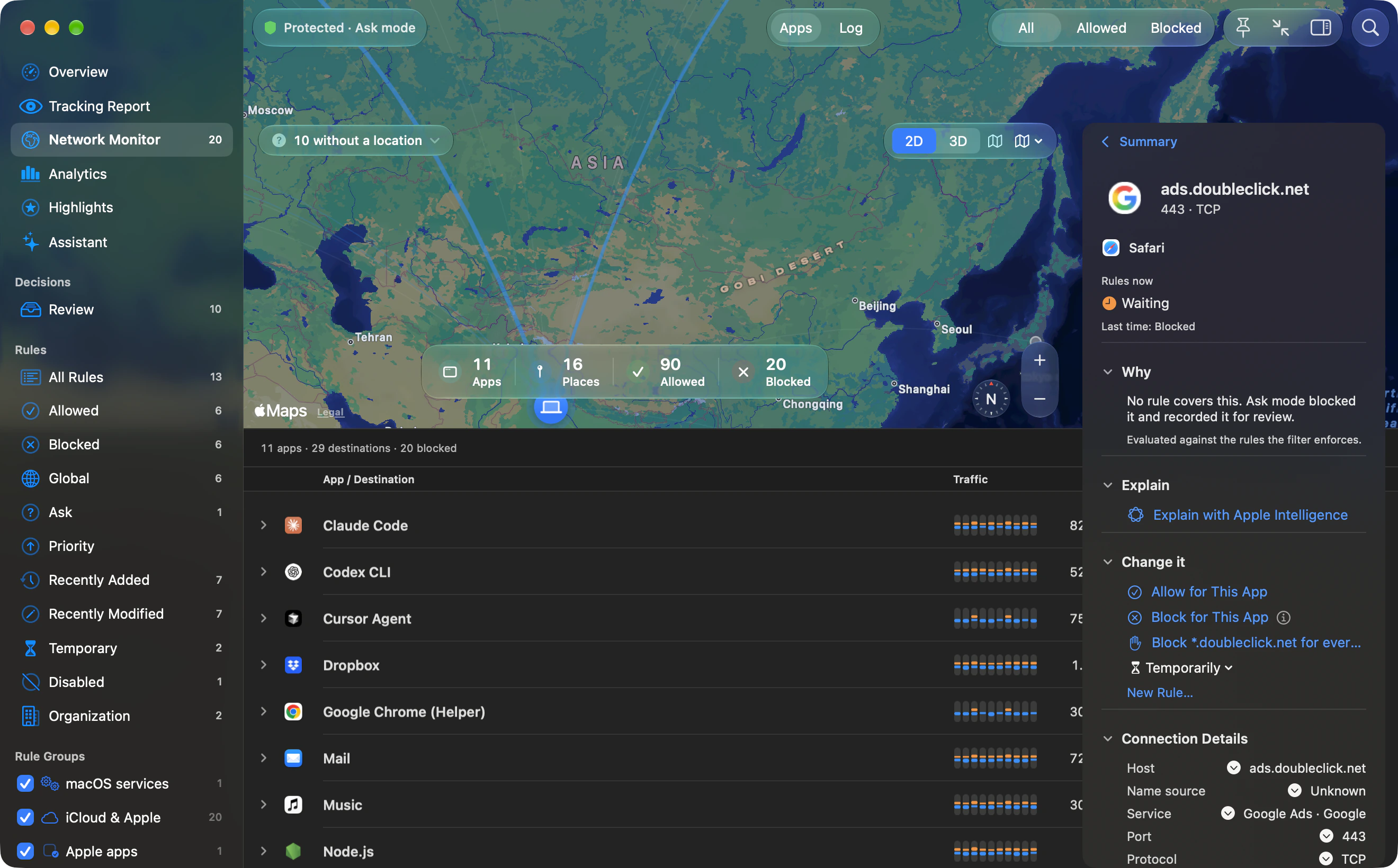
The label shows the owner, category, sources and what blocking the endpoint would do. It also distinguishes endpoints that send data from those that fetch settings.
A database match is checked against the company’s own documentation. Possible telemetry means the label was guessed from the server’s name alone.
Check what happened to the connection
- Why
- The destination inspector says what decided the latest connection. When a rule decided it, Show Rule opens that rule.
- All matching rules
- Decides marks the rule that won. The inspector also reports when other matching rules rank lower.
- Change it
- Allow or block the destination for that app. When a blocklist blocked it, Allow DEST despite LIST is available.
- Company entry
- You can open a catalogue company in the Tracker Database from the label. A name-only guess has no company entry to open.
Settings › Telemetry
Choose what to block or turn off.
Block known telemetry starts off. Its seven selectable categories start ticked. Turn it on to create the Known telemetry rule group, kept current as the database changes.
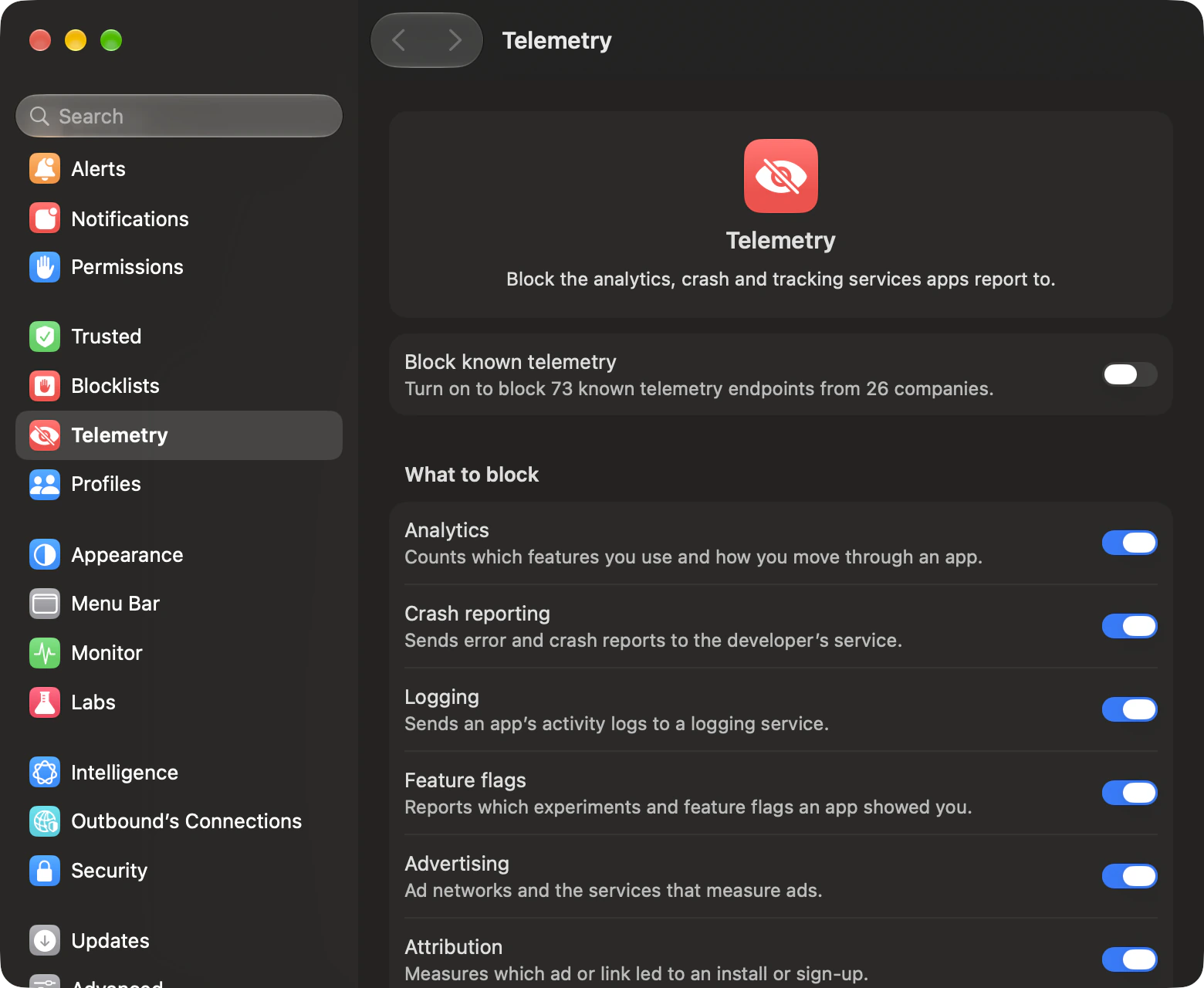
Categories you can block
- Analytics
- Which features you use and how you move through an app.
- Crash reporting
- Error and crash reports to the developer’s service.
- Logging
- An app’s activity logs, sent to a logging service.
- Feature flags
- Which experiments and flags an app showed you.
- Advertising
- Ad networks and the services that measure ads.
- Attribution
- Which ad or link led to an install or sign-up.
- Session replay
- Taps, scrolls and screens, recorded so a visit can be replayed.
What the switch leaves alone
- Only catalogue endpoints that receive telemetry events and can be blocked without changing how the app works get block rules. Servers that fetch configuration, mix configuration and events, or would degrade or break an app stay labelled without being blocked.
- Diagnostics reports how an app or system runs. Essential covers services an app needs to work. Unknown has no category description. These three categories are not offered for telemetry blocking.
- Apple’s diagnostics are labelled without being blocked. Their opt-out is in System Settings › Privacy & Security › Analytics & Improvements.
- Some apps send data through their own domains, which no list can recognise, so this cannot promise that all telemetry is off.
- Outbound never blocks model APIs, sign-in, updates or package registries, because blocking them would stop the app or tool working.
Turn off telemetry for one app
- Telemetry…
- Open the app’s Turn off telemetry sheet from the Network Monitor or inspector. Seen in Activity lists the companies it contacted, with Show in Tracker Database for known companies.
- Turn it off in NAME
- Copy the maker’s documented environment variable, config line, command or macOS defaults, or find its in-app setting. Maker’s documentation links appear where available; hosted tools have their own entries.
- Block This App’s Telemetry
- Block the known servers Outbound can block for that app without breaking it. Generic runtimes such as node and python have no whole-runtime switch, because many programs run inside them.
- Apps with telemetry turned off
- Per-app blocks stay active when Block known telemetry is off. Remove takes an app off this list. When neither the app nor its hosted tools has a documented opt-out, the sheet says so.
Highlights
A privacy score for your own Mac.
Highlights counts your own history on this Mac. Nothing is shared unless you choose Share and send it.
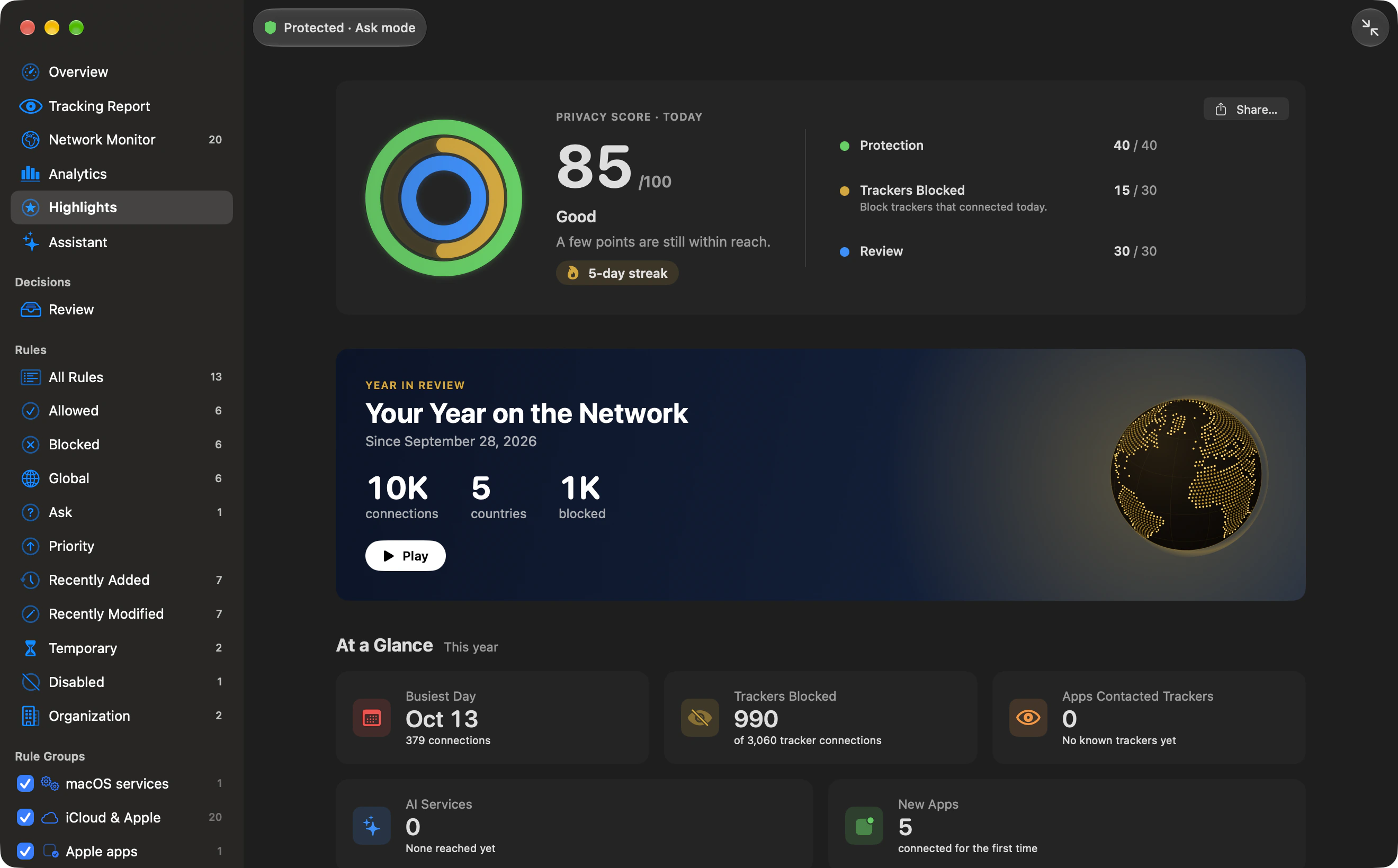
Protection, Trackers Blocked and Review make up today’s score. The Passport, At a Glance and Awards give you other ways to read your activity.
How the score is worked out
| Part | Points |
|---|---|
| Protection | 40 while the filter is on. Zero while it is off, waiting for approval or missing its extension. |
| Trackers | Up to 30 for the share of known tracker connections blocked today. Left out when no tracker was seen. |
| Review | 30 while nothing is waiting, or until the oldest item has waited 7 days. Then it falls in a straight line to zero at 60 days. |
When no trackers are classified, the other parts are scaled to 100. A day with protection on, an empty Review and no trackers seen scores 100.
Streak, Passport and yearly figures
- Your streak
- Days at 70 or more count when you open Highlights. Outbound keeps the day’s best score; a day you do not open Highlights does not count.
- Passport
- One stamp per country reached since you installed Outbound, out of 195 countries. 52 countries have an illustrated stamp; the others get a plain postmark-style stamp.
- At a Glance
- This year’s Busiest Day, Trackers Blocked, Apps Contacted Trackers, AI Services, New Apps, Late Night and Data Moved appear when there is something to count.
- Late Night and Data Moved
- Late Night is the share of connections before 5 AM. Data Moved adds sent and received data for the year.
Awards
- Globetrotter
- Reach servers in 25 countries.
- Tracker Hunter
- Block 1,000 connections to trackers.
- On a Roll
- Keep a score of 70 or more for 7 days in a row.
- Night Owl
- Make a fifth of your connections between midnight and 5 AM.
- Rule Maker
- Make your first rule.
- AI Explorer
- Use 3 different AI services.
Year in Review and share cards
Preview the story before you share it.
Year in Review plays your year as six pages. Share cards also cover your privacy score, network passport and earned awards.
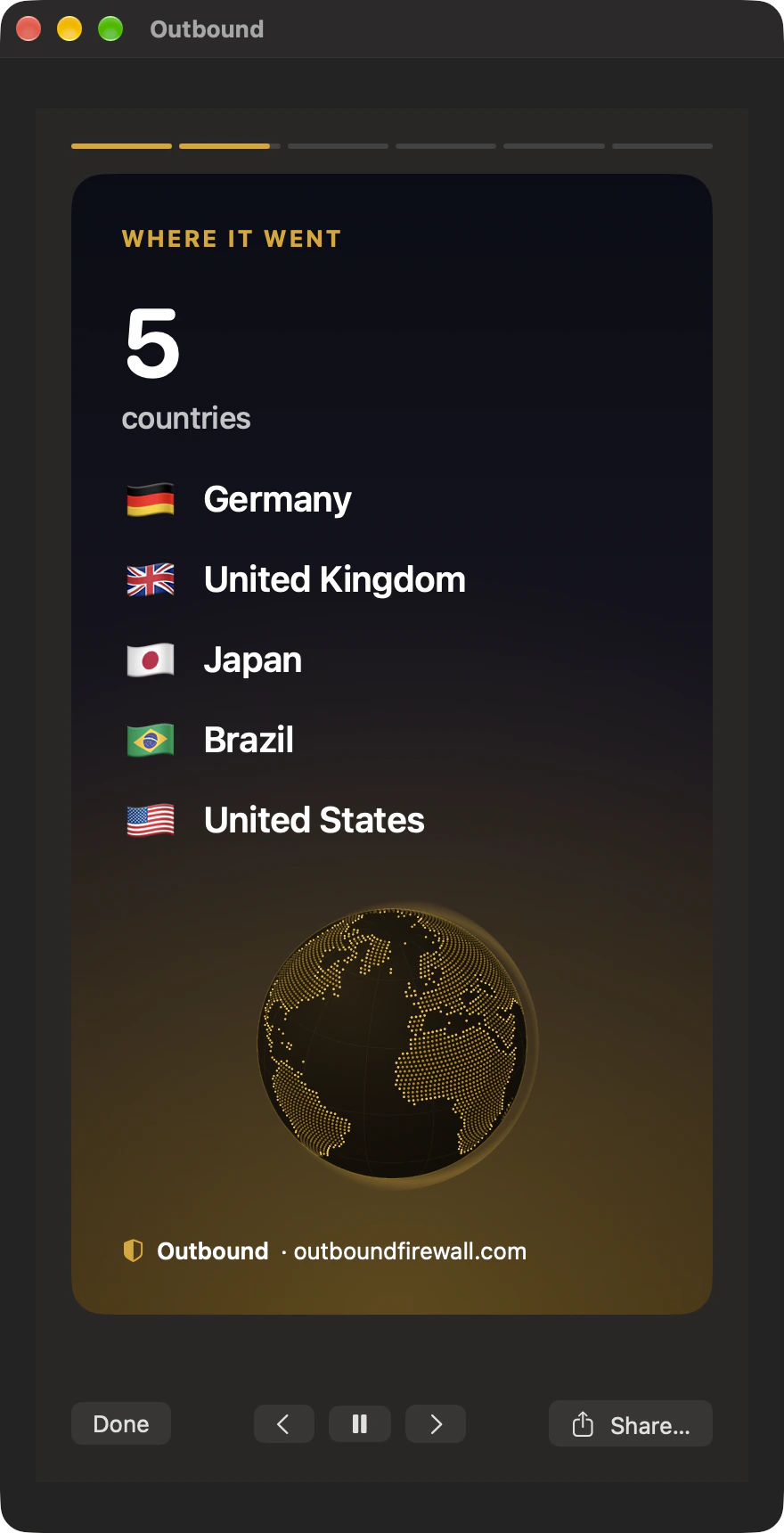
- My year on the network
- Connections, data and apps that went online.
- Where it went
- Countries reached, with the top five by flag and name.
- The apps that talked most
- Your top five apps, icons first.
- Protection
- Blocked connections, how many went to trackers and ad networks, and apps that contacted known trackers.
- My rhythm
- Your busiest day, the share of connections after midnight and new apps.
- My privacy score
- Your score and the awards you earned.
Hovering over the story, opening its share sheet or leaving the window pauses playback. Use the arrow keys to go back or forward and Space to play or pause. Show app names on the apps page starts off.
What a card contains
- My privacy score
- Your score ring, your streak when you have one, and your tracking share for the year.
- My network passport
- The country count and up to nine passport stamps.
- Award earned
- The award’s artwork, title and detail.
- Preview, then Share
- A 9:16 PNG, 1080 by 1920 pixels. Cards contain counts, countries, flags and app icons, with relevant dates and award details. The Year in Review apps page includes names only when you enable Show app names.
Before you share a Highlights card you see it: “This is exactly what will be shared: counts, countries and app icons.” The preview also says “No websites, addresses or other details.” Share passes the PNG to the system share menu. Highlights cards also offer Save…; Year in Review keeps your app-name choice and offers Share.
Connection labels
Read the label. Check the decision.
The Network Monitor and connection alerts can show a tracker label. Open Why this label to see the evidence behind it.
- The latest connection. Safari’s connection to ads.doubleclick.net is shown as blocked in the destination inspector.
- Why. The destination inspector says what decided the latest connection. When a rule decided it, Show Rule opens that rule.
- Change it. Allow or block the destination for that app. When a blocklist blocked it, Allow DEST despite LIST is available.
A database match is checked against the company’s own documentation. Possible telemetry means the label was guessed from the server’s name alone.
Explore labels and matching rulesSettings › Telemetry
Choose what to block or turn off.
Block known telemetry starts off. Choose categories for the Mac, or turn telemetry off for one app.
Choose your categories.
Block known telemetry starts off. Its seven selectable categories start ticked. Turn it on to create the Known telemetry rule group, kept current as the database changes.
Explore categories and limitsTurn it off in the app.
Copy the maker’s documented environment variable, config line, command or macOS defaults, or find its in-app setting. Maker’s documentation links appear where available; hosted tools have their own entries.
Explore per-app controls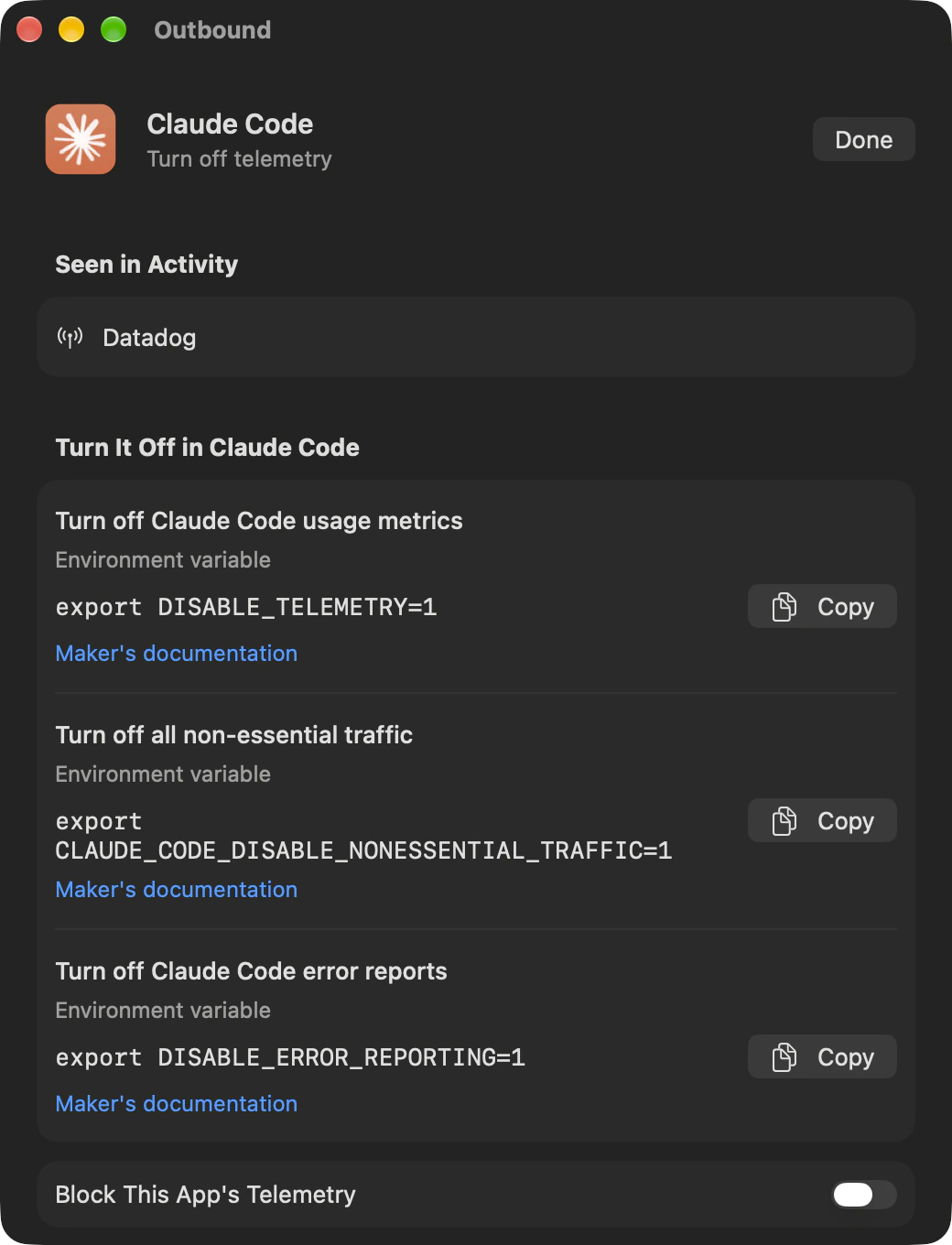
Highlights
100.
Your score is always out of 100.
Protection, Trackers Blocked and Review. Highlights counts your own history on this Mac. Nothing is shared unless you choose Share and send it.
Year in Review and share cards
Preview the story before you share it.
Year in Review plays your year as six pages. Share cards also cover your privacy score, network passport and earned awards.
Before you share a Highlights card you see it: “This is exactly what will be shared: counts, countries and app icons.” The preview also says “No websites, addresses or other details.”
Explore the six pages and share cardsTech specs
- Show
- By App, By Company
- Default view
- By App
- Default Time Range
- Last 24 Hours
- Time Range
- Last Hour, Last 24 Hours, Last 7 Days, Last 30 Days, Since Install
- History refresh
- Every 15 seconds
- Live feed
- At most once a second
- Block known telemetry
- Off by default
- Privacy score
- Out of 100
- Streak threshold
- 70 points per day
- Score history
- 400 days
Questions about trackers
Does the Tracking Report include guesses from server names?
Only matches in the tracker catalogue count in the Tracking Report. A Possible telemetry label is a guess from the server’s name alone.
Can Outbound block every telemetry connection?
No. Some apps send telemetry through their own domains, which no list can recognise. Block known telemetry never blocks endpoints that fetch configuration, mix configuration and events, or would degrade or break the app, and it does not offer Diagnostics, Essential or Unknown. It also never blocks model APIs, sign-in, updates, package registries, or Apple’s own diagnostics.
Do per-app blocks depend on Block known telemetry?
An app in Apps with telemetry turned off stays blocked when Block known telemetry is off. Use Remove to take the app off that list.
Does a day count towards your streak if you do not open Highlights?
Outbound records the score when you open Highlights, so a day you do not open it does not count. A day needs a score of 70 or more, and Outbound keeps that day’s best score.

Choose where your apps connect.
Outbound is $29 for the first 50 licences, then $39. Either way, you pay once.
- 2 Macs, or 5 with Family
- One-time, no subscription
- Full refund within 14 days
- macOS 14 or later