Features · 02 Rules
Your connections. Your rules.
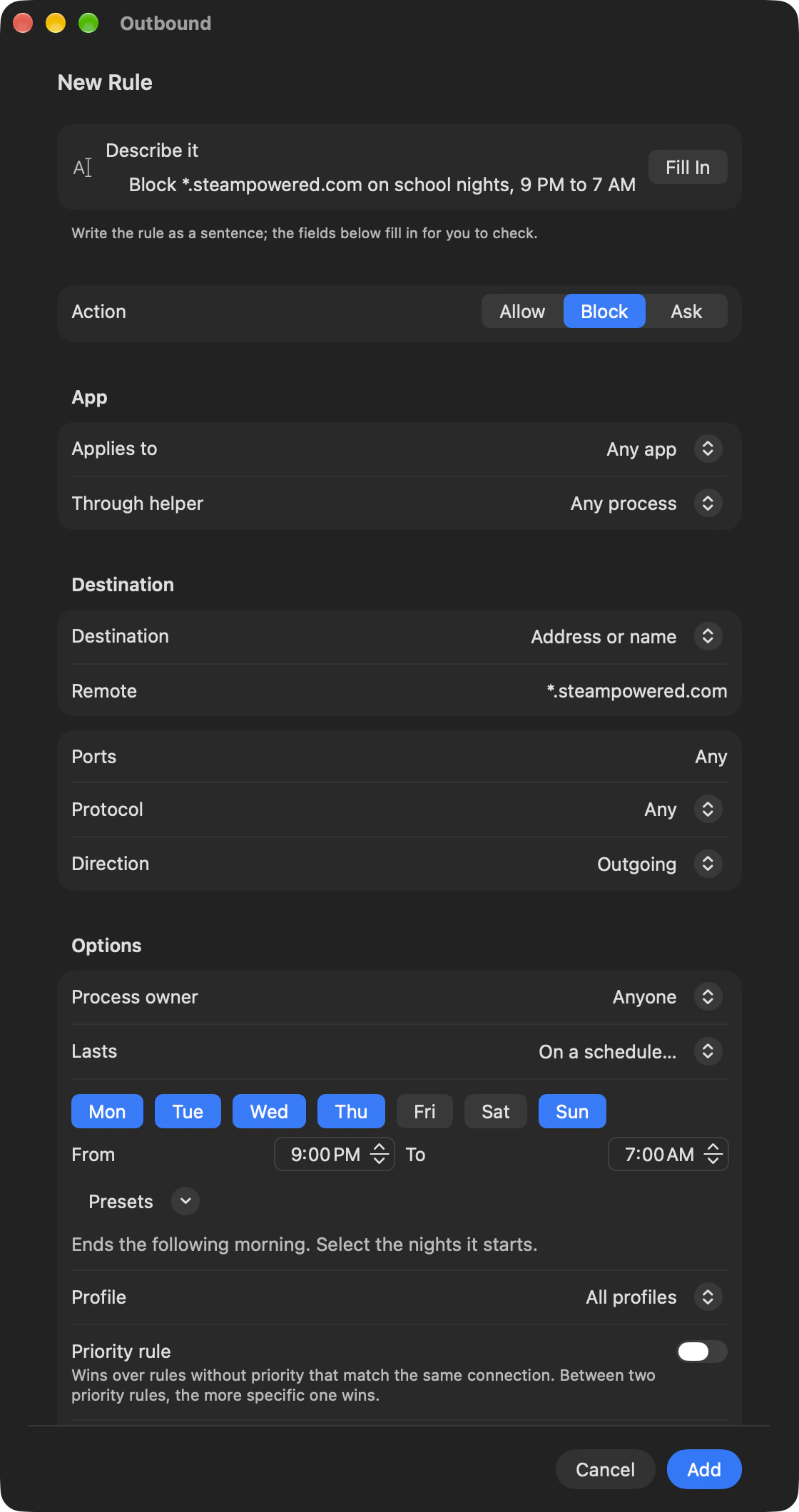
An Outbound rule allows, blocks or asks about an app’s connections to the destination, ports and protocol you choose. Write it as a sentence, then choose how long it lasts.
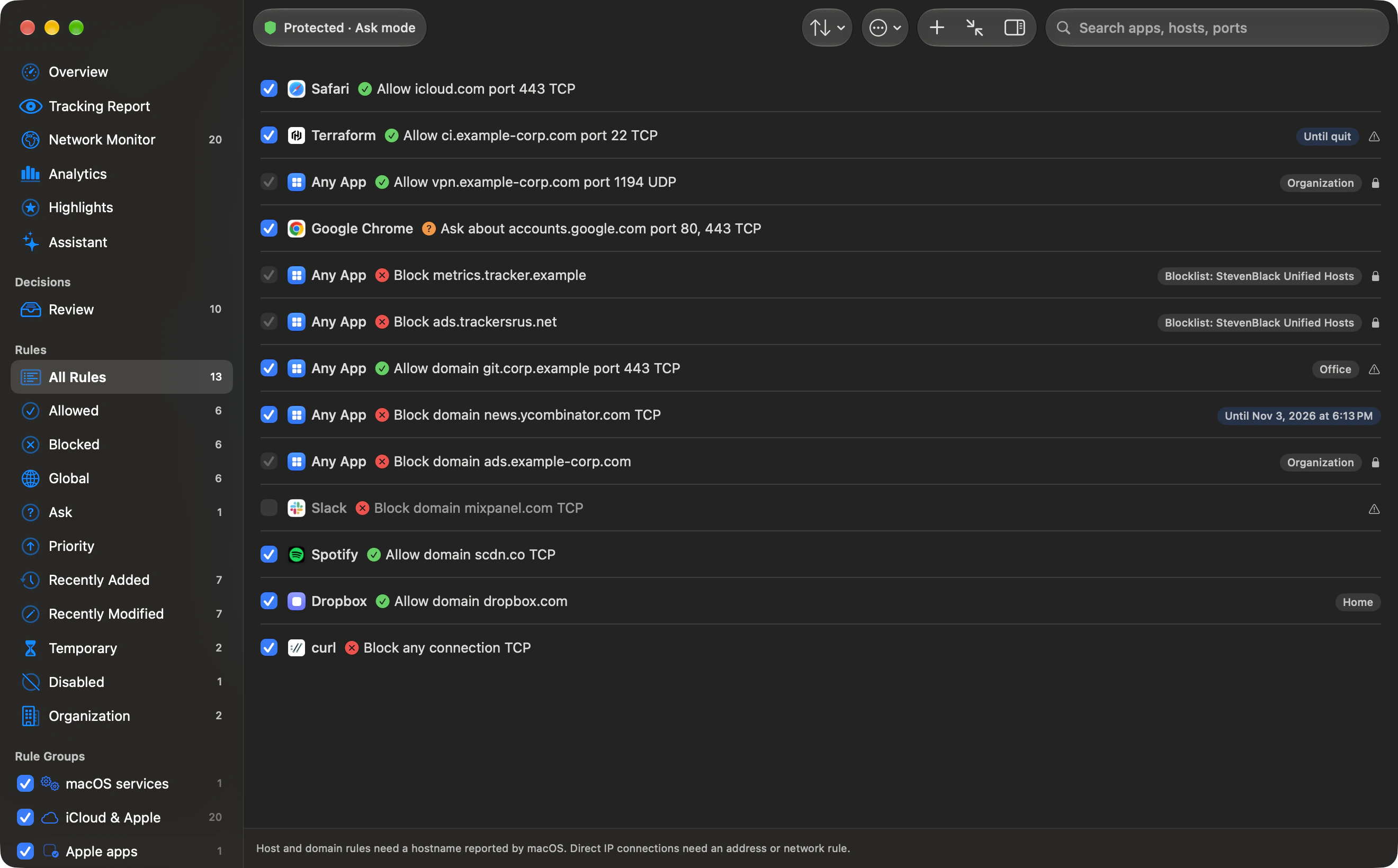
Rule editor
Write a rule as a sentence.
An app, a destination, a lifetime. In words you can read back. Nothing is saved until you save.
Start with a sentence.
Type “Block Chrome from google-analytics.com” and click Fill In. Outbound fills in the fields for you to check.
Explore the rule editor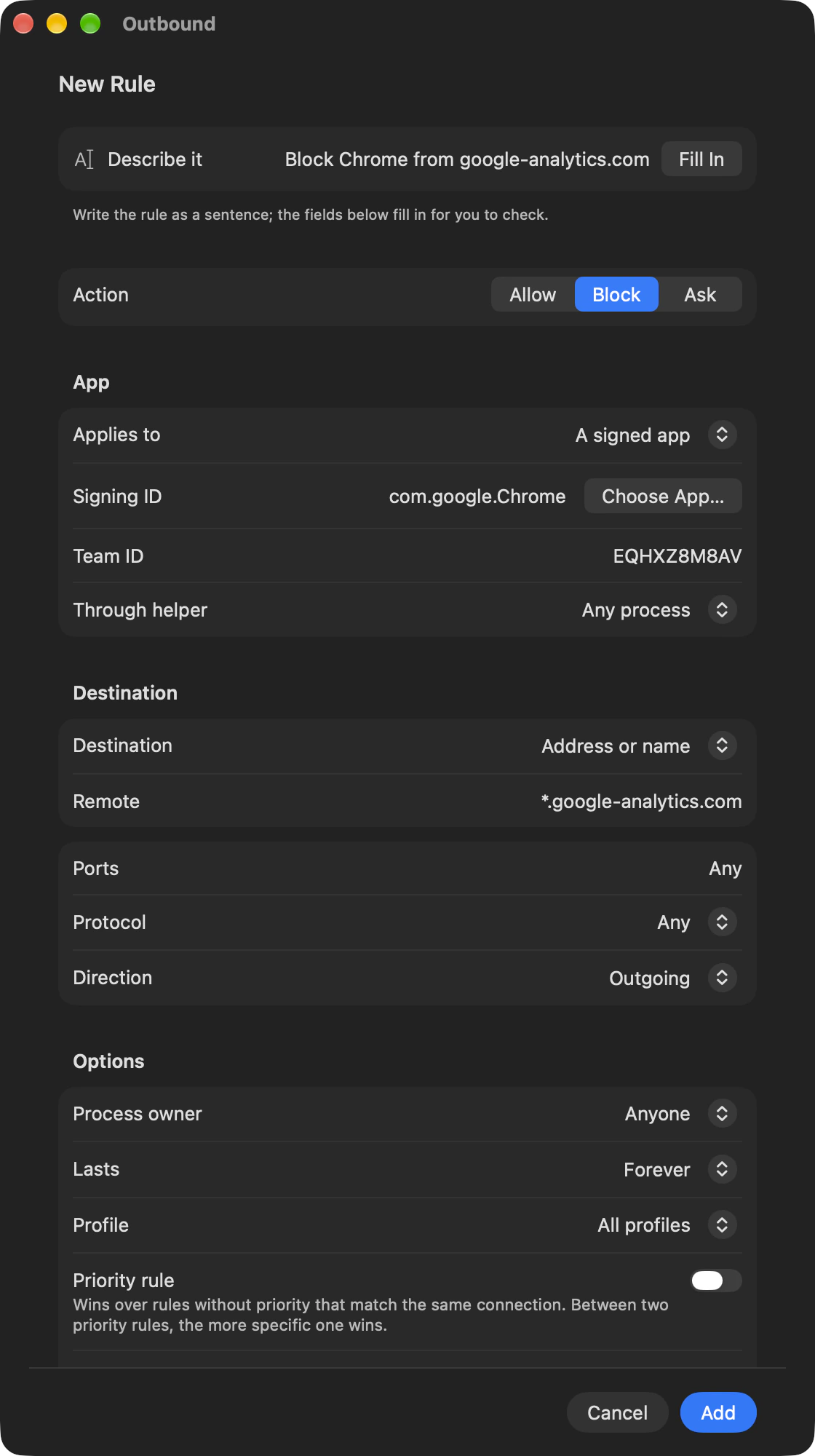
Choose how far it goes.
Pick the destination, ports, protocol and direction. Then choose how long it lasts, a profile, and whether it is a priority rule. Nothing is saved until you save.
See every field and conditionRead back what you saved.
Every rule names an app, a destination and how long it lasts. Select it to read its settings, where it came from and your note.
Explore the rule inspector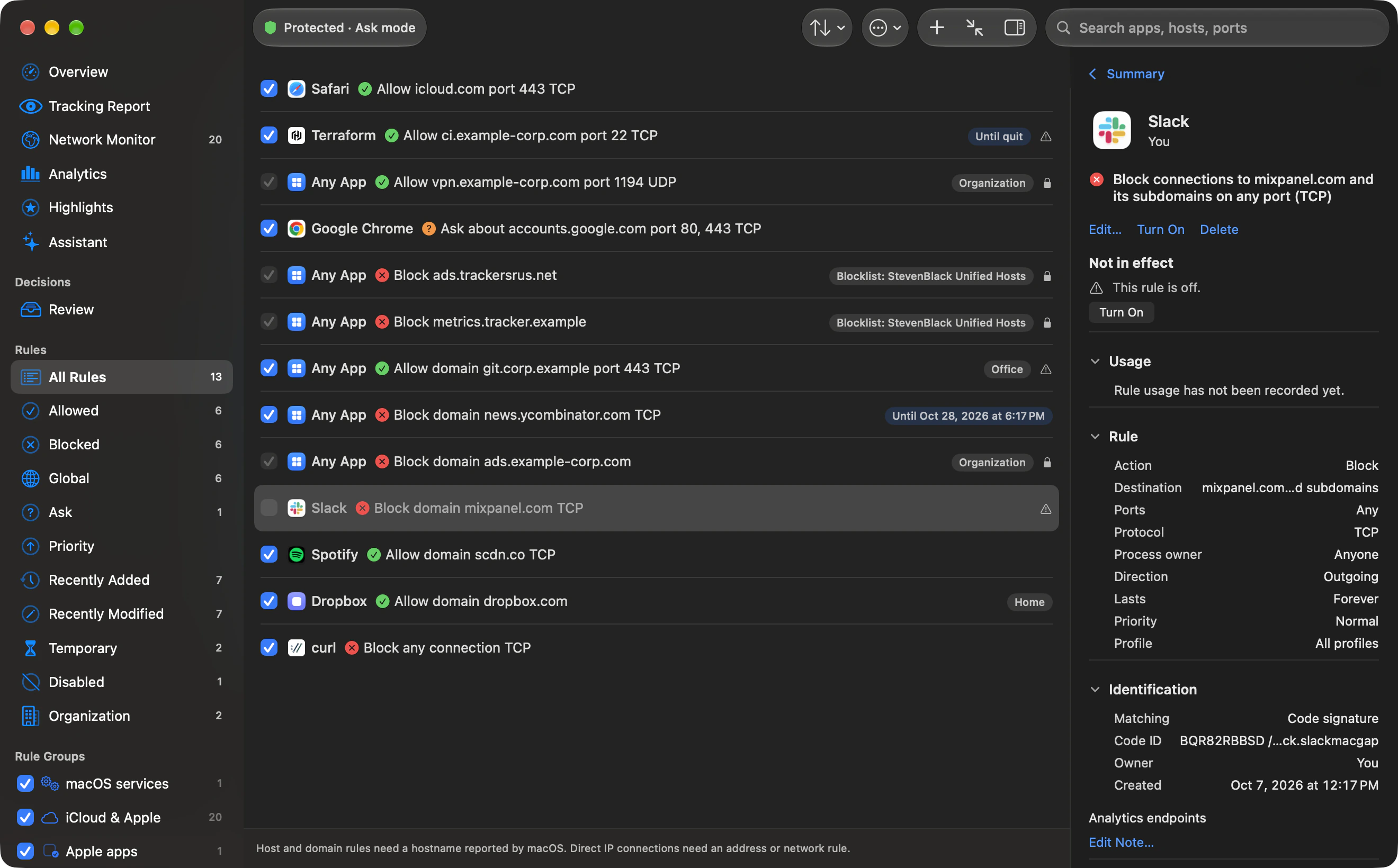
Rule inspector
Every rule tells its story.
Read the rule and the reason. Select a rule to see its settings, how it was made, your note, and why it isn’t in effect.
- On or off. A disabled rule never matches. This Slack rule is switched off.
- Read it as a sentence. Select a rule to read it as a sentence, with its settings, where it came from and your note.
- The fields behind the rule. Action, destination, ports, protocol, lifetime, priority and profile. The inspector calls a stored block action Deny.
- Keep your reason. A note lets you record why you made it.
A Slack rule that is switched off. The inspector labels it “This rule is off”, and a rule that is off never matches.
Explore rule sourcesIn depth
Get to know your rules.
Choose exactly what a rule covers. Explore lifetimes, precedence, local networks and the ways to move your rules between Macs.
In depth
Rule editor
Write a rule as a sentence.
Type “Block Chrome from google-analytics.com” and click Fill In. Outbound fills in the fields for you to check, and nothing is saved until you save.
Step by step: block an app from the internet on Mac ›
An Outbound rule allows, blocks or asks about an app’s connections to a host, domain, IP address, network range or the local network, on the ports and protocol you choose. Every rule names an app, a destination and how long it lasts. Write one as a sentence, set a schedule, switch profiles, subscribe to lists and move your rules between Macs.
- Action
- Allow, block or ask. An ask rule sends matching connections to the alert. With alerts disabled, it allows in Learn or Ask and blocks in Strict. The inspector calls a stored block action Deny.
- App
- Any app, a signed app by signing identifier and team ID, or a program by path.
- Destination
- any, local,
*.example.com, a host name, an IP address, or a network such as10.0.0.0/8. Or choose Countries to block the countries you pick, or allow only those countries. - Ports
- any, one port, a list, or a range such as 8000-8100.
- Protocol and direction
- Any, TCP, UDP or ICMP. Outgoing, Incoming or Either.
- Lasts
- Forever, For 1 hour, For 1 day, Until logout, Until restart, or On a schedule…
- Profile and priority
- Keep a rule to one profile, or make it a priority rule. A priority rule wins over rules without priority that match the same connection; between two priority rules, the more specific one wins.
- Notification and sound
- Have an allow or block rule show a notification, play a sound, or both, when it decides. The rule decides the same way either way. A busy rule posts at most one notification a minute and counts the rest into the next one.
- A sentence it can’t read gets a plain reply, such as “Start with what to do: block, allow or ask.”
- A path rule matches that exact path. For Homebrew and CoreSimulator, a rule saved from a versioned path keeps matching after an update. A pinned program whose binary is replaced is asked about again in Learn and Ask, or blocked in Strict and filed in Review as “Changed binary”.
- A rule can also name the helper a connection goes through, its “via” condition. The editor preserves that condition. A disabled rule never matches; a note lets you record why you made it.
- Host names are stored and compared in lower case. A host name matches exactly;
*.example.comincludes the domain and its subdomains. A trailing dot lets you name a host such asany.without choosing Anywhere. - Port rules test the remote service port for outgoing connections and the local service port for incoming ones. If an incoming local port is unknown, a port-specific block can match, but an allow or ask cannot.
- A country rule leaves servers on your local network, and servers whose country isn’t known, alone.
Change many rules at once
- Edit several rules
- Select rules and change their action, lifetime, state, profile or note together. Fields you leave at No Change stay as they are. If the change unblocks connections, you approve it once, and one Undo reverses all of it.
- Merge rules that match
- When an edit would make rules identical, Outbound offers to merge them into one, keeping the oldest rule and combining their notes.
- Copy, duplicate and paste
- Copy a rule, its program path, signing ID or destinations. Duplicate a rule into the editor, paste rules after a confirmation, or start a new rule for the same app. Turn into Global Rule makes a rule apply in every profile.
- Find and sort
- Sort by name, precedence, last used, usage count, date added or date modified. Filter by destination type and direction, show equivalent rules as one row, and list the rules affecting one app.
Temporary rules
Allow or block for a while.
Allow or block an app or a server for a set time, and your usual rule returns when the time is up. Rules with a lifetime other than Forever appear under Rules › Temporary. The filter checks the lifetime whenever it compares a connection with a rule.
For a while, from where you are
- Where to choose it
- In the Network Monitor or the inspector, choose Allow Temporarily or Block Temporarily, then 5 minutes, an hour or until you log out. Control Center offers 5 minutes or until logout. In Terminal,
outboundctl allowanddenytake--forwith 5m, 1h, 1d, until-logout or until-restart. - Your usual rule steps aside
- The rule that decided before is held back while the timer runs and applies again when it ends. Outbound says which one: “The temporary allow ended. Your existing block applies.”
- See it and end it
- An hourglass shows how long is left, such as “Allowed for 4 min”. Cancel Timer ends it now. Undo reverses the change.
- When nothing would change
- If your organization’s rule decides the connection, or another rule would still decide it, Outbound changes nothing and tells you why.
| Lifetime | When it matches |
|---|---|
| For 1 hour / For 1 day | Until a fixed date and time, one hour or 24 hours from saving in the editor. |
| Until the app quits | While that copy of the process remains alive. Set it in an alert; the editor’s Keep current preserves an existing until-quit rule. |
| Until logout | While the login session is the one the rule was made in. |
| Until restart | During the startup the rule was made in. |
| On a schedule… | During the selected weekdays and time window, in this Mac’s local time. It stops matching outside the window and returns when the next one begins. |
- A new schedule starts Monday to Friday, 09:00 to 17:00. Choose at least one weekday. Equal start and end times mean all day on the selected days.
- An end earlier than the start means the following morning. Select the nights the window starts: an overnight window belongs to its starting day.
- The editor has no Until Quit choice for a new rule. If it cannot tie Until logout or Until restart to this session or startup, it asks you to choose another lifetime.
- When a temporary rule can no longer match, Outbound removes it. A schedule never ends. A rule that lasted until a time, until logout or until restart then appears in Review under Temporary decisions that ended, with Make Permanent and Keep As Is.
- When Rule activity notifications are on, a rule that expires after launch posts “A rule expired”.
Local network
Keep a rule within your network.
Enter local as the destination to match the built-in ranges and any extra ranges you add. The Rules list calls this Local network.
| Kind | Ranges |
|---|---|
| Private IPv4 | 10.0.0.0/8, 172.16.0.0/12, 192.168.0.0/16 |
| Link-local | 169.254.0.0/16, fe80::/10 |
| IPv6 unique local | fc00::/7 |
| Loopback | 127.0.0.0/8, ::1/128, with the exception below. |
- Add a range
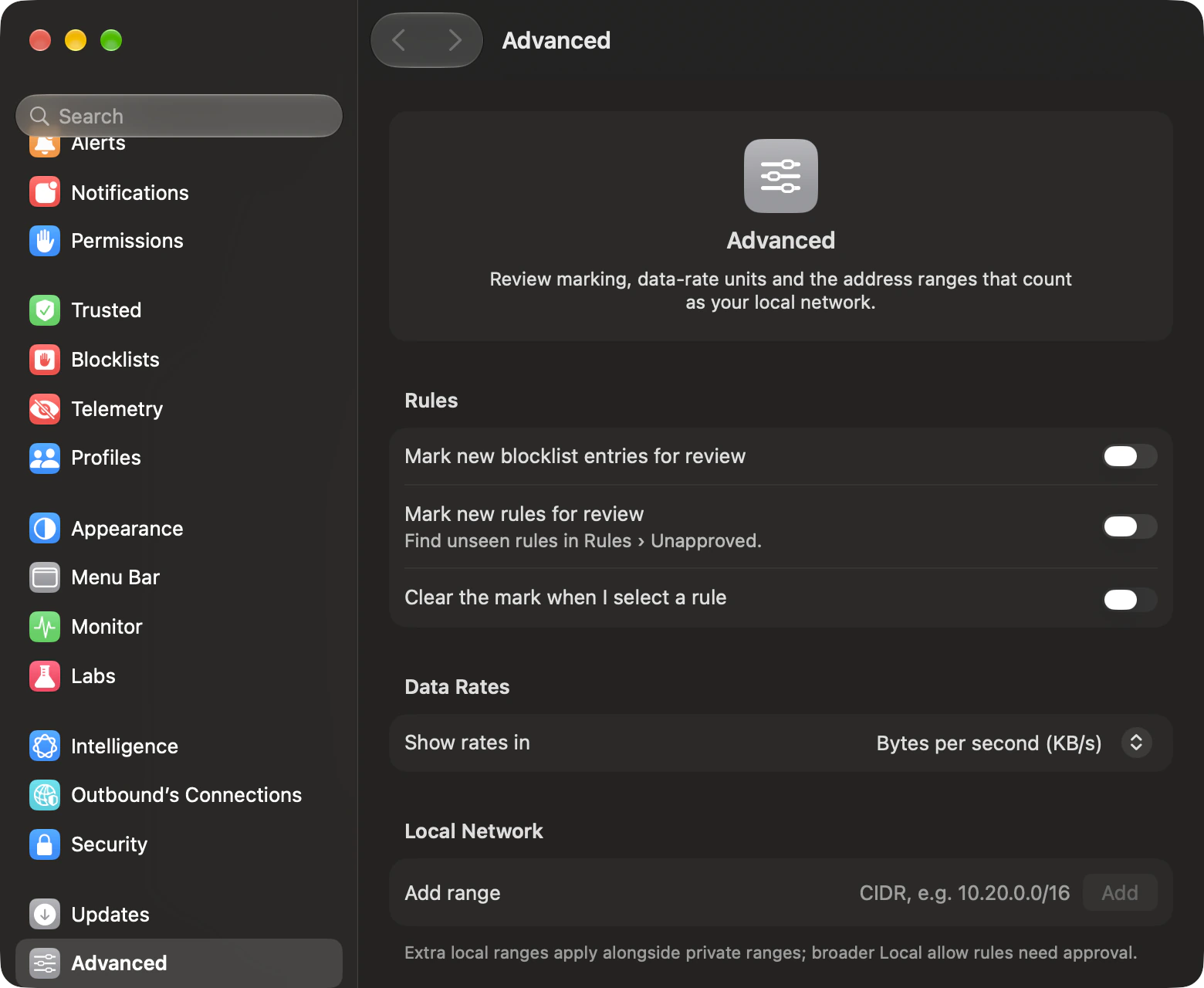
- Settings › Advanced › Local Network accepts extra IPv4 or IPv6 CIDR ranges. The Local network destination and trusted group both use them. Adding a range to a Local network allow rule loosens protection and asks for approval.
- Local development servers
- Loopback reaches the filter only while an enabled rule names a loopback destination, and only such a rule decides it. Anywhere and Local network do not count for this purpose. Ask and Strict leave local servers alone unless you write that explicit rule.
Rule inspector
Every rule says where it came from.
Select a rule to read it as a sentence, with its settings, where it came from and your note.
- You
- Rules you made in the app or with outboundctl.
- Organization
- Rules your administrator sends through a managed rule feed.
- Blocklist
- One rule for each entry of a list you subscribe to.
- Trusted by default
- The built-in rules for Apple services and the groups you trust.
- Known telemetry
- Block rules from the tracker database, when you turn that on.
- Rule group
- Entries you accepted from a downloaded allow list.
What the details also tell you
- How it was made
- Each rule keeps a record of where it was created, such as an alert, Review, the editor, the Network Monitor, outboundctl or an approved assistant request, and when. For an alert or Review it names the app, the server and what you chose. Edits never rewrite that record.
- Your note, and the original
- Add or edit a note. Restore Original Note puts back the note the rule was created with.
- Why it isn’t in effect
- Not in effect gives the exact reason: its profile isn’t active, it is outside its schedule, it has expired, or “A higher-priority rule decides this traffic first.” Where there is a fix, a button next to the reason offers it, such as Activate Profile or Show Rule.
- Why it’s locked
- A rule you can’t change says why: it is managed by your organization, part of a blocklist or trusted group, or the settings are locked.
- Raise or remove priority
- Raise Priority… and Remove Priority… show which rule will decide the connection before you save. One Undo takes it back.
- When an app changes
- If the code on disk no longer matches the copy a rule was approved for, Not in effect says so, and when Outbound asks about the app, the alert shows what changed. Update Rule to This Version… moves the rule to the code running now, after you confirm, and Undo puts it back.
Precedence
When rules disagree, the most specific wins.
Outbound compares the rules that match, step by step. The first difference decides.
- Priority rules.
- Organisation rules, when your administrator turns on the override.
- Your rules and lists, over the built-in trusted groups.
- The more specific destination: an address over a network, a longer network prefix over a shorter one, a host over a domain, a domain with more labels over a shorter one, the local network over anywhere.
- Rules that name ports, then the one naming fewer.
- A named protocol over Any.
- The more specific program: code identity, then path, then an Apple-signed category, then any app. Naming a helper adds weight.
- Outgoing or incoming over either.
- Block over allow, allow over ask.
- Then the newer rule. If creation times tie, the lower identifier wins, then the earlier rule in the list.
Allow Zoom to zoom.us Decides
A host: more specific.
Block Zoom anywhere
Anywhere: less specific.
The allow wins at step 4. Destination comes before action, so a specific allow beats a broad block. See the same comparison in Terminal ›
Profiles
Rules for each place you work.
Group rules into profiles such as Home and Office. Join a network and Outbound can switch for you.
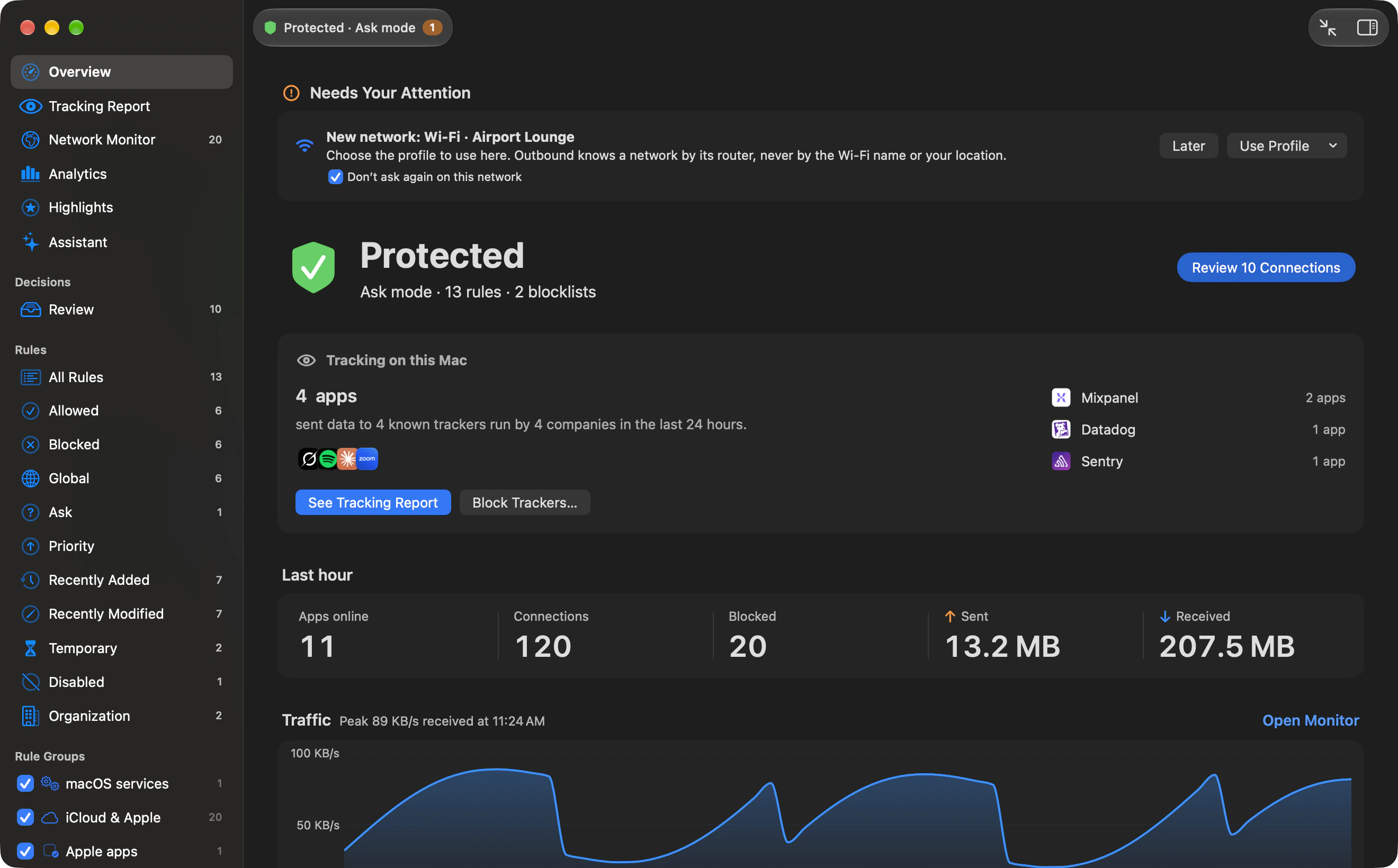
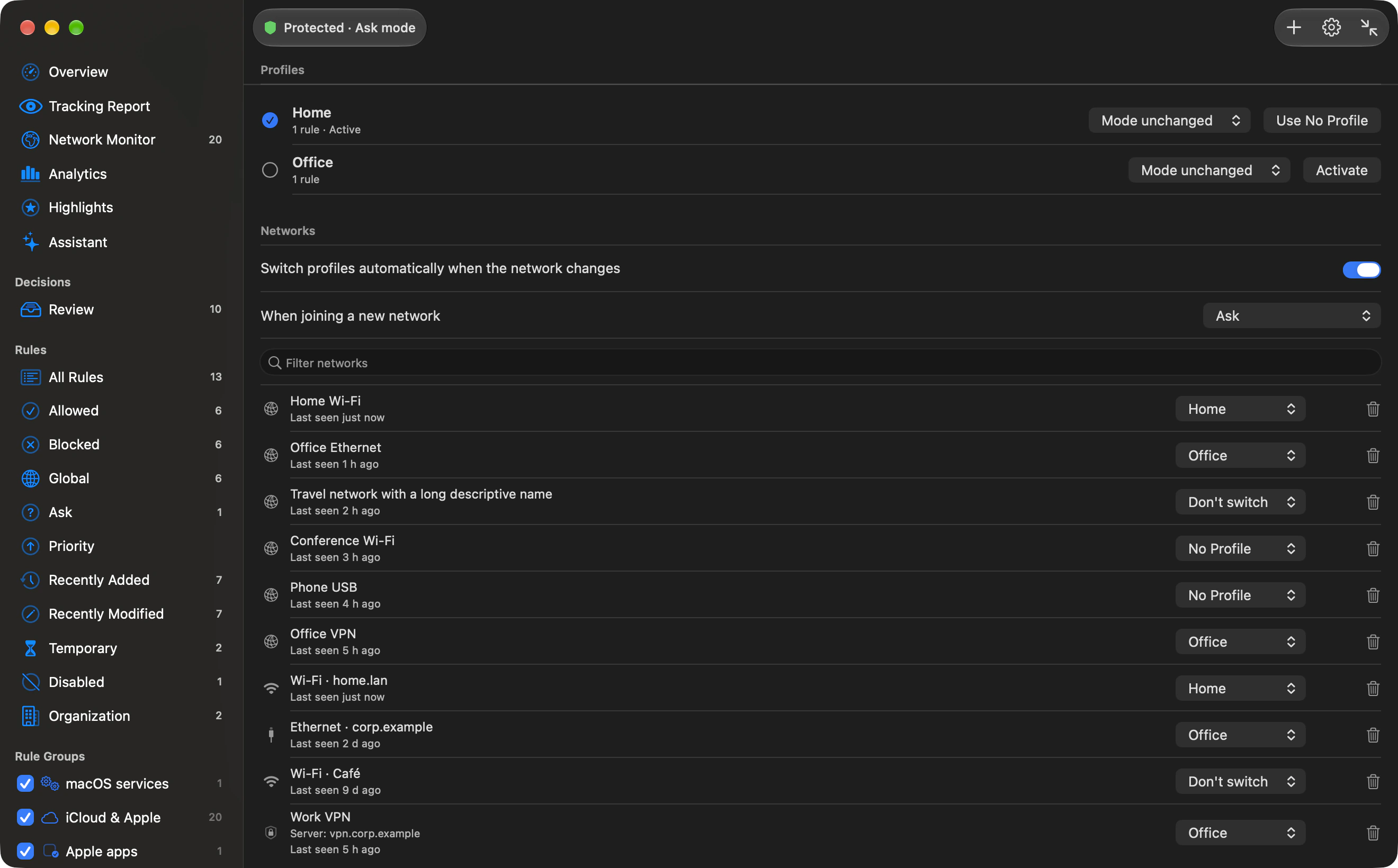
- Outbound knows a network by its router, never by the Wi-Fi name, so it needs no location access. Switch by hand from the menu bar, Firewall › Profile, Settings › Profiles, the Profiles pane, Shortcuts and Siri, or
outboundctl profile activate. - A VPN counts as its own network for each server it connects to, so a work VPN can switch to your Office profile while another server keeps your usual one. Tunnels macOS makes for itself are not treated as a VPN.
- One profile can be active, or none. Rules without a profile always apply. With No Profile active, only those rules apply.
- A profile’s Mode menu offers Mode unchanged, Learn mode, Ask mode or Strict mode. A switch to a looser mode asks for approval.
What joining a network does
- Automatic switching
- Switch profiles automatically when the network changes is on by default in Settings › Profiles. Turn it off and joining changes nothing and asks nothing; saved assignments stay.
- A new network
- When joining a new network offers Ask (the default), Keep current profile, Use a named profile, or Use no profile. The Ask question needs a saved profile and permission to edit rules.
- A known network
- Assign a profile, No Profile, or Don’t switch. No Profile turns the active profile off; Don’t switch leaves it as it is. Remove forgets the network, so the next join follows the new-network choice.
- Answer now or later
- The new-network question offers Use Profile, No Profile and Create Profile…. Later keeps the current profile. Don’t ask again on this network starts ticked; Later with it ticked remembers Don’t switch.
The new-network default runs on the first join. Outbound immediately records the network as Don’t switch. Later joins leave the profile alone until you assign that network or remember an answer.
Removing a profile deletes your rules in it; Edit › Undo brings them back. Organisation and blocklist rules are kept but no longer apply while they name that missing profile. Networks assigned to it become Don’t switch.
Blocklists
Lists that keep themselves current.
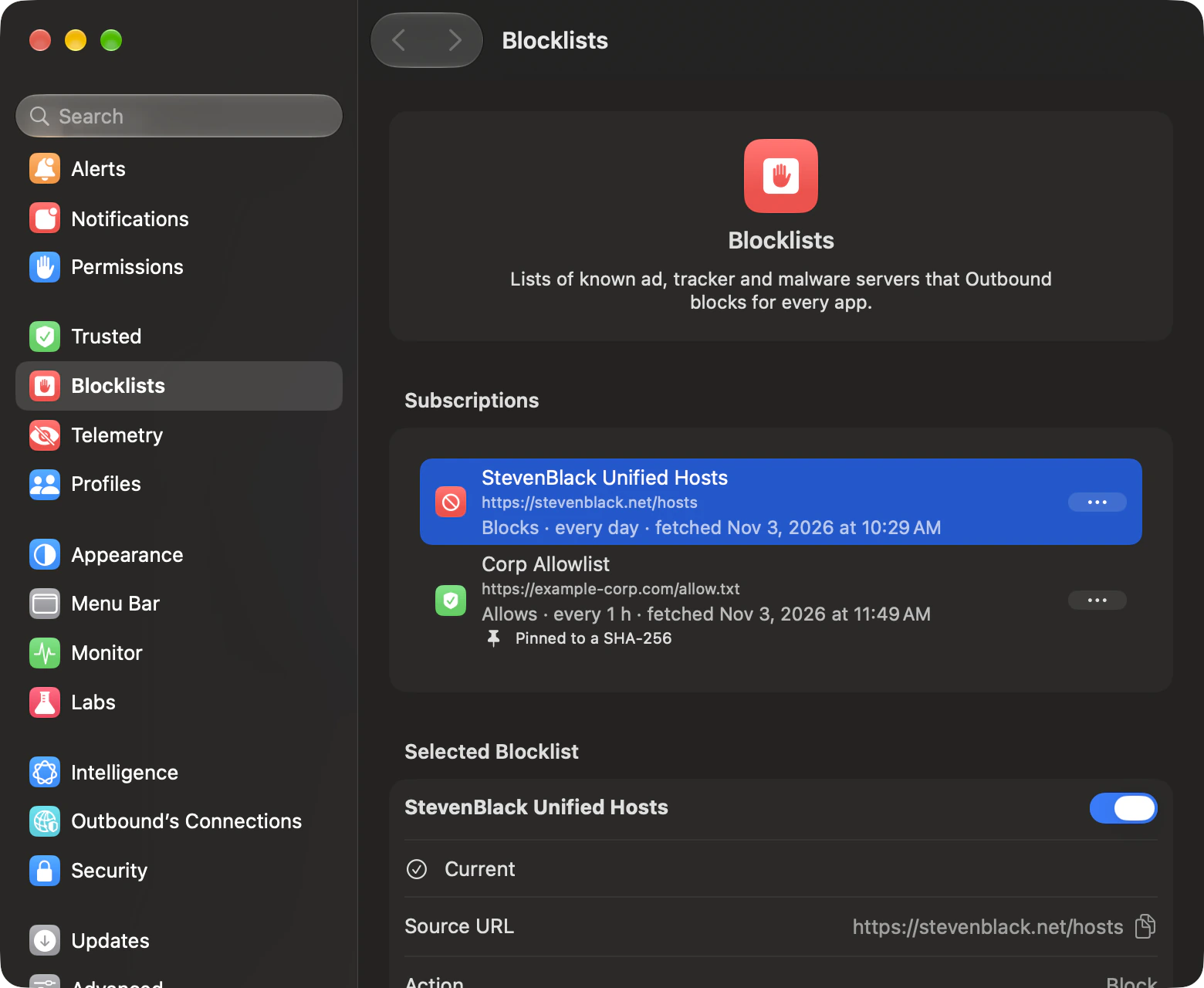
Pick from 60 well-known lists, or add any HTTPS address. Outbound downloads each list every day by default and replaces its rules in one step.
| Format | How entries become rules |
|---|---|
| Hosts file | 0.0.0.0 ads.example.com. Several names after an address are all taken as domains, including their subdomains. |
| Plain domain or wildcard | example.com or *.example.com covers that domain and its subdomains. A plain single-label name such as printer is skipped. |
| Adblock-style domain | ||example.com^ becomes a domain rule. Exceptions and cosmetic filters are skipped. |
| Address or network | A single IPv4 or IPv6 address, or a CIDR network. |
| .lsrules rule group | A .lsrules subscription takes deny entries for any program, outgoing, with no port, protocol or other condition. An allow-list subscription to this format installs nothing. |
Blank lines, comments, localhost and broadcast names are skipped. Names are lowercased and duplicates removed. Each list entry makes an outgoing rule for any app, port and protocol, lasting forever.
Subscriptions and allow lists
- Popular Blocklists
- A library of 60 privacy, advertising and malware lists, by category, with each list’s publisher, licence, format and measured size. Select several and add them together.
- Add Blocklist…
- In Settings › Blocklists, enter an HTTPS Address and optional Name. Choose Block these hosts or Allow these hosts. The same address cannot be added twice, and a redirect away from HTTPS stops the download.
- SHA-256
- An optional pin refuses any copy whose bytes differ. It needs 64 hexadecimal digits; an optional
sha256:prefix, surrounding spaces and letter case are accepted. - Accept downloaded allows
- New allow-list entries wait in a review group and match nothing. Accept an entry to make an allow rule you can edit. If the list drops it, it is removed while still an allow; an entry you changed to block or ask becomes yours and stays.
- Remove and Delete Its Rules
- Removing a subscription deletes its rules too. Edit › Undo restores the list and its rules.
Lists and entries you control
- Turn a list off
- Switch a list off without unsubscribing. Its entries are kept and it still refreshes on schedule, ready to switch back on.
- Browse entries
- Search one list’s entries, or every list together, and filter by Used, Enabled, Disabled or Unapproved. Each entry shows how often it decided a connection and when it last did.
- Switch an entry off
- Disable a single entry for every app. It stays off when the list refreshes, and Edit › Undo brings it back.
- Review new entries
- Turn on Settings › Advanced › Mark new blocklist entries for review to see which entries a refresh added, then approve them one at a time or all together.
When a list blocks something you need
- See the entry
- Select a blocked connection in the Network Monitor. Its details name the list and the entry that blocked it, and when the list was last fetched.
- Allow it for one app
- Allow for (App) Only makes an exception for that app alone. Allow for Every App… asks you to confirm separately, spells out the priority rule it saves, and lists any of your block rules it would override.
- Or change the list
- From the same menu, show the entry in its list, disable it, or turn the whole list off.
- Older exceptions
- Exceptions that earlier versions created automatically appear in Review, so you can check whether they should apply to every app.
Refresh and limits
- Every day by default
- In a list’s details, choose every hour, 6 hours, 12 hours, day or week, see when it was last fetched and when it refreshes next, or choose Refresh Now. Outbound checks about once a minute for due lists and retries a failed download after 15 minutes. Refresh All includes lists hidden by the filter.
- Unchanged content
- Downloads use an ETag when available, so an unchanged list can leave its installed rules alone without downloading the content again.
- Download and entry limits
- A block or ask list can hold up to 2,000,000 entries, and an allow list up to 200,000. A list over its limit is refused whole. A download is capped at 64 MB and times out after 60 seconds. No usable entries means the previous rules stay.
- A sudden drop in size
- A blocklist refresh below a tenth of the larger of its installed count and highest previous count is refused. Exactly a tenth is accepted. Allow lists use the group’s existing entry count. If the smaller list is expected, remove it and add it again.
Rules file
A documented file you can take with you.
Outbound stores rules in rules.json and settings in settings.json in its app group container. The app, background agent and outboundctl use the same versioned JSON formats.
- The envelope
- The rules file has
schemaVersion: 2and aruleSetwithrulesand compactedblocklists. Compaction groups compatible subscription entries without changing the rules they produce. - Each rule
- A unique ID, action, direction, program and destination, ports, protocol, lifetime, priority, enabled state, source, dates and note. Optional fields name a helper, profile or approved code hash and path.
- Subscriptions and profiles
- Subscription details, profiles and the active profile are in settings.json. Exporting rules is different from moving the whole configuration.
- Safe saves
- Saves are atomic. Before a save, a valid previous file becomes rules.json.bak. A shared lock prevents the app, background agent and outboundctl from overwriting each other’s changes.
Export and import are different
outboundctl rules export <file>writes the whole rule store, including every source.outboundctl rules import <file>replaces your user rules as a set. User rules missing from the file are removed. Existing managed, blocklist and rule-group rules stay; non-user rules in the imported file are ignored.- Duplicate imported user-rule IDs, or an ID colliding with a retained non-user rule, fail the import. Export a safety copy first. For a whole configuration, use the supported backup commands.
- Schema 1 rule files migrate on load. A schema newer than 2 is reported and never overwritten. If both the main file and backup are unreadable, Outbound reports an error rather than starting with no rules.
.lsrules files
Bring your rules with you.
In the Rules pane, Import or Export Rules reads and writes rule groups in the .lsrules format. Import shows what it will add before anything changes.
- Allow, block and ask rules come across, with their ports, protocols and notes. A rule with no action becomes an ask rule.
- The preview counts what the file adds, changes and already matches, lists each conflict with your rules, and says why it can’t read an entry.
- When the file and your rules differ, choose Keep my rules, Use the imported rules, or Replace my rules with the file. Importing the same file again adds nothing.
- Edit › Undo reverses the whole import. Changes that unblock connections need your usual approval.
- Skipped, with the reason shown: multicast, broadcast, Bonjour, DNS-server and BPF entries, other protocols, and address ranges that aren’t CIDR.
- Import also carries direction, priority, disabled state and a helper condition. Several destinations in an entry become separate rules. Imported rules are yours and last forever.
- Export as .lsrules exports the selected rules, the rules in view or all your rules, with a group name and description, so the file can be hosted and subscribed to.
- Before you export, Outbound lists the rules the format can’t carry and why: temporary, profile, country and both-direction rules, Apple-signed process categories, and rules from your organization or a list. It also lists rules that would match more programs in the file, and Strict export writes nothing if any would.
From Terminal: outboundctl rules import-lsrules <file>, with --merge keep-existing, prefer-imported or replace, and outboundctl rules export-lsrules <file>, with --name and --description. Outbound can also subscribe to an .lsrules rule group as a blocklist. What maps, and what doesn’t ›
Command line
Manage the same rules from Terminal.
outboundctl can inspect and change the rule store, switch profiles and manage subscriptions. Changes remain subject to the app’s edit policy.
| Command | What it does |
|---|---|
outboundctl rules list | Lists rules as tab-separated rows. Add --json for the complete rules as a JSON array. |
outboundctl rules count | Prints the number of rules, including every source. |
outboundctl rules add | Creates an enabled outgoing rule, permanent unless you add --for, and prints its UUID. Requires --action allow|deny and --remote. |
outboundctl rules remove <uuid> | Removes one rule. Managed rules refuse removal; for a subscription rule, use blocklist remove instead. |
outboundctl rules export <file>outboundctl rules import <file> | Writes the whole store, or replaces only your user rules from native JSON, as described above. |
outboundctl rules import-lsrules <file>outboundctl rules export-lsrules <file> | Imports an .lsrules file, choosing with --merge how conflicts are settled, or writes your rules that the format can express. |
outboundctl allow <app> <host>outboundctl deny <app> <host> | Allows or blocks an app, by signing identifier or path, for one server. Add --for 5m|1h|1d|until-logout|until-restart to make it temporary. |
outboundctl rules show <uuid> | Shows whether a rule can be edited, and why it is not in effect. |
outboundctl rules priority <uuid> on|off | Raises or removes one rule’s priority. |
outboundctl rules duplicate <uuid>outboundctl rules merge <uuid,uuid,…> | Duplicates a rule, or merges equivalent rules into the oldest one, combining their notes and usage. |
outboundctl rules note <uuid> --note <text>outboundctl rules restore-note <uuid> | Edits a rule’s note without touching its creation record, or puts back the note it was created with. |
outboundctl rules global <uuid> | Makes a rule apply in every profile. |
- For rules add, use
--portswith a port, comma-separated list or range, and--proto tcp|udp|any. Both default to any. Select a program with--signing-idplus--team-id, or--path; omit app selectors to match every program. - rules add also takes
--countriesor--block-countrieswith ISO codes, and--onlyto block every country outside the list.--notifyand--soundset the rule’s notification and sound, and--formakes it temporary. - rules list can sort with
--sortby name, precedence, last-used, usage-count, date-added or date-modified, and--affecting-pathshows the rules that apply to one program. - A signing ID without a team is accepted only for Apple’s own
com.apple.programs. Do not combine a path with a signing ID. Use the editor for schedule and profile choices, or import native JSON carrying those fields.
Profiles and blocklists
| Command | What it does |
|---|---|
outboundctl profile list | Lists IDs and names; an asterisk marks the active profile. |
outboundctl profile activate <name|uuid> | Activates an exact name, ignoring case, or a UUID. Use lowercase none to deactivate. Ambiguous names need an ID. |
outboundctl blocklist list | Lists subscription IDs, actions, addresses, names, pin status and last fetch. |
outboundctl blocklist add <https-url> | Stores a deny subscription with a 24-hour interval. Add --name or --pin if needed. The background agent downloads it. |
outboundctl blocklist remove <uuid> | Unsubscribes and deletes the list’s rules. |
outboundctl blocklist update [<id>|--all] | Requests a background refresh. No argument or --all means every subscription. outboundctl update-rule-groups accepts the same arguments. |
outboundctl blocklists entries <uuid|all> | Browses entries with their use counts. Filter with --filter used|enabled|disabled|unapproved, or search with --query. |
outboundctl blocklist entry enable|disable <list-uuid> <entry> | Switches one entry on or off, through the usual approval. |
outboundctl blocklists new <uuid|all>outboundctl blocklists approve <uuid> [<entry>] | Lists the entries waiting for review, or approves them. |
The blocklist add and update commands do not download content themselves. An update waits if the agent is off. A request unhandled for an hour is discarded; start the agent and request it again.
Temporary rules
5 min.
Allow or block for a while.
Choose 5 minutes, an hour, or until you log out. Your usual rule steps aside and returns when the time is up. In the editor, a rule can also last a day, until restart, or return each week on a schedule.
Explore temporary and scheduled rulesProfiles
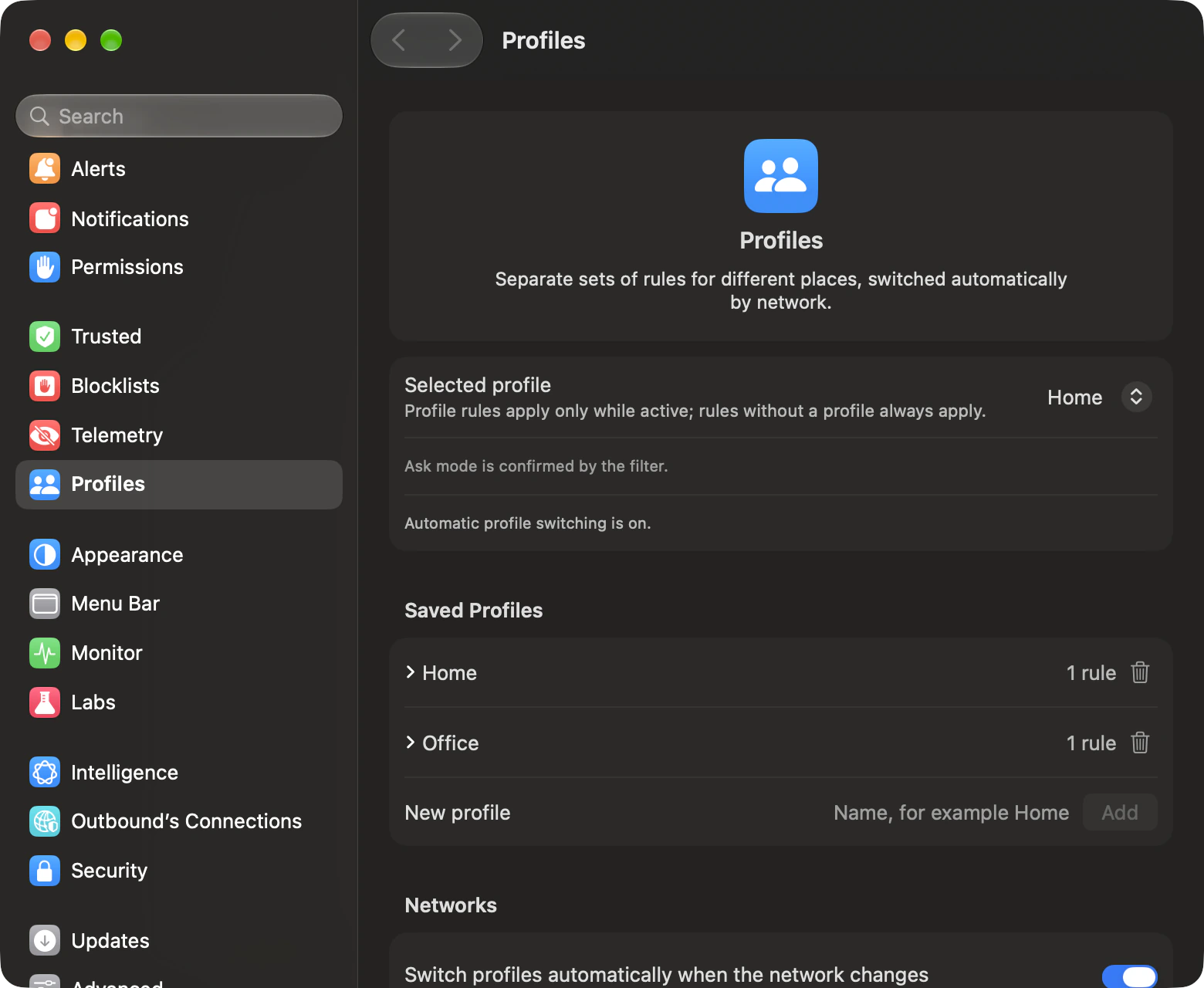
Rules for each place you work.
Group rules into Home and Office. Join a network and Outbound can switch for you.
Blocklists
Lists that keep themselves current.
Pick from 60 well-known lists, or add your own address. Switch a list or a single entry off without losing it, and see which entries are used.
Choose Block these hosts or Allow these hosts. New allow-list entries wait in a review group and match nothing until you accept them. When a list blocks something you need, allow it for just that app.
Explore formats, subscriptions and limitsTech specs
- Action
- Allow, Block, Ask
- New-rule default
- Block
- Applies to
- Any app, A signed app, A program by path
- Remote
- any, local, domain, host name, IP address or network, or a set of countries
- Ports
- any, one port, a list, a range or a mix; each port is from 1 to 65535.
- Protocol
- Any, TCP, UDP, ICMP
- Direction
- Outgoing, Incoming, Either
- Lasts
- Forever, For 1 hour, For 1 day, Until logout, Until restart, On a schedule…
- Schedule time zone
- Your Mac’s local time
- Profile
- All profiles or one named profile, and the control is shown only when you already have at least one profile.
- Notification and sound
- Show a notification, play a sound, or both, when the rule allows or blocks. At most one notification per rule each minute.
- Temporary decisions
- For 5 minutes, for 1 hour or until logout in the app. outboundctl --for also takes 1 day and until restart.
- Blocklist size
- Up to 2,000,000 entries for a block or ask list, and 200,000 for an allow list
- Blocklist refresh
- Every day by default; every hour, 6 hours, 12 hours or week per list
Questions about rules
Can you write a rule as a sentence?
Type a sentence such as “Block Chrome from google-analytics.com” and choose Fill In. Check the fields before saving: nothing is saved until you save the form.
Can you set a rule for work hours?
Choose On a schedule… under Lasts, then select the weekdays and start and end times. The schedule uses your Mac’s local time and can continue into the following morning.
Does a block always beat an allow?
No. Priority rules are compared first, then organisation rules if the managed override is on. Destination, ports, protocol, program and direction are all compared before the action, so a more specific allow can beat a broader block. Block beats allow only when those earlier steps tie.
Can you allow an app for just a few minutes?
Yes. In the Network Monitor or the inspector, choose Allow Temporarily or Block Temporarily, then 5 minutes, an hour or until you log out. The rule that applied before steps aside and returns when the time is up, or when you choose Cancel Timer.
Do your rules work when Outbound is not running?
The network filter holds its own copy of your rules and enforces them even when the app is not running.

Choose where your apps connect.
Outbound is $29 for the first 50 licences, then $39. Either way, you pay once.
- 2 Macs, or 5 with Family
- One-time, no subscription
- Full refund within 14 days
- macOS 14 or later