Features · 01 Alerts
Every connection. Your call.
In Ask mode, Outbound holds a connection that no rule decides and asks you to allow or block it. Read the evidence, then choose how long and how far your answer goes.
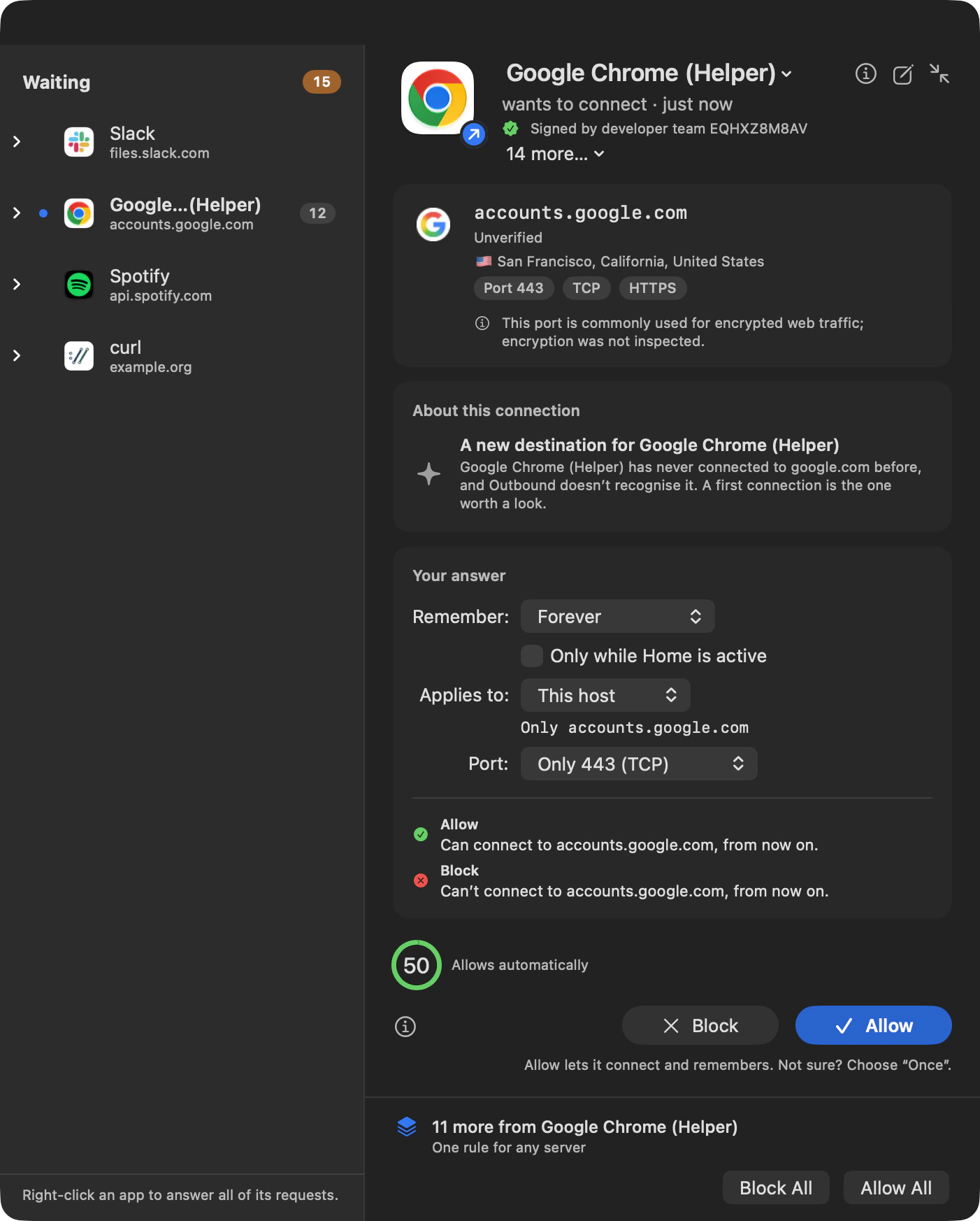
The alert
Everything you need to answer.
The program, the destination, the reason. One window, before you choose.
- Who signed it. One line from the code signature: Apple system software, Signed by and the developer’s name, From the Mac App Store, Signed by developer team, Signature not verified, or Not signed.
- Where it’s going. The registrable domain is set in full weight, so a look-alike name stands out.
- The service. Chips name the port and protocol, and the service on that port: HTTPS, DNS, SSH, IMAP, NTP and more.
- About this connection. What Outbound knows, never a verdict: “A new destination for Google Chrome”, “Google Chrome’s own server”, “An unrecognised server”.
- How long and how far. Remember, Applies to and Port turn your answer into a rule, or keep it to this one connection.
- What each answer does. Read before you click: “Can connect to accounts.google.com, from now on.”
- If you don’t answer. The gauge counts down and says what will happen: “Allows automatically”.
- Every waiting app. One panel holds every question. Right-click an app to answer all of its requests at once.
Block and Allow ignore clicks and keystrokes for 0.8 seconds after an alert appears, so typing in another window can’t answer it. VoiceOver reads each new alert aloud, and Outbound can play a sound when one appears.
Your answer
Once. Or remembered.
Choose how long, and how far. Once leaves nothing behind. Every other choice saves a rule you can read.
Read the question.
The alert names the program, who signed it and where it wants to go. Then it tells you what each answer will do, before you choose.
Read the connection detailsChoose how long, and how far.
Once leaves nothing behind. Every other choice saves a rule you can read, when Outbound can tell which program, session or startup it belongs to.
Explore scope and lifetimeAn answer you can read back.
The line under the pickers tells you what your answer will save. When the alert closes, it’s saved, and the rule is there in Rules.
See defaults and saved answers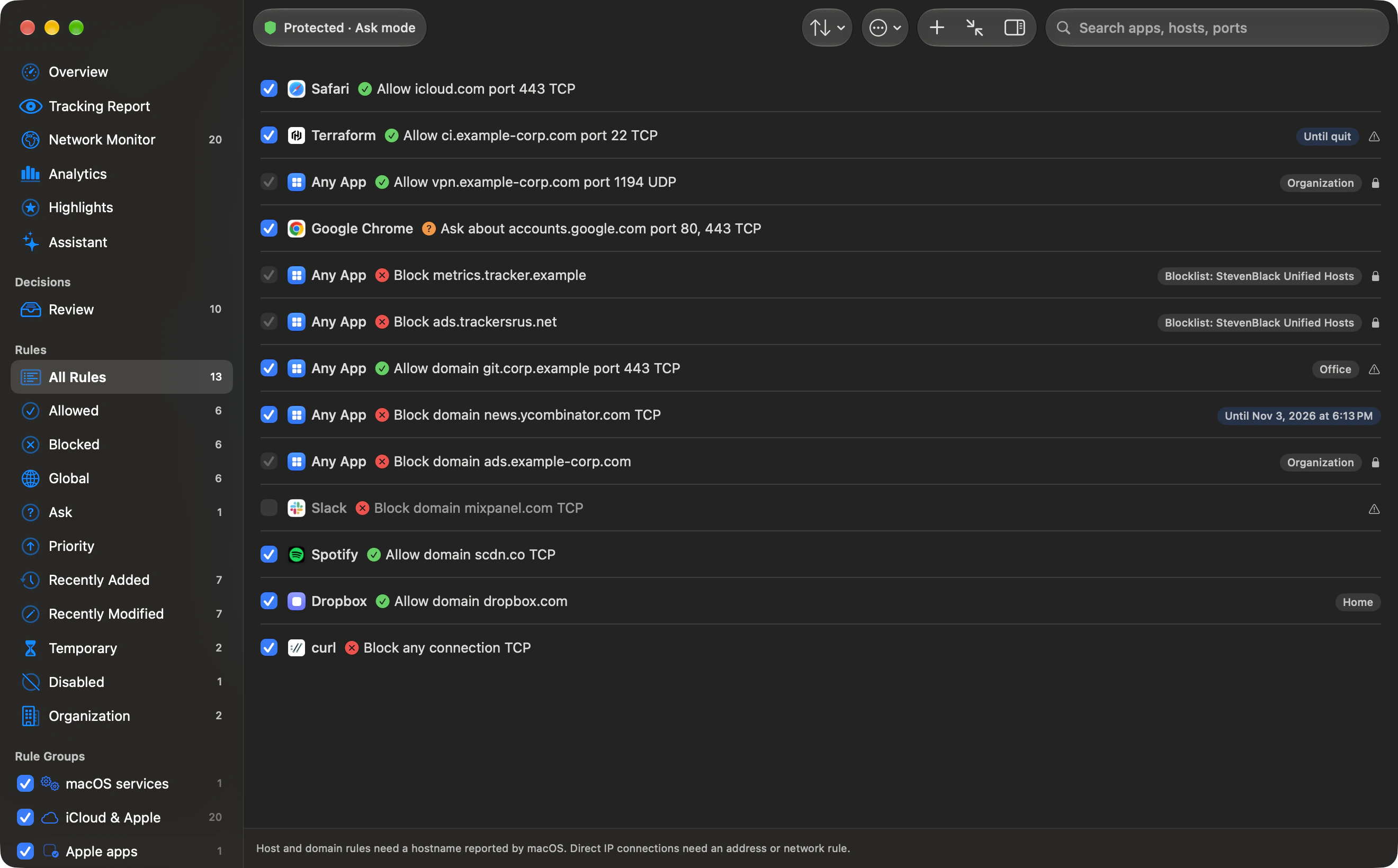
Connection details
Get to know your alerts.
Read the evidence behind the question. Explore the details, the choices and what happens next.
In depth
Connection details
Read the evidence behind the question.
Choose Show details or press ⌘I to open the technical details. Use the same control to hide them. The values are selectable.
| Row | What you see |
|---|---|
| Program | The executable’s full path, including a helper’s own path, or “Unknown”. |
| Identifier | The trusted signing identifier, a claimed identifier marked “(not verified)”, or “None”. |
| Signed by | The organisation and developer team, Apple, or “Not verified”. |
| Process ID | The PID, when the system reports one. |
| Address | The raw IP address, or “Not resolved yet”. |
| Location | A flag, city, region and country, when the location database knows the address. |
| Port / Local port | The service port and protocol. Incoming connections use Local port. |
| Direction | Incoming or Outgoing. |
- Show in Finder reveals the app bundle, or the executable itself when there is no bundle.
- Settings › Alerts › Alert Window › Details starts at Compact. Choose Full to open the details as soon as each alert appears.
- About this connection can add first use, earlier connections and blocks, other servers under the same domain, and a catalogue owner. While history loads, it says “Reading (App)’s connection history…”.
- The alert says how long ago the app tried to connect, from “just now” to minutes ago. Hold the pointer over it for the exact time.
Before you answer
- What blocking would break
- The button beside Block explains what blocking this connection is likely to stop: name lookups, Apple services, an app’s own server for sign-in and updates, or a known service. It ends with how to undo it: select the connection in the Network Monitor and allow it again.
- The app itself
- The app’s name opens a menu: Show Rules, Show in Network Monitor, Show in Finder, Activate (App), and Copy Name, Copy Signing ID or Copy Path.
- Quit an app you didn’t expect
- Quit… or Force Quit… from the same menu, after a confirmation. Outbound checks it is still the same process first. Quitting doesn’t answer the connection or make a rule.
- An explanation, if you want one
- Explain this connection asks Apple Intelligence on this Mac, or the provider you chose in Settings › Intelligence. For a provider that isn’t on your Mac, the alert first shows exactly what will be sent and to which provider, and nothing leaves until you choose Send. The explanation can be wrong and never answers the alert.
- Whether the name is verified
- The details say where the server’s name came from and whether a DNS answer for it returned this address. With Settings › Security › Only match host and domain rules on verified names on, a host or domain allow rule applies only to a verified name; block and ask rules still apply. It is on for new installs and stays off after an upgrade until you turn it on.
- A changed app
- When the code on disk no longer matches the copy a rule was approved for, What changed compares the signer, identifier and code you approved with the copy running now. Update Rule to This Version… makes the rule apply to the code running now after you confirm, and Undo puts it back.
Help › How to Read an Alert… walks through each part of the alert again whenever you want it.
The developer’s Internet Access Policy
- Why the app connects
- If an app ships an
InternetAccessPolicy.plistthat describes this connection, the alert quotes its Purpose. Optional port, protocol and direction conditions narrow which entry applies. - What blocking would break
- If the policy includes DenyConsequences, the Block answer adds “The developer says:” and quotes them.
- Whose words you see
- These are the developer’s statements, shown only for code backed by a developer team identifier or Apple’s signature. The policy never decides the connection.
- When there is no policy text
- An absent policy, an entry without a purpose, or a policy that does not describe this connection adds no explanation.
Your answer
Choose how long, and how far.
Once leaves nothing behind. Every other choice saves a rule you can read, when Outbound can tell which program, session or startup it belongs to.
| Choice | What it means |
|---|---|
| Once | This connection only. The next one asks again. |
| For 5, 15 or 30 Minutes | A rule that ends that long from now. |
| For 1 Hour, 1 Day or 1 Week | A rule that ends that long from now. |
| Until Quit | Stops matching when the program quits. |
| Until Logout | Stops matching when you log out. |
| Until Restart | Stops matching when the Mac restarts. |
| Forever | A permanent rule. |
| Choice | What it covers |
|---|---|
| Any server | Every server the program talks to. |
| The local network | Every device on your local network, when the server is on it. |
| Network | The /24 (IPv4) or /64 (IPv6) network around the server’s address. |
| This domain | The server and every server under its domain, such as “Only domain example.com”. |
| This host or This address | That server, such as “Only example.com” or “Only address 203.0.113.7”. |
| DNS lookups via (server) | The name server this program may ask. Its own DNS lookup has no whole-domain or network choice. |
Port: Only 443 (TCP), Any port (TCP), or Any port or protocol. Choose Block or Allow for only this port, or for all of them. When no host name or address is known, the answer applies to this connection only.
- The Port row is off while Remember is Once. It needs a service port and a narrower scope than Any server. Any server has no Port row, and Any port or protocol needs a known protocol.
- With a profile active, “Only while Home is active” keeps the rule to that profile. The box starts unticked, so a new answer applies in every profile. It is off for Once.
- If Outbound cannot identify the program or destination, only Once is available. Until Quit, Until Logout and Until Restart also need the matching process, login session or startup; without it, the answer applies once.
- The line under the pickers reads back what you are about to store, such as “for the next hour”, “on any port” or “every server under example.com”.
- A copy of an app that macOS runs from a temporary location, because it was opened where it was downloaded, can only be answered once. The alert says why.
Defaults and saved answers
- Alerts start with
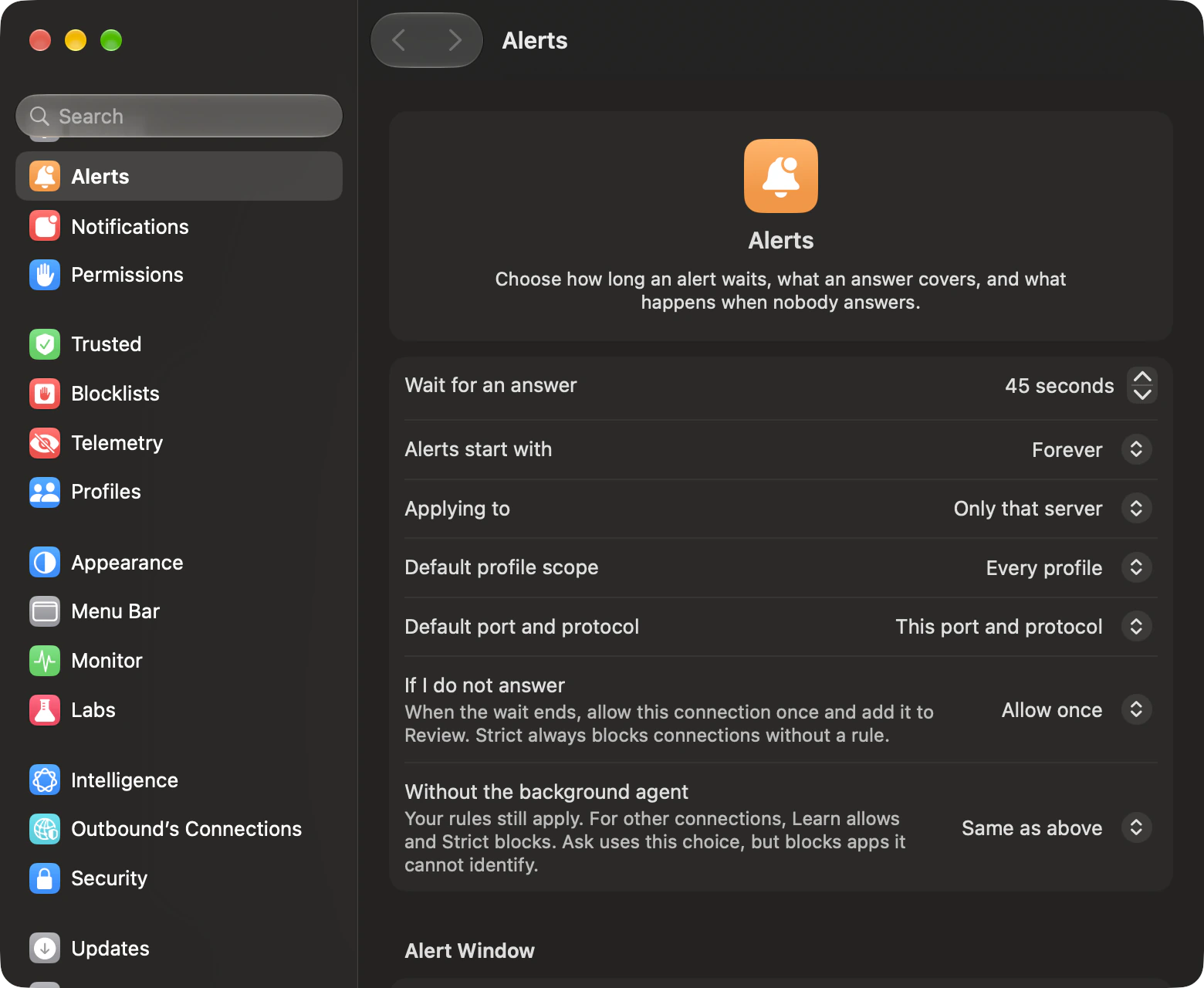
- Settings › Alerts chooses the initial Remember value, Forever by default. A connection that cannot be remembered still starts at Once. When it is a timed choice, Default duration picks the length, from 5 minutes to 1 week.
- Applying to
- The default is Only that server. You can start with Its whole domain or Any connection instead. A domain default falls back to the server when there is no host name or the request is a DNS lookup.
- Profile, port and protocol
- Default profile scope starts each answer for every profile, or only while the active profile is active. Default port and protocol starts with this port and protocol, any port with this protocol, or any port and protocol. Your organization can set the duration, profile and port defaults for you.
- Note, saved with the rule
- The pencil opens a note field. Your text replaces “Created from alert”. Once creates no rule and has no note to save.
- When it’s saved
- A single answer needs no extra confirmation: when the alert closes, it’s saved. Answering all of an app’s requests posts one notification with Show Rule. If the filter is reconnecting, Outbound tells you once that your answers are waiting for it. If the rule cannot be saved, the alert says “The rule was not saved”: this connection was handled, and Outbound asks again next time.
When an organisation policy or the settings lock prevents saving rules, the pickers disappear. Block and Allow still answer this connection once.
Waiting alerts
One panel, even when apps ask at once.
A burst from one app stays one entry. When several apps wait, the Waiting list shows their requests in the same panel.
- Choose an app
- Each row names the app and host, DNS server or address, with a count when several requests from that app wait. The badge counts the total waiting requests. Select a row to bring that app forward.
- Or one request
- When more requests wait, the “N more…” menu lists each one under its app, with its server, port, protocol and direction, so you can answer any one of them first.
- Block All or Allow All
- When the current app has more requests waiting, these buttons answer them together. Or right-click its row for Allow All from (App) or Block All from (App).
- One rule for any server
- A remembered bulk answer stores one rule for the program and any destination, using the displayed lifetime. Once saves no rule. The other waiting connections receive the answer once.
- Undo has a limit
- When a rule was created, Undo removes it. It cannot recall traffic already allowed or bring back connections already blocked.
- Answer later
- Minimize (⌘M) shrinks the alert to a small panel that keeps counting down. Click it to answer. New requests join the queue; deadlines keep running. Turn on Settings › Alerts › Keep connection alerts minimized to have every new alert open that way.
- More time
- Stop Countdown asks for more time, once. The alert then shows when it will decide on its own.
- Apps that quit
- If an app quits while its alert waits, the alert says so. Answering still makes a rule for next time. Dismiss All Terminated clears every alert from apps that quit, and makes no rules.
- When the queue fills
- The filter holds up to 512 paused connections, 64 per program, and 128 open alerts. Excess connections are blocked immediately, rather than receiving the timeout answer. The panel retains at most 128 requests.
If you don’t answer
A deadline, then Review.
An alert can’t hold a connection forever. When time runs out the filter decides by itself, so the answer stands even if Outbound is busy or quitting.
| Connection | Deadline |
|---|---|
| TCP | Settings › Alerts › Wait for an answer: 15 to 120 seconds in steps of 5 seconds. The default is 60 seconds. |
| UDP | 8 seconds, fixed. |
The default timing
- 0.8 s. Block and Allow start to respond. Until then they ignore clicks and keys.
- 50 s. The countdown gauge pulses through its last ten seconds.
- 60 s. The filter decides by itself and the gauge reads “Already decided”. An answer now only stores a rule.
Allow once (the default)
The connection goes through once and waits in Review as “No answer in time”.
Block once
The connection is stopped once and waits in Review.
Strict
Always blocks at the deadline.
Settings › Alerts › If I do not answer chooses Allow once or Block once. Strict always blocks and disables this picker. Nothing is remembered at the deadline, and the next connection asks again. The gauge changes to “Already decided” and “Your answer sets a rule”: a late answer cannot change the connection already handled.
When nobody can answer
- Without the background agent
- Settings › Alerts offers Same as above (the default), Allow or Block. Same as above uses If I do not answer. Strict disables this picker too. Matching rules still decide.
- A changed pinned program
- A program that no longer matches the build pinned by its active path rule is blocked at the deadline, whatever the timeout choice. It is also blocked while the agent is absent.
Modes
Three modes. Your rules apply in all of them.
A mode only decides what no rule has decided. A new Mac starts in Learn, so the first hour brings no alerts.
| Situation | Learn | Ask | Strict |
|---|---|---|---|
| A connection no rule covers | Allowed and recorded in Review | Outbound asks you | Blocked and recorded in Review |
| An alert nobody answers | Allowed once by default; a changed pinned program is blocked | Allowed once by default; a changed pinned program is blocked | Blocked |
| The background agent isn’t running | Allowed | Your choice in Settings › Alerts. Programs Outbound can’t identify are blocked | Blocked |
| Switching to it needs | Touch ID or your password | Touch ID or your password, when coming from Strict | Nothing |
Leaving Learn for Ask from the main window asks “Keep what Learn recorded?” Keep and Use Ask turns what Learn allowed into rules, so apps you already use don’t alert. Use Ask Without Keeping switches and drops the record.
The menu bar, Firewall › Mode and Settings › When an app connects switch directly, without the “Keep what Learn recorded?” question. Choose a mode ›
Review
Decide once for each app and destination.
Review groups repeated connections into one entry per app and destination. Group the list by app, domain, host or port, or not at all. Apps with the newest activity come first.
| Reason | What happened |
|---|---|
| Learned | Learn allowed a connection no rule decided. |
| Blocked by Strict | Strict blocked a connection no rule decided. |
| No answer in time | An alert reached its deadline and received your timeout answer. |
| Changed binary | A program at a pinned path was replaced, so its old allow or ask rule no longer matched. |
- Each entry keeps the server or address, port, protocol, incoming direction, connection count and times. Connections decided by a rule or answered in an alert do not enter Review.
- Allow or Block creates a permanent rule for one destination or the whole app, with the note “Created from Review”. A destination rule needs a host or address.
- When search or the verdict picker hides rows, a bulk answer makes rules only for destinations still shown. Dismiss an entry to remove it; Undo brings it back.
- Allow Verified Developers allows every shown connection from apps signed by a developer team or by Apple. Unsigned programs stay in the list.
- Review holds up to 5,000 destinations. When full, it drops the destination unseen longest.
Broader rules, and decisions that ended
- One rule for a group
- From a domain group, Allow All to the domain; from a port group, Block Port. Each makes one permanent rule for every app. Before you save, the sheet lists every app and connection it covers, including ones hidden by search, and Undo takes it back.
- Temporary decisions that ended
- A temporary allow or block that ran out appears above the list, with what it decided and for how long. Make Permanent saves it again as a permanent rule; Keep As Is leaves it ended.
- Older blocklist exceptions
- Exceptions that earlier versions made for every app are listed at the top. Review each one to choose its app; until you do, it keeps working as before.
Keyboard
Every alert shortcut, together.
Outbound’s alert shortcuts work while the alert is the key window. Answer with Return and Escape is on by default; turning it off leaves the other shortcuts available.
| Key | Action |
|---|---|
| Return | Allow with the displayed scope and lifetime. |
| Esc | Block with the displayed scope and lifetime. |
| ⌘1 | Remember: Once. |
| ⌘2 | Remember: For 1 Hour. |
| ⌘3 | Remember: Until Quit. |
| ⌘4 | Remember: Forever. |
| ⌘I | Show or hide the details. |
| ⌘M | Minimize to a small panel that keeps counting down. |
| ⌘R | Edit Rules… for this program. |
- Return and Esc wait for the 0.8-second delay and do nothing while an answer is being applied. ⌘1 always chooses Once; ⌘2 to ⌘4 need an answer that can be saved. The other shortcuts do not wait for the delay.
- Alerts do not take keyboard focus by default. Settings › Alerts › Alert Window has “Give alerts keyboard focus”, so Return, Escape and ⌘1–4 answer the active alert. When on, focus arrives 950 milliseconds after the panel appears. An alert already on screen does not take focus again on its own.
- Reset “Don’t Warn Again”, in the same settings, restores suppressed block warnings.
If you don’t answer
60 s.
A deadline, then Review.
The default wait for TCP. By default, an unanswered alert allows the connection once and adds it to Review. UDP waits 8 seconds. Strict always blocks at the deadline.
Explore deadlines and timeout choicesModes
Three modes. Your rules apply.
A mode only decides what no rule has decided. A new Mac starts in Learn, so the first hour brings no alerts.
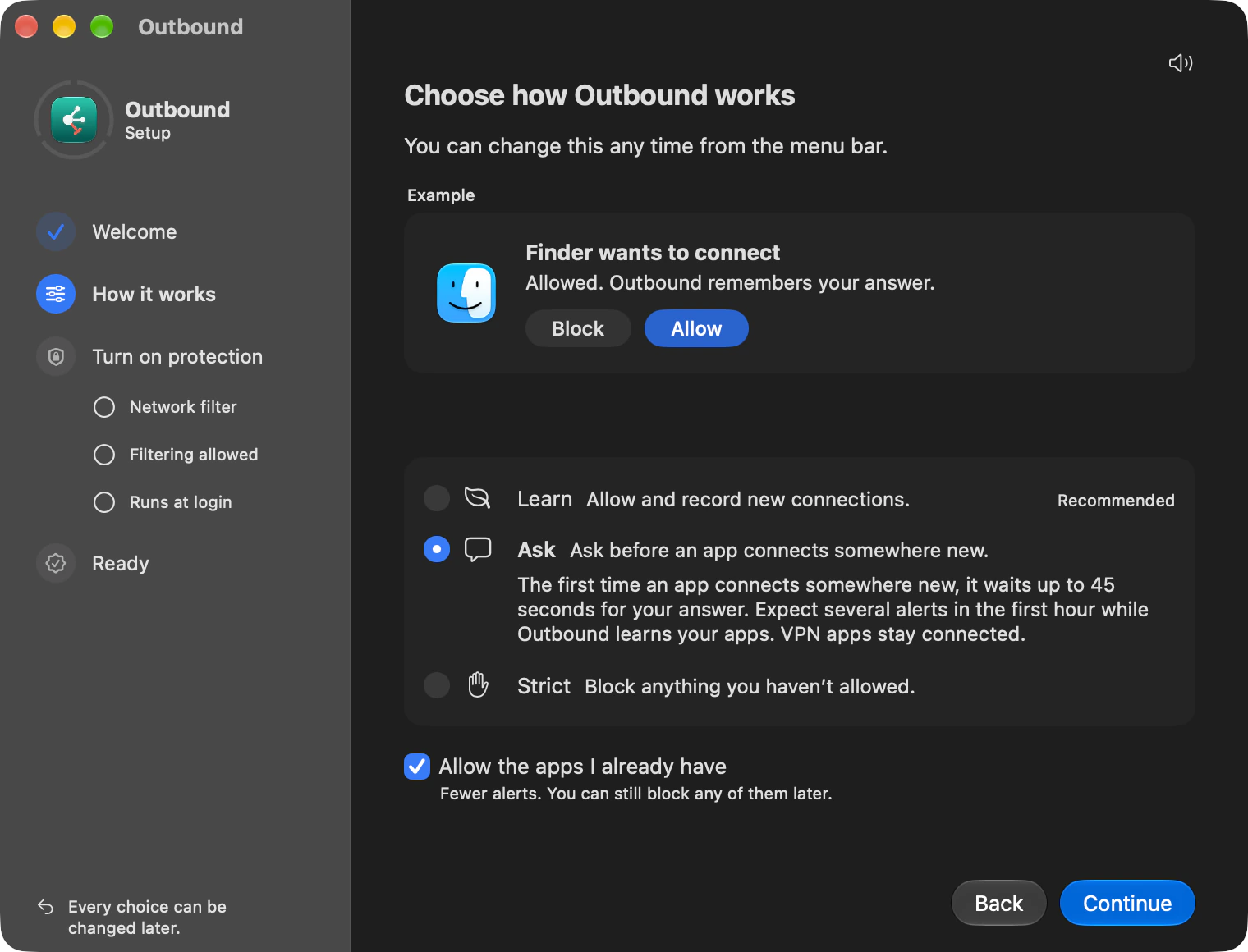
Setup asks you to choose a mode, with an example question from Finder.
Review
Decide on your time.
One entry per app and destination. Group Review by app, domain, host or port, and see every connection a broader rule covers before you save it.
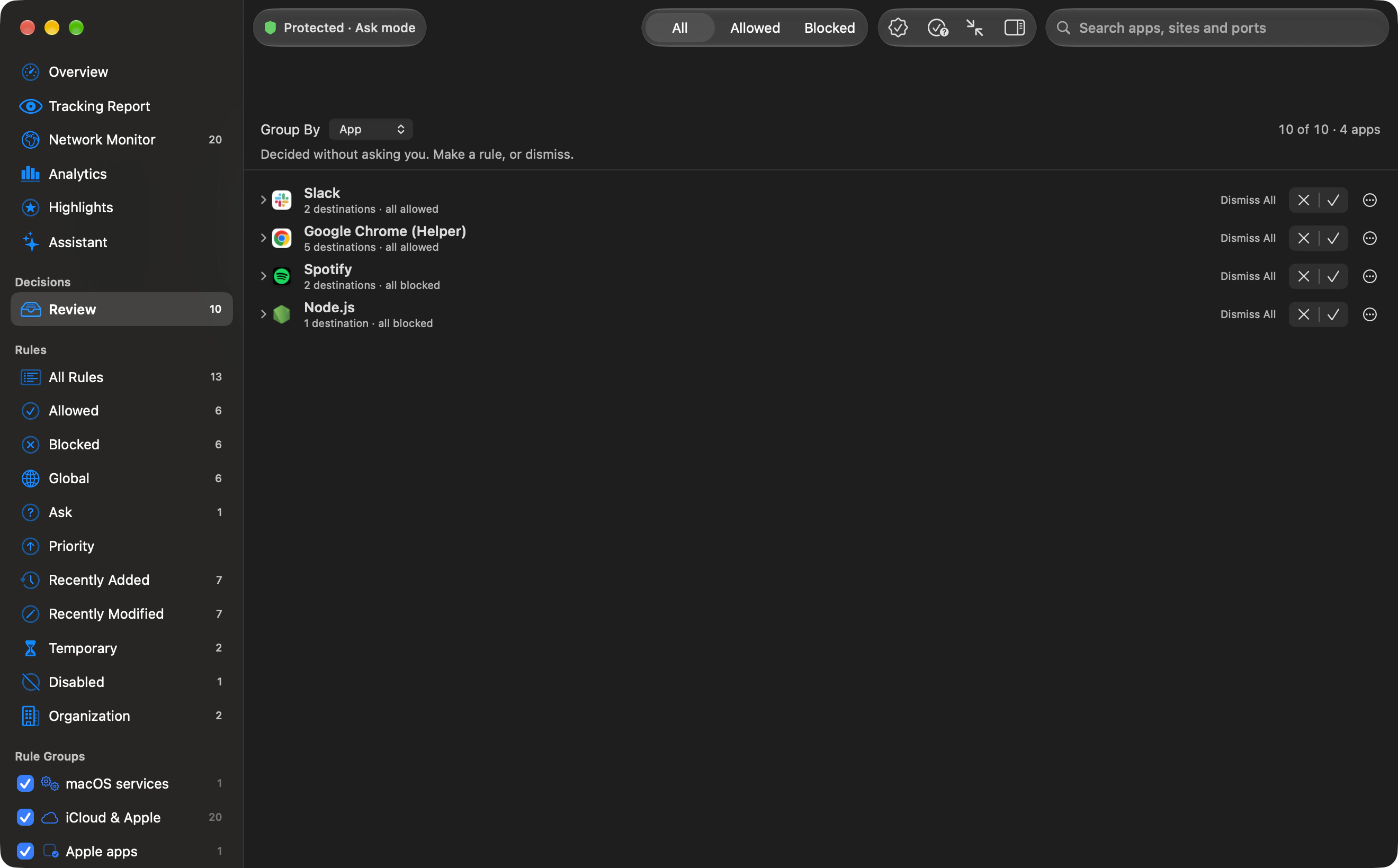
Allow or Block creates a permanent rule for one destination or the whole app. Or dismiss the entry; Undo brings it back.
Explore ReviewTech specs
- TCP default
- 60 seconds
- TCP range
- 15 to 120 seconds, in steps of 5 seconds
- UDP wait
- 8 seconds, fixed
- Timeout default
- Allow once
- Remember choices
- Once; 5, 15 or 30 minutes; 1 hour, 1 day or 1 week; until the app quits; until logout; until restart; forever
- Remember default
- Forever, unless this connection cannot be remembered, in which case the alert starts at Once.
- Default duration
- 1 hour, when Alerts start with is a timed choice; 5 minutes to 1 week
- Default profile scope
- Every profile
- Default port and protocol
- This port and protocol
- Applying to default
- Only that server
- Details default
- Compact
- Answer with Return and Escape
- On by default
- Keep connection alerts minimized
- Off by default
- Accidental-answer delay
- 0.8 seconds
- Paused connections
- 512 paused connections in total, 64 per program, and 128 open alerts. Anything beyond that is blocked immediately and does not get the timeout answer.
Questions about alerts
What happens if you miss an alert?
By default, an unanswered alert is allowed once after 60 seconds for TCP or 8 seconds for UDP and added to Review. You can change the TCP wait or choose Block once. Strict always blocks at the deadline. A program that no longer matches the build pinned by its active path rule is blocked at the deadline, whatever that choice says.
Can you answer without saving a rule?
Choose Once to answer this connection only. Nothing is stored, and the next connection asks again.
Can you allow a whole domain?
Choose Only domain example.com to cover that server and every server under its domain. This choice is omitted when there is no host name, and for a program’s own DNS lookup.
Can you answer an alert later?
Press ⌘M to minimize it to a small panel that keeps counting down, and click the panel to answer. Stop Countdown asks for more time, once. If nobody answers in time, the connection still gets your timeout answer.
Can you answer several requests together?
When an app has more requests waiting, choose Block All or Allow All. A remembered bulk answer stores one rule for that program and any destination, with the selected lifetime. Undo removes the rule but cannot recall traffic already allowed or restore connections already blocked.
Related in the manual

Choose where your apps connect.
Outbound is $29 for the first 50 licences, then $39. Either way, you pay once.
- 2 Macs, or 5 with Family
- One-time, no subscription
- Full refund within 14 days
- macOS 14 or later