Features · 06 Trust
Trust you can inspect.
Outbound identifies each connecting program from the running process, not from a name the process reports, and lists every connection Outbound itself opens. Use outboundctl to check any decision yourself.
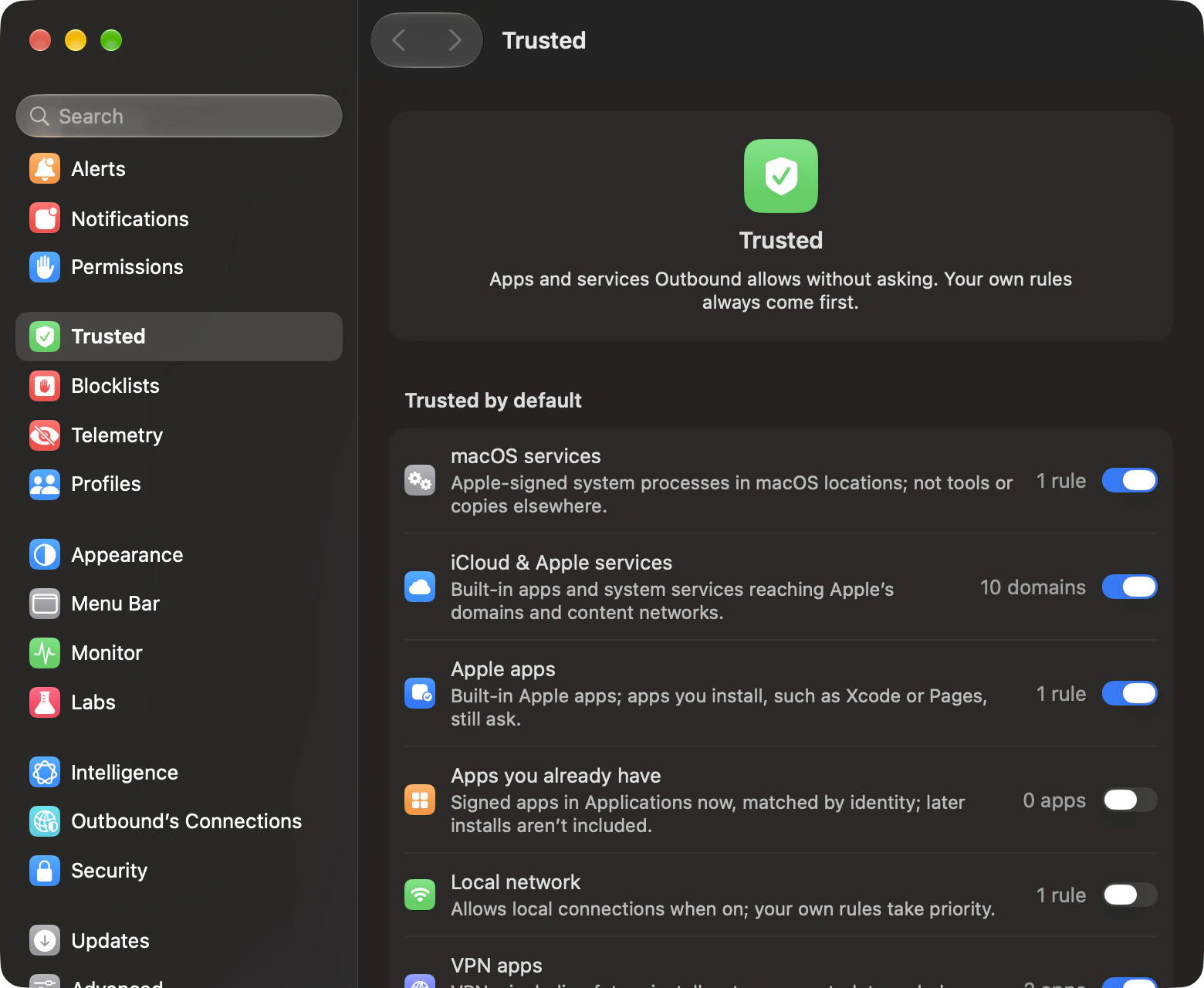
Code identity
Know what’s connecting.
The app, who signed it, the server and the port. The contents pass through unread.
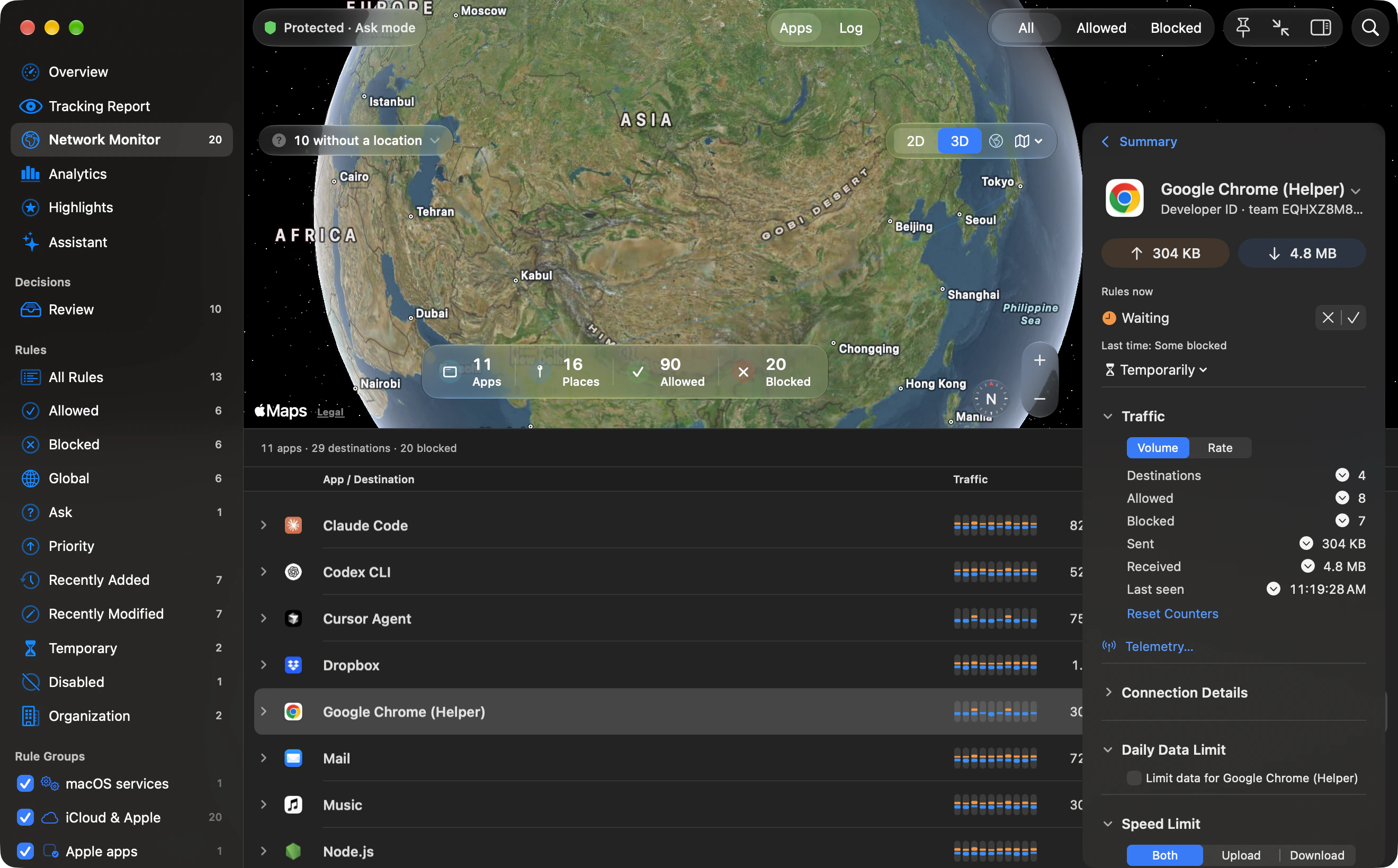
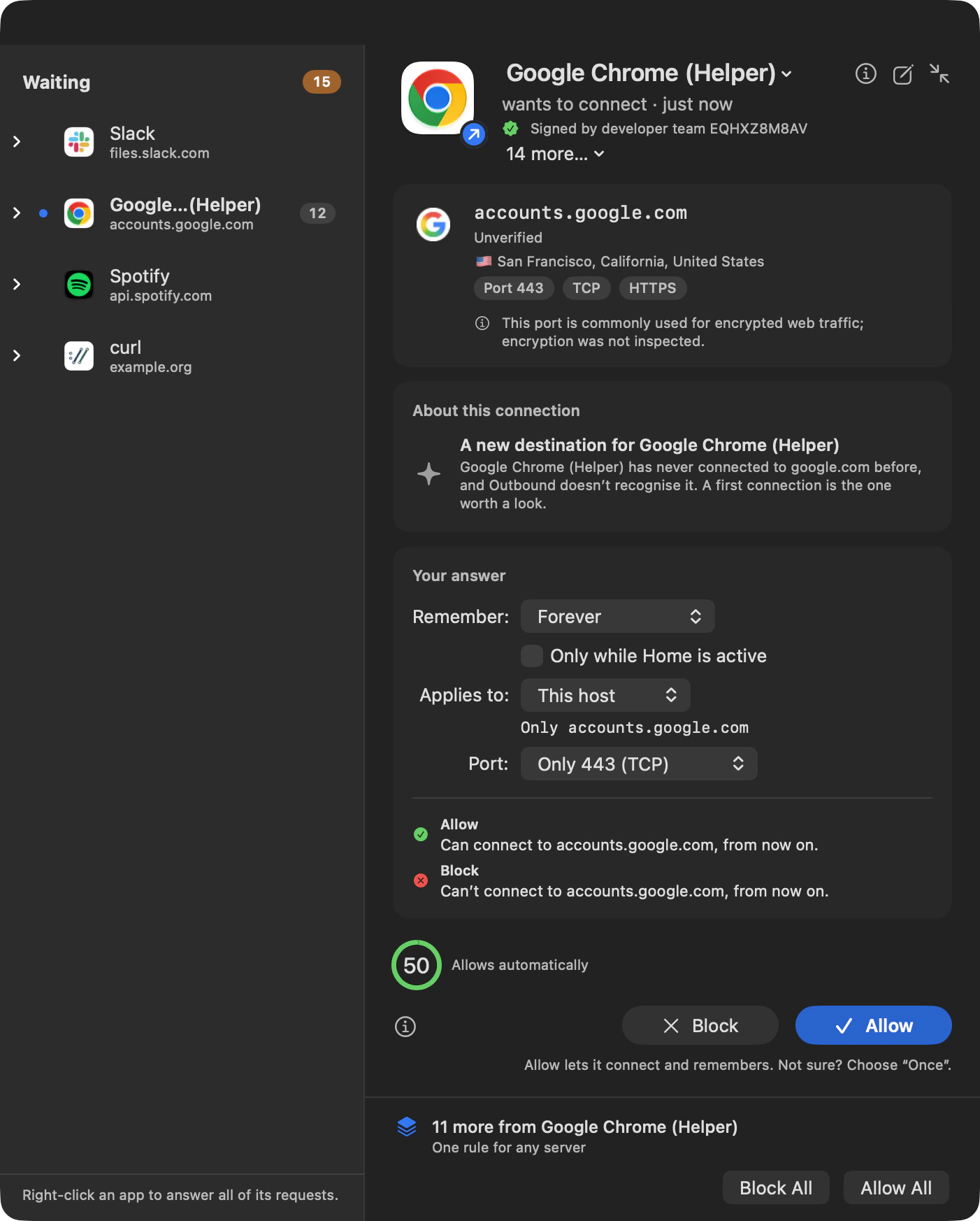
Trusted by default
Get to know your protection.
Choose which groups connect without asking. Settings › Trusted and the main window’s Trusted by default groups control built-in allow rules, in every mode.
In depth
Trusted by default
Choose which groups connect without asking.
Settings › Trusted and the main window’s Trusted by default groups control built-in allow rules. Each enabled rule allows connections without an alert in every mode.
| Group | Default | What it covers |
|---|---|---|
| macOS services | On | Apple-signed system processes in protected locations. Command-line tools such as curl, ssh and python3 in /usr/bin or /bin are outside the Apple apps and macOS services groups. |
| iCloud & Apple services | On | Apple’s protected services and built-in apps talking to the group’s Apple domains and subdomains. A copy in a writable location cannot use it. |
| Apple apps | On | Apple-signed apps where macOS protects them, such as Safari, Mail and Music. Apple apps installed in /Applications, such as Xcode or Pages, are asked about like other apps. |
| Apps you already have | Off | A snapshot of signed apps when you enable it, matched by team and signing identifier. Apple-signed, ad-hoc and unsigned apps are skipped. Later installs are not added. |
| Local network | Off | Any program connecting to local addresses. This group matches the destination rather than a signature. |
| Simulator processes | Off | The simulated system’s own processes in the iOS, watchOS, tvOS and visionOS simulators you have installed, checked by Apple’s signature and their protected location. Apps you build and run in a simulator are asked about like any app. |
| VPN apps | On | Detected VPN, proxy and DNS-proxy apps, to any destination in both directions, including in Strict. Each app’s traffic inside the tunnel still follows its own rules. Later VPN installs are detected. Turn the group off in Trusted if you want to decide those tunnel connections yourself. |
- Updates. Apple groups match Apple’s signature and protected locations. The existing-app and VPN groups match team and signing identifier, rather than path or build hash.
- Precedence. Your rules, blocklists and other rule groups beat matching trusted rules. Priority rules are compared first, so a priority trusted rule can beat an ordinary rule of yours. The managed override puts Organization rules ahead of trusted rules.
- Switching groups. Turning a group off removes its rules. Turning it on again reinstalls them enabled and follows approval for an unblocking change. A rule you disable individually stays disabled while the group remains on.
Code identity
It knows which program is connecting.
Outbound decides from who connects and where: the app, who signed it, the server, the port, and how much went each way. The contents of a connection pass through unread.
What the filter reads from the running process:
- The executable path
- The team ID
- The signing identifier
- The code hash (cdhash)
- How the code is signed
- Verified identity. A signing identifier on its own proves nothing. An ad-hoc or self-signed program loses the team it claims and is matched by its path.
- App helpers. A helper nested inside an app is attributed to the outermost app. The identity is cached for that process instance.
- Developer names. A name appears only when its Developer ID certificate checks out for the same team. An app Apple re-signed for the Mac App Store is labelled “the Mac App Store”.
- Verified names. With Settings › Security › Only match host and domain rules on verified names, a host or domain allow rule applies only when a DNS answer Outbound saw for that name returned the connection’s address. Block and ask rules still match the name the app gave. It is on for a new install and stays off after an upgrade.
- Which user. On a shared Mac each connection shows which user made it. Turn on Hide my connections from other users and other users see totals, not your apps or destinations.
- Speed-limited apps. To slow an app you give a speed limit, Outbound passes its TCP traffic through a transparent proxy. Outbound forwards those bytes without reading, logging or keeping them.
When the code changes
| Change | What happens to its rules |
|---|---|
| Normal update | An update that keeps the code identity still matches. Recognised Homebrew Cellar and CoreSimulator versioned paths are saved as patterns, so a changed version number can still match. |
| Replaced binary | An allow or ask path rule can be pinned to the approved code hash. If a pinned binary changes, Strict blocks it; Learn and Ask ask you to approve the new code. No answer means a block. Strict records “Changed binary” in Review. A blocking path rule keeps blocking whatever runs there. |
| Different signing team | A code-identity rule for the old team no longer matches. With no other matching rule, Learn allows and records it in Review, Ask asks, and Strict blocks. |
Setup
Three permissions, each explained first.
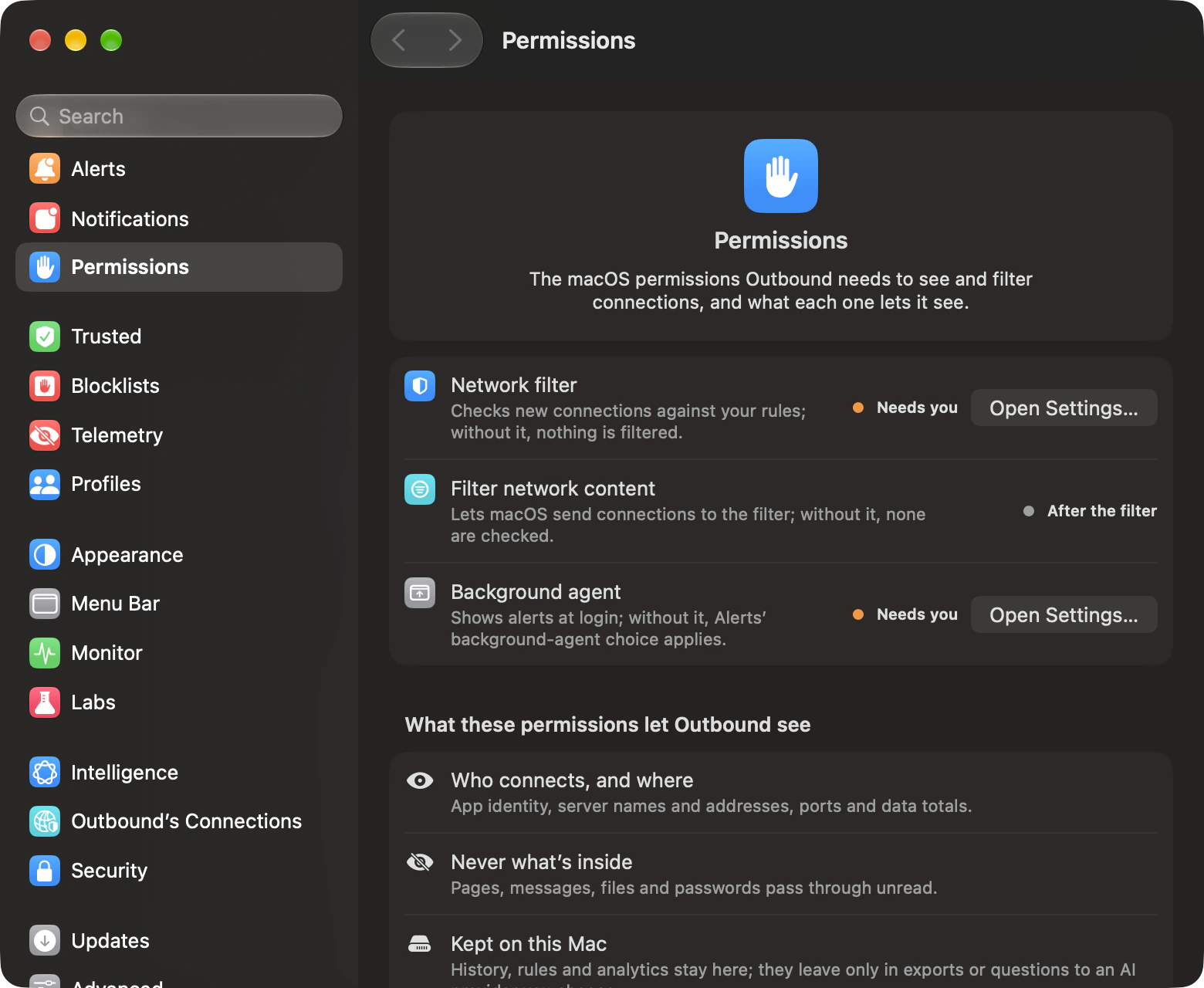
Setup asks macOS for a network filter, permission to filter, and background access. Each page says why, and what happens if you skip it.
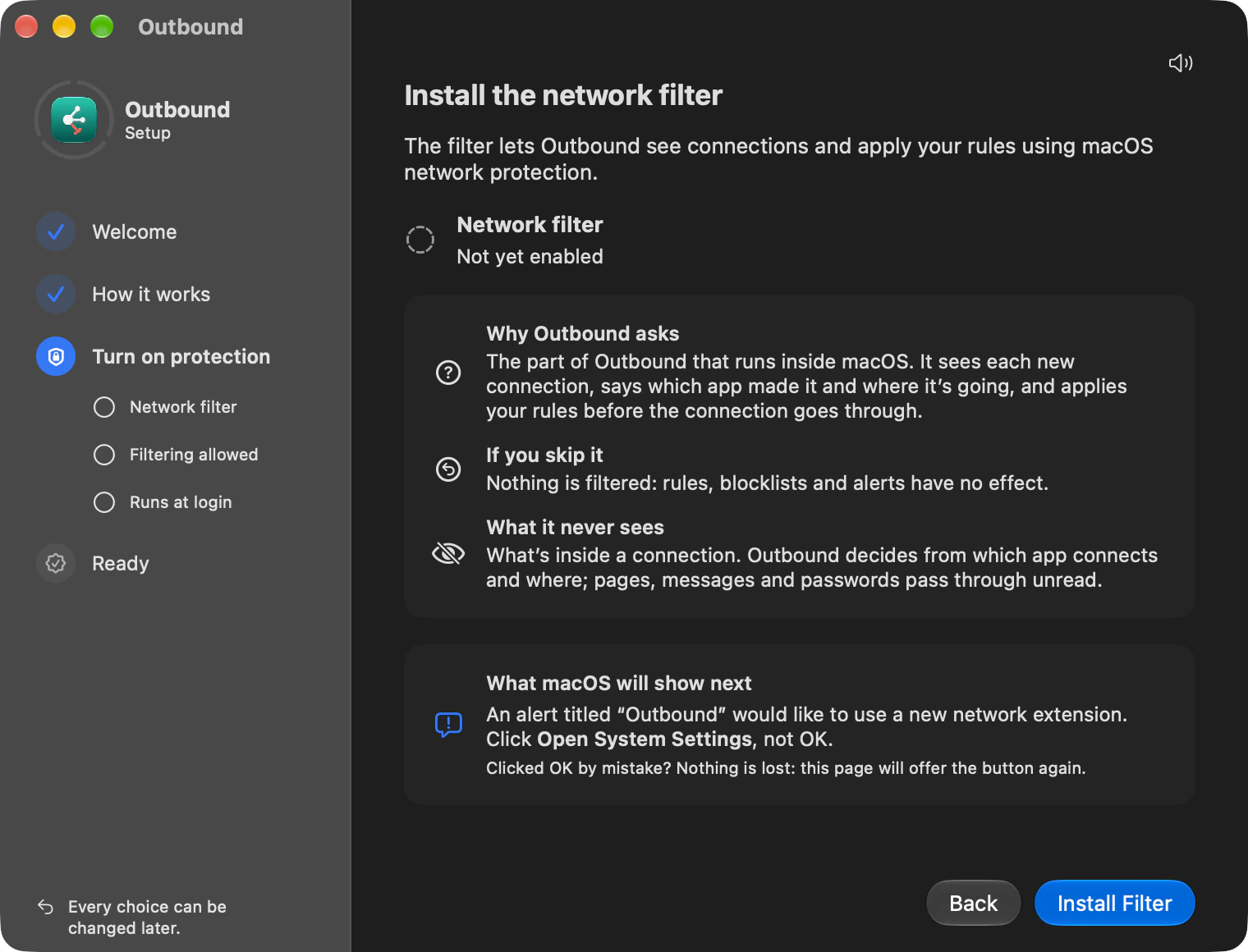
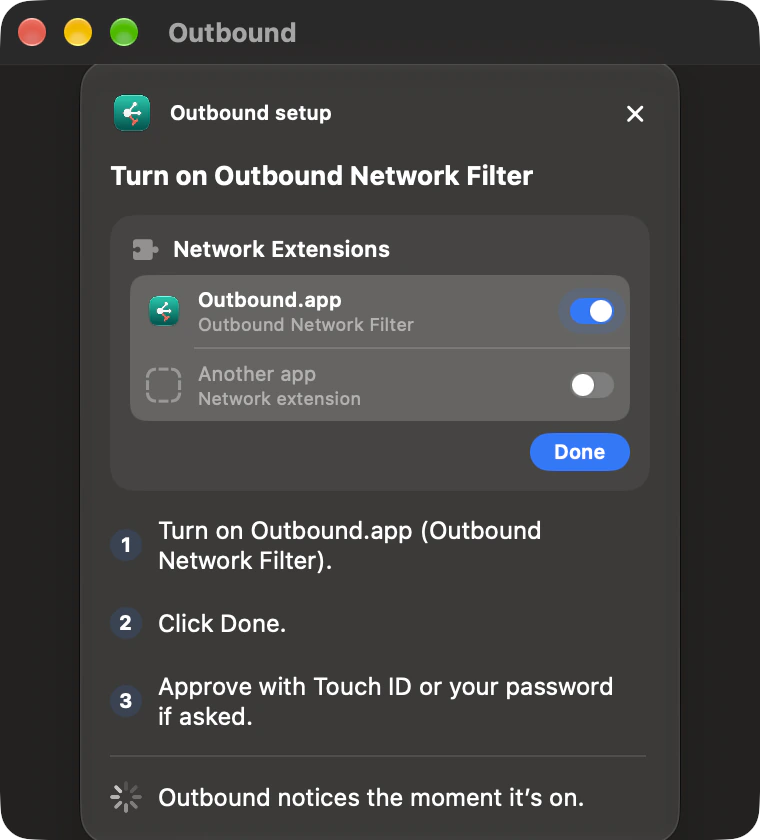
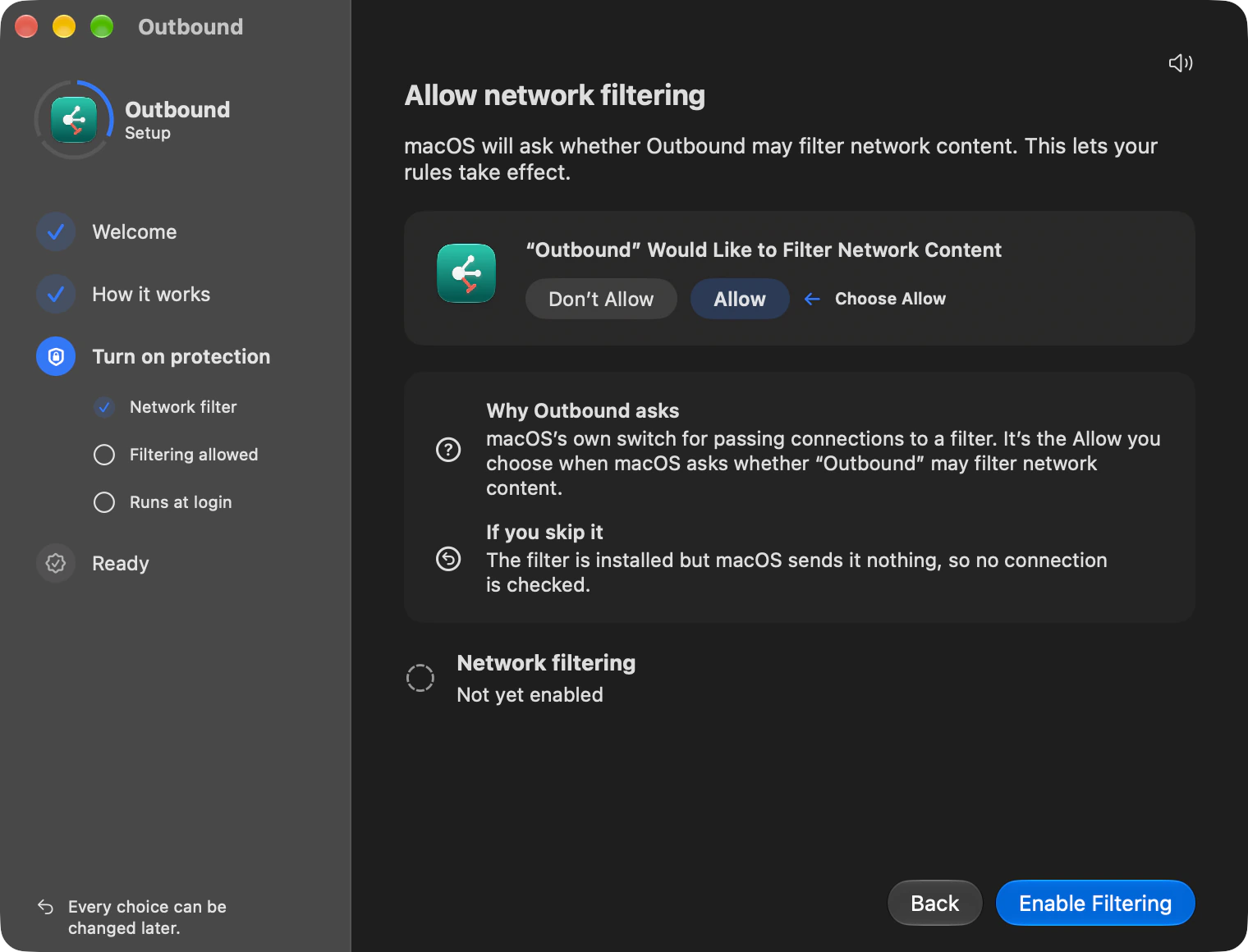
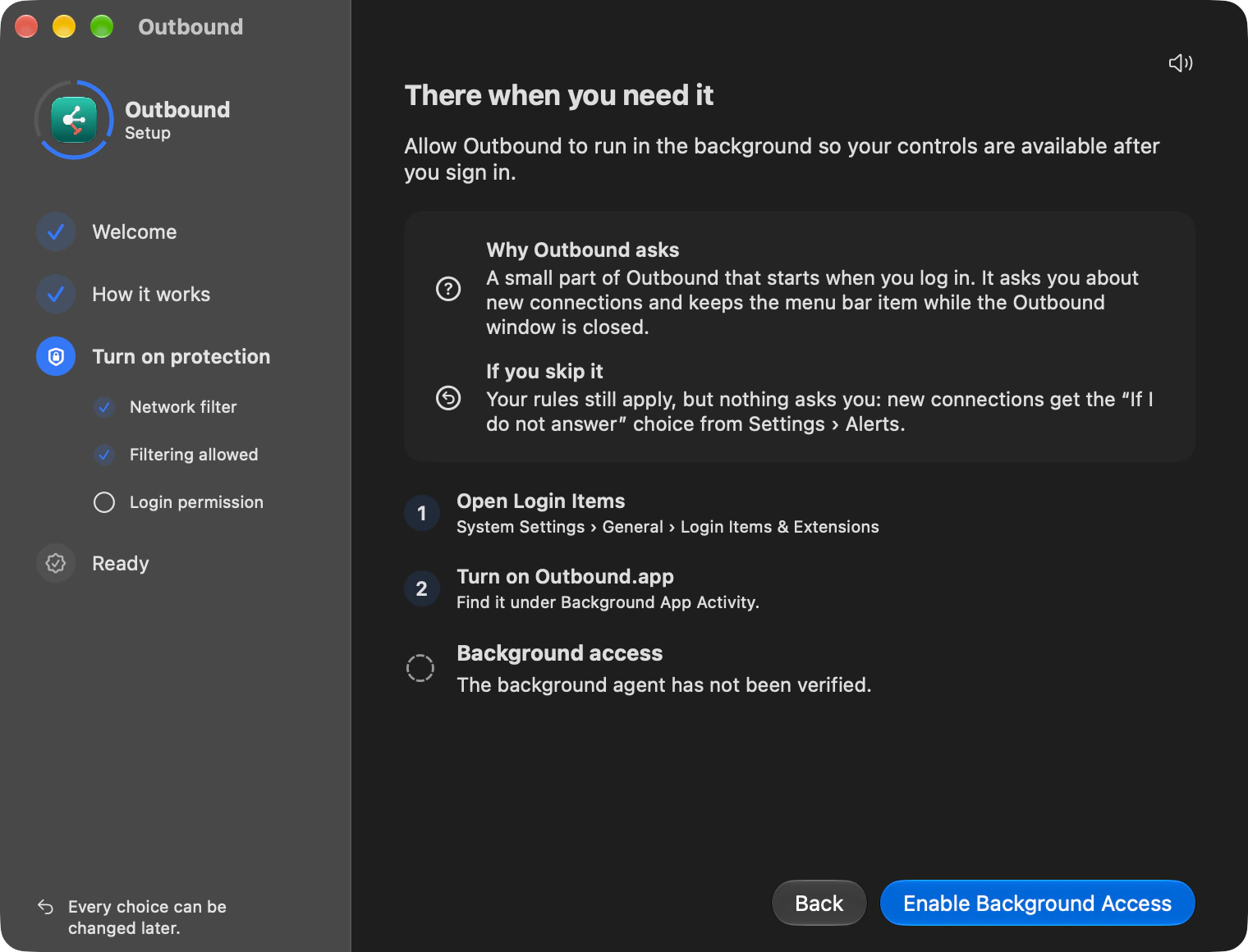
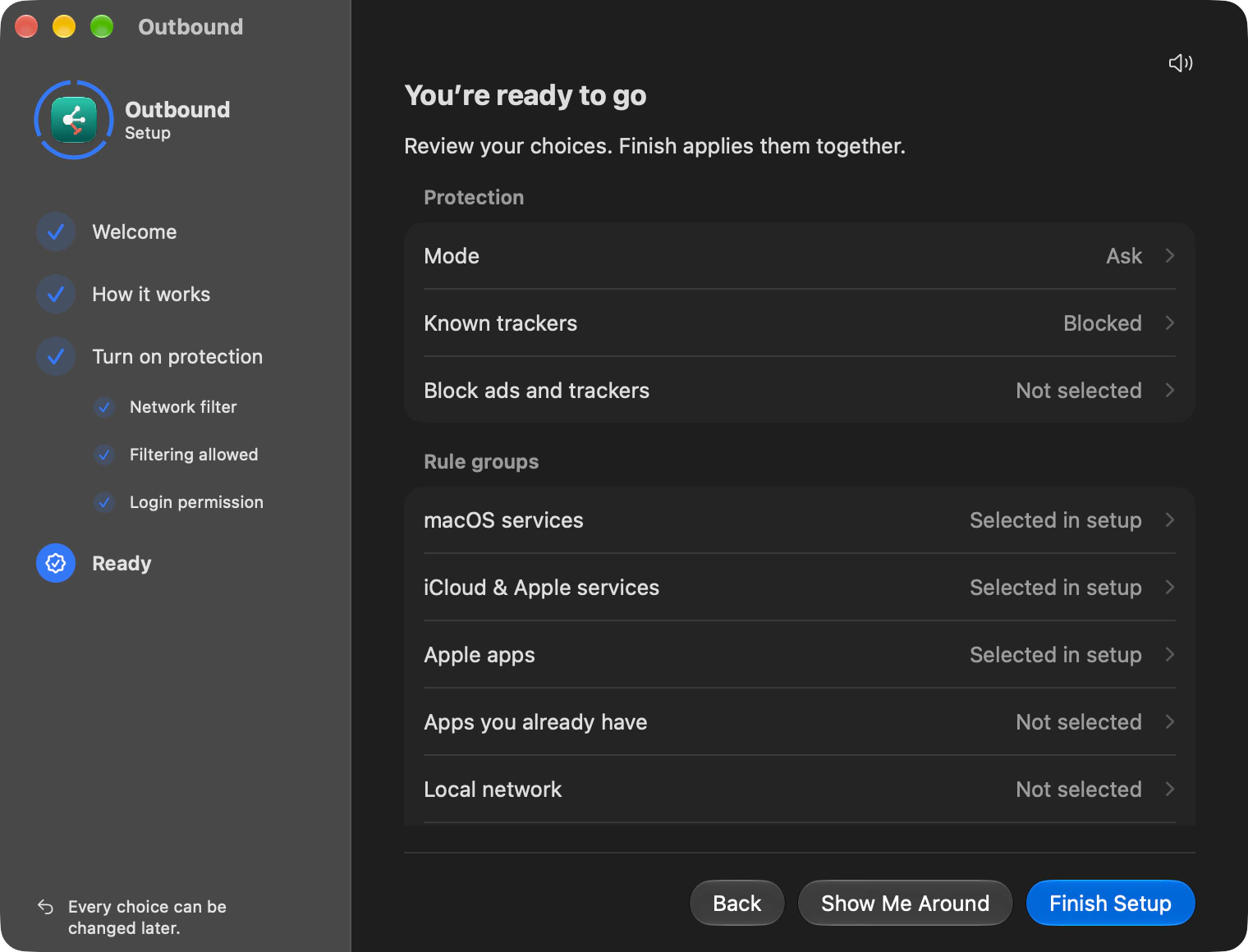
Setup has nine pages, from welcome to ready. Your choices are only staged until you click Finish Setup; the macOS permissions are recorded as you approve them. Help › Review Setup… opens the pages again later. The steps in System Settings differ by macOS version. The guide shown is the macOS 27 one.
Check or repair permissions later
| Permission | Without it | In Settings › Permissions |
|---|---|---|
| Network filter | Rules, blocklists and alerts have no effect. | Install Filter, or Open System Settings when macOS is waiting for approval. |
| Filter network content | The filter is installed but macOS sends it no connections to check. | Turn On Filtering, once the network filter is running. |
| Background agent | Your rules still apply, but alerts and the menu bar item are unavailable. New connections follow If I do not answer in Settings › Alerts. | Open Login Items when approval is needed, or Enable Background Agent. |
Permissions stays usable while settings are locked. Repairing a macOS permission does not loosen a rule.
When Outbound can’t ask
Your rules hold when the app is closed.
The filter runs inside macOS and enforces your rules by itself, even after you quit Outbound.
| Situation | What happens |
|---|---|
| The background agent quit or crashed | Your rules still apply. An identified program with no matching rule follows Settings › Alerts in Ask, is allowed in Learn and is blocked in Strict. A program with neither a signing identifier nor a path is blocked while Outbound is not running. |
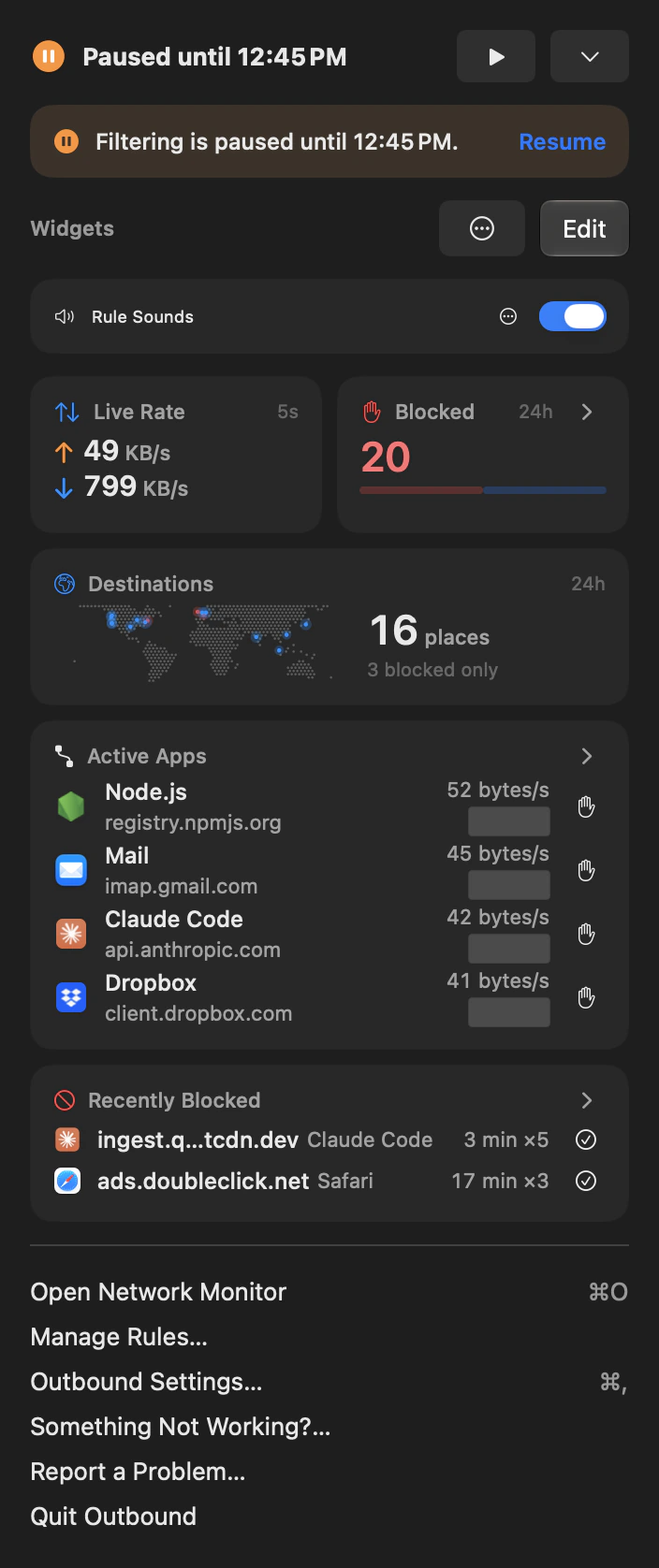
| Paused | Your rules aren’t enforced for 15 minutes, 1 hour, 4 hours, until the network changes (4 hours at most) or until restart. Speed limits stay on. The pause is stored with the filter and ends by itself. Starting one asks for Touch ID or your password. |
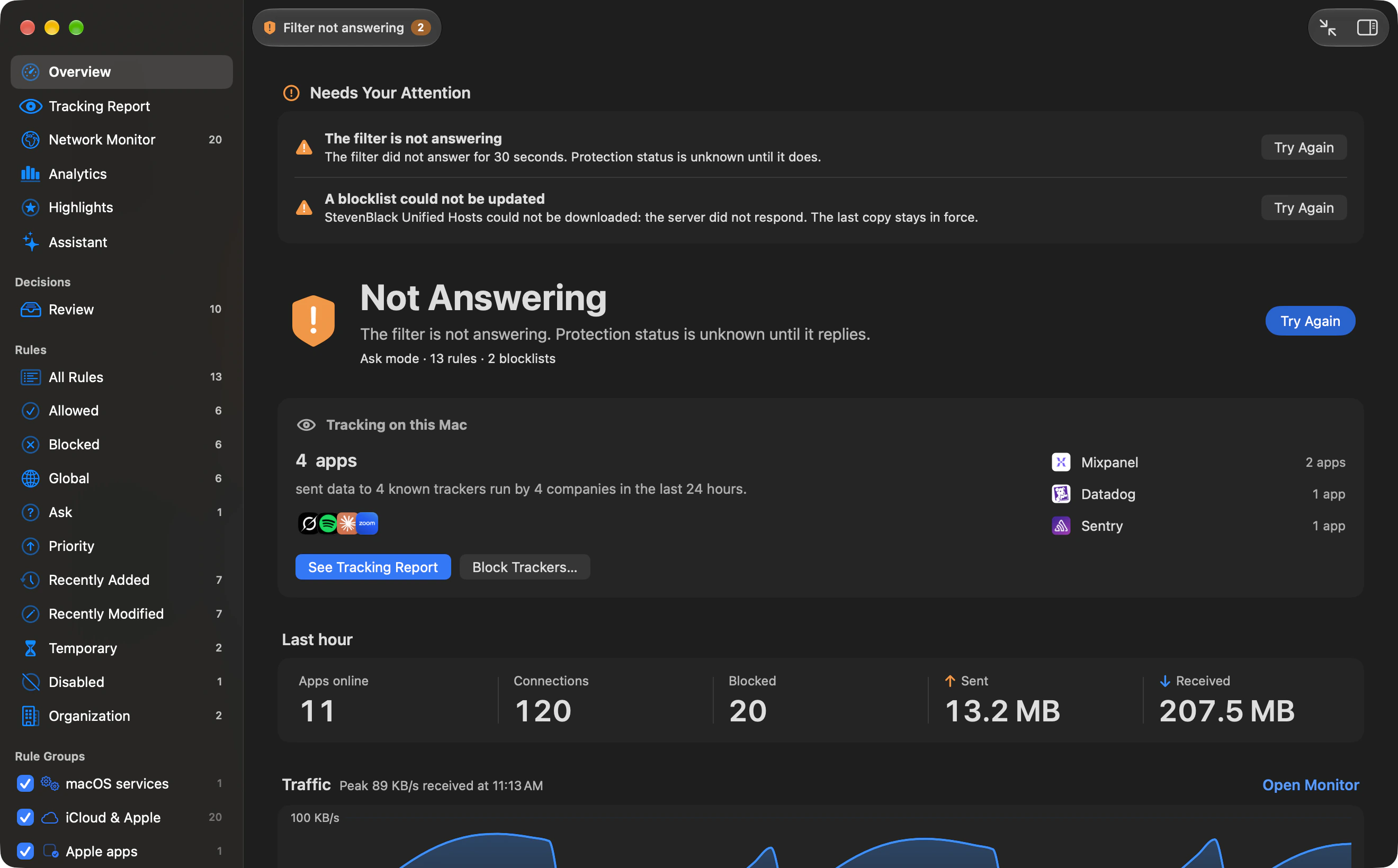
| The filter is turned off | No connection is checked until you turn it back on. Turning it off asks for approval, and the menu bar icon shows a warning badge. |
| Something is wrong | A health check runs every half hour, and every two minutes while the Overview is open. Problems appear under Needs Your Attention, with a way to fix each one where there is one. A blocklist that can’t update keeps its last copy in force. |
- Pause controls. Resume Now ends a pause; Extend the pause offers the same durations. Starting or extending asks for approval, and the clock starts when you approve.
- Network changes. Until the Network Changes ends when you join a different network, or after four hours. Going offline does not end it. The option is unavailable until Outbound can identify the current network.
- Shortcuts. Pause Outbound accepts 1–1,440 minutes and defaults to 15 minutes. It asks for approval, and speed limits stay on. Resume Outbound ends the pause.
- Filter off. Rules, modes and pauses have no effect until Turn On Network Filter restores filtering. Turning it on needs no approval. The warning badge is controlled by Warn when protection is off in Settings › Menu Bar, on by default.
Approval
Broad changes ask for Touch ID.
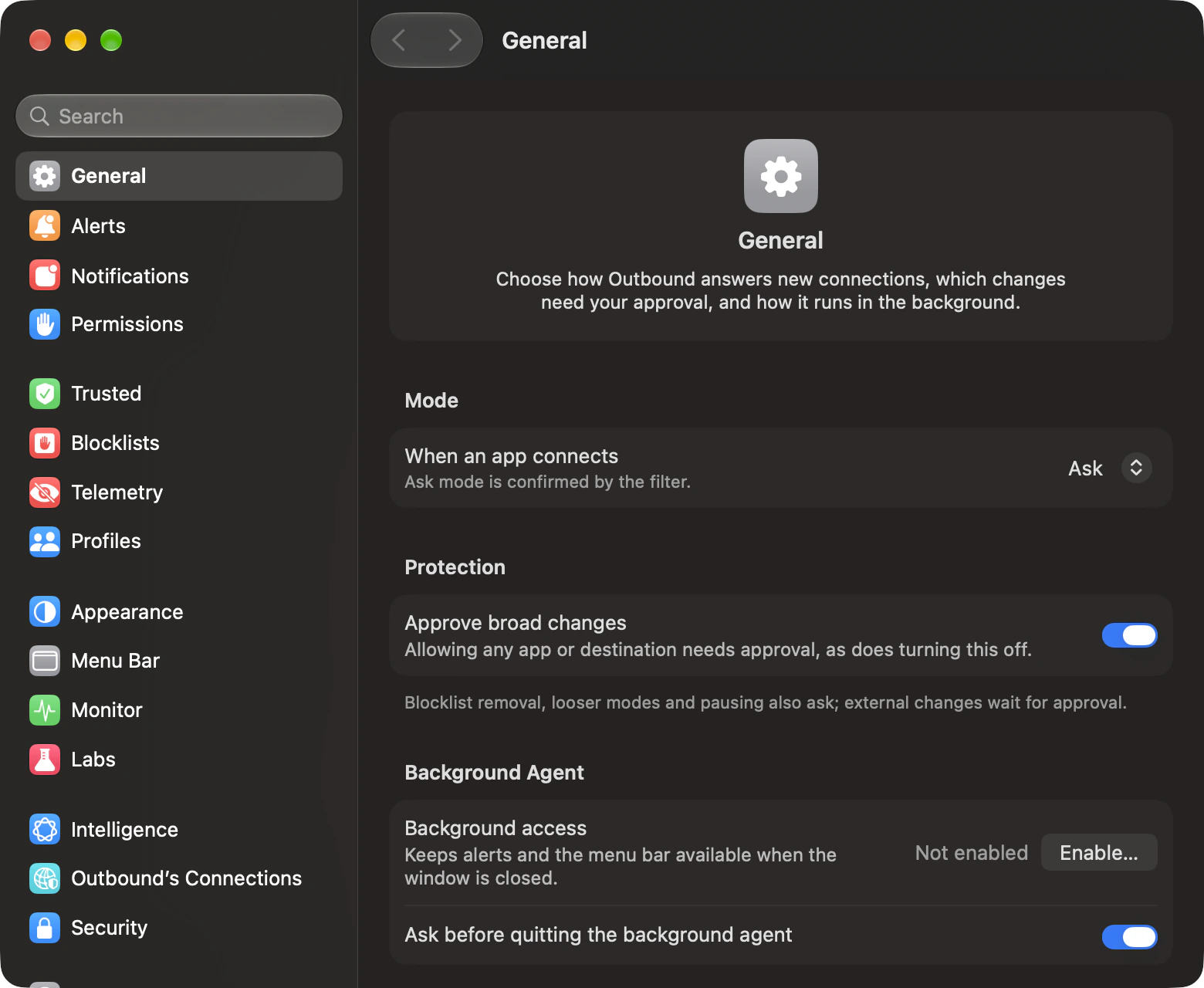
Allowing or blocking one app’s connection never asks. Broad changes do: allowing any app or any destination, removing a blocklist, choosing a looser mode or pausing. Touch ID or your password, on by default.
- Outside edits. A script or direct outboundctl rule edit that would unblock something is held until you approve it in Outbound. A tightening is marked for you to look at. Each approval covers the named change; decline with Keep Blocked.
- Broad-change protection. Turning Ask for Touch ID or your password before broad changes off also needs approval.
- AI requests. Only you can approve a change requested by an AI app. How it works ›
The administrator lock
In Settings › Security, an administrator can lock rule editing, profile switching and settings. The three protection options start on. Unlock… needs an administrator’s name and password; the session unlock lasts until you quit or choose Lock Now. The saved lock stays on for next time.
| Protection | While locked |
|---|---|
| Protect rule editing | Rules cannot be created, changed or removed. Rules is read-only and alerts offer Once only. |
| Protect profile switching | The active profile cannot be changed, including automatic switching with the network. |
| Protect these settings | General, Appearance, Menu Bar, Alerts, Notifications, Updates, Advanced, Trusted and DNS are disabled. Monitor, Blocklists, Telemetry and Profiles stay searchable with saving controls off. |
| Pages that stay usable | Security, Permissions, Outbound’s Connections, License, Intelligence and Labs remain usable. |
Command-line access
- Turning outboundctl changes off keeps status, history and explanations readable. Commands that change something stop with exit status 77, even as root.
- The settings lock also refuses protected changes with status 77, even as root. outboundctl cannot remove the lock or re-enable its own access.
prefs setandbackup restorerefuse a change that loosens protection, even as root. Direct rule and blocklist edits can be saved, but approval in the app still comes before the filter applies an unblocking change.- Root can override an organisation’s restriction on rule editing. It still cannot bypass the separate settings lock or outboundctl access control.
Troubleshooting
When an app can’t connect.
Something Not Working? lists what Outbound blocked in the last hour and why, then what else on your Mac can stop a connection. Open it from the Help menu or the menu bar panel.
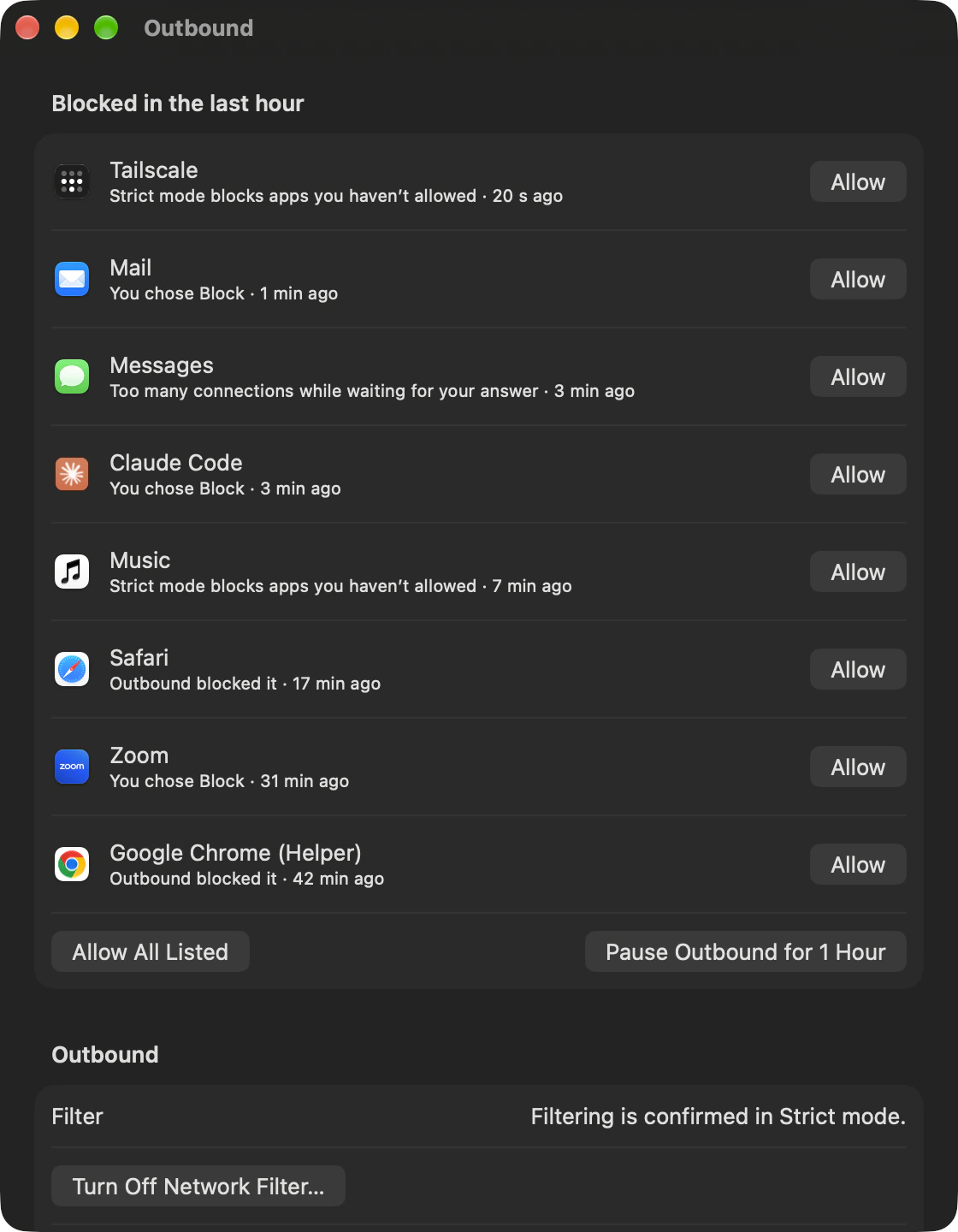
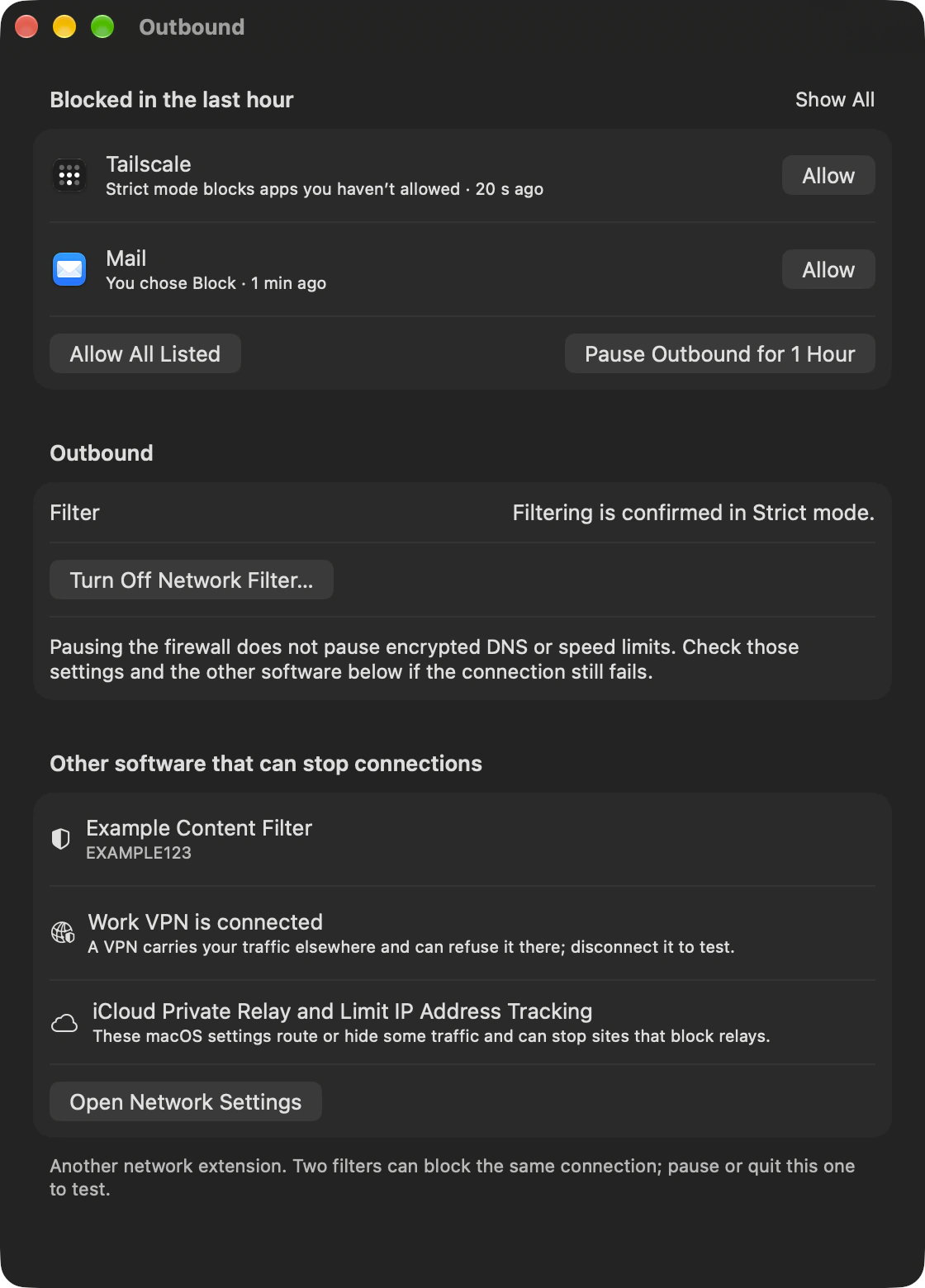
- Allow what was blocked. Each app has Allow. Allow All Listed does them all, with Undo.
- Pause for an hour. If the app works under Pause Outbound for 1 Hour, a rule or a blocklist was the cause.
- Turn Off Network Filter… If the app still fails, look at the other software the window lists: another filter, a connected VPN, iCloud Private Relay.
- Check System Settings. The filter switch is in Network › Filters on macOS 14 to 26, and in Network › VPN & Filters on macOS 27.
Outbound’s own connections
What Outbound itself connects to.
Settings › Outbound’s Connections lists the connections Outbound can open, and how to stop each one. On a fresh install, two of them reach the network by themselves.
| Connection | Talks to | When | To stop it |
|---|---|---|---|
| App updates | outboundfirewall.com | Once a day while automatic checks are on, and when you choose Check for Updates. The signed feed names the update file’s address | Settings › Updates › Check for updates automatically |
| Location database | download.db-ip.com | While automatic updates are on, when it’s missing or a newer month is out. You can also install it manually | Settings › Monitor › Update the location database automatically |
| Problem reports | outboundfirewall.com | Only when you send one | Don’t send one |
| Encrypted DNS | The resolver you choose | While Encrypt DNS lookups is on, macOS sends lookups there. Outbound itself connects only when you run a test | Settings › DNS › Encrypt DNS lookups |
| Blocklists | The https addresses you add | When you add a list and when a refresh is due. The background agent checks about once a minute | Remove the list in Settings › Blocklists |
| Managed rule feed | Your administrator’s address | At launch and about every six hours | Your administrator |
| License | live.dodopayments.com | When you activate or deactivate. Outbound checks about every six hours whether the last good check is over seven days old before contacting the server again | Deactivate the key in Settings › License |
| Website icons | The site itself | Only if you turn on Download icons from websites, and only for allowed connections | Settings › Appearance |
| Assistant providers | The provider you choose | Only after you add one and turn on Send figures to. Test Connection sends a test request | Settings › Intelligence |
| Crash reports and usage | The crash and usage services | Only while the switch is on | Settings › General |
| Dictation model | Apple’s servers, chosen by macOS | When you dictate in a language whose model isn’t installed | Don’t dictate |
| Coding agents | Your npm registry | When you choose Claude Code or Codex and agree to use it, or press Test. The first run can download an adapter; other agents use installed programs | Settings › Intelligence › Answered by |
“Off unless you turn it on. When on, Outbound sends crash reports and a few events (launch, version, mode changes) with a random ID. Never the sites or apps on this Mac, addresses, file names or rules.”
- Live states
- On means a connection happens under your current settings; Off means it does not. Only when you use it means nothing runs on its own. Each row explains its trigger and control.
- Check the DNS status
- The Encrypted DNS row reads On only while encrypted DNS is active. While macOS waits for your approval it reads Only when you use it, because the test can still connect; with no configuration it reads Off. Whether lookups are verified as encrypted is shown in Settings › DNS.
Outbound labels its own traffic in the Network Monitor too. What AI features send ›
Encrypted DNS
Encrypt your Mac’s DNS lookups.
Settings › DNS has Encrypt DNS lookups. It is off until you turn it on. Outbound hands the settings to macOS, which then encrypts lookups made through its own resolver, except for domains you add as exceptions. It isn’t a DNS proxy.
- Status
- The page shows one of four states: Off, Configured but unverified, Encrypted (verified) or Partly bypassed, with the number of apps. Encrypted (verified) means that during a test the filter saw macOS connect to your chosen server.
- What it covers
- “On for apps that use macOS name lookup. Apps with their own resolvers, VPNs and DNS exceptions may bypass this setting.”
- Not covered
- Apps that sent DNS around the setting in the last 24 hours are listed with how many attempts they made, to which server. Outbound counts connection attempts and stores no query names.
- Plaintext DNS
- Block plaintext DNS from apps is off by default. Turned on, it blocks apps that send unencrypted DNS themselves while encryption is on; macOS’s own resolver is exempt. Block Plaintext DNS for This App adds a rule for one app instead.
- Providers and protocols
- The provider catalogue groups Quad9 (the default), Cloudflare, Google Public DNS, NextDNS and Control D Unfiltered under Global, and DNS4EU Protective under Regional. Custom… lets you enter your own. DNS over HTTPS is the default protocol; DNS over TLS is also available.
- Provider details
- See the selected provider’s operator, legal jurisdiction, filtering, logging-policy summary and privacy-policy link. Jurisdiction means legal domicile, not server location. Applying the choice supplies its endpoint and, where listed, bootstrap server addresses for your selected protocol.
- NextDNS and Custom…
- NextDNS needs a six-character hexadecimal Profile ID. Custom… asks for HTTPS URL, TLS server name and Server addresses. Supply at least one valid IP address and an HTTPS URL without credentials or a fragment.
- Exceptions
- Add domains that should keep using your network’s DNS server, such as company names. An exception can apply to every profile or only some, and can end by itself after 15 minutes. Disable DNS Encryption in Profiles… turns encryption off while a chosen profile is active.
- Captive portals
- Pause for Captive Portal (15 Min) turns encryption off for 15 minutes so a hotel or café sign-in page can load, then turns it back on.
- Test
- Look up a name through the System resolver and directly through your encrypted server, for IPv4 (A) and IPv6 (AAAA). The system result says whether the filter saw the lookup go out encrypted. A successful answer alone does not prove encryption.
- Recent Events
- See the last eight actions and problems, newest first with timestamps.
macOS asks you once to turn on “Outbound DNS” in System Settings. DNS settings ›
outboundctl
Check any decision from Terminal.
outboundctl ships inside Outbound. Ask it what would happen to a connection, and it runs the same matching the filter runs.
outboundctl explain --app /Applications/Example.app --host example.com --port 443 Decision: allow Decided by: rule 3F2A… Evaluated against: the saved rules Matching rules (2): Decides 3F2A… Allow connections to example.com on port 443 (TCP) for com.example.app (ABCD1234E5) [user] 8C1D… Allow connections to anywhere on any port for com.example.app (ABCD1234E5) [user] outboundctl status filter: enabled rules: 41
Read the result in context
- Saved rules, not live confirmation
- The tool reads and writes the saved rule store. The background agent talks to the filter, so saving a rule does not confirm it is in force. Approval or synchronisation can leave the copies different.
- Status is configuration
statusreports enabled, disabled, not configured or unknown, plus the whole store’s rule count. Unknown means it could not read the value. Enabled is not a live health check of the filter process.- Explain the deciding rule
explainlists matching rules in precedence order, marks the deciding rule and explains a mode default or pause. An ask result describes the saved policy; it does not open an alert.- Use an app path
- An app path lets
explainread the executable’s real signature. A bare signing identifier is evaluated as Apple’s own code and the output warns about that assumption. - Describe the connection
- Choose exactly one of
--hostand--address. You can set a port and TCP or UDP, use--incomingfor an incoming connection, and request--jsonoutput. - Protected changes
- When a command touches a locked area, it reports “Settings are locked. Unlock them with an administrator account to make this change.” A saved change that unblocks traffic still needs approval in the app.
Commands at a glance
After outboundctl | What it does |
|---|---|
status | Reports the saved filter configuration and rule count. |
explain | Explains the saved policy’s decision for a connection. |
rules list / add / remove / count | Inspects or changes saved rules. |
rules export / import / import-lsrules / export-lsrules | Exchanges native JSON or .lsrules files. Native import replaces user rules; .lsrules import adds rules unless you choose otherwise with --merge. |
blocklist list / add / remove / update | Manages subscriptions and asks the background agent to refresh them. The command does not download the lists itself. |
profile list / activate | Lists profiles or activates one by name or ID, including none. |
history list / export | Reads connections since a date and exports CSV or JSON Lines. |
prefs list / get / set | Reads settings or changes one key. A change that loosens protection is refused. |
backup / backup restore | Saves rules and settings in one file or restores a validated backup. A restore that loosens protection is refused. |
feed check | Validates a local or HTTPS rule feed, with an optional SHA-256 pin. It installs nothing. |
audit export / verify / tail / sinks / test-sink | Exports or checks the log, reads recent events and checks SIEM delivery. See the audit reference below. |
telemetry classify / app / info | Classifies a host, shows documented app opt-outs or reports catalogue details. Read-only. |
ai providers / ask | Lists providers or sends a read-only question about your network. --preview shows the exact request without sending it. |
mcp / mcp install | Starts the server AI apps connect to, or adds it to a supported client. |
debug categories | Lists diagnostic subsystems and categories, followed by a log stream command to follow Outbound’s logs. |
uninstall --dry-run | Previews removal without deleting anything. Actual removal uses Settings › General. |
version / --help | Prints the tool’s own version or the command list and syntax. |
debug categories groups logs by component. Add --level debug to its suggested log stream command to include the filter’s high-volume connection lines. Read the command reference ›
Audit log
Read the decision and its record.
The filter keeps a sealed audit log readable only by root. The background agent keeps a separate copy. Day files use JSON Lines, with one event per line and UTC dates in their names.
| Field | What it records |
|---|---|
timestamp | When the connection was decided, in ISO-8601 format. |
verdict / ruleID / reason | For a connection: the final allow or deny, the deciding rule’s UUID when a rule decided, and why, such as a rule, mode default or an alert answer. |
flow | Program signing ID, team ID and path; destination host, address and port; protocol and direction. Unknown fields are omitted. |
kind / action | Non-connection events, such as a configuration, change, approval, feed, licence or lifecycle event. |
seq / prev / mac | Sequence number, SHA-256 of the previous line and a keyed hash that only root can check. |
host / user / appVersion | The Mac, console user and Outbound version that wrote the line. |
Export and check the log
sudo outboundctl audit export --to <dir>- Copies complete JSON lines and creates the destination if needed. A partial last line waits for the next export. Source day files older than 30 days are pruned unless your organisation sets another retention period; destination retention is yours to manage.
sudo outboundctl audit verify- Checks the sealed chain. A failed check exits 65 and names the first bad sequence when known.
outboundctl audit tail- Reads the sealed log as root, or the agent’s copy otherwise, and tells you which. Use
--kindto filter events and--followto keep reading. sudo outboundctl audit sinks- Shows each SIEM sink’s last delivery, backlog and last error.
audit test-sinksends a marked test event to a configured sink without adding it to the sealed log.
A gap marker uses an ask verdict to report discarded audit events; it is not a decision about a connection. If your organisation forces domain-only or hashed remote detail, manual sealed-log export is refused and points to the managed export destination.
Managed Macs
Configuration profiles can pre-approve the filter and force preferences. Your organisation can distribute an HTTPS rule feed with an optional SHA-256 pin and export the sealed log to a folder or SIEM over syslog or HTTPS. General shows configured feed and export status. Outbound for IT ›
Check it yourself
Don’t take our word for it.
- Download ›
- The SHA-256 of the current DMG, to compare with
shasum -a 256. - Updates
- Delivered from outboundfirewall.com/appcast.xml, each one EdDSA-signed and notarised.
- Changelog ›
- What changed in each release.
- macOS compatibility ›
- Supported macOS versions, and the features that need a newer release.
- Credits ›
- The third-party code and data in the app and on this website, with their licences.
Setup
Three permissions. Each explained.
See why, before you allow. Setup asks macOS for a network filter, permission to filter, and background access. Each page says what happens if you skip it.
Install the network filter.
Outbound opens the right page in System Settings, and a guide beside it shows the one switch. Setup moves on when macOS confirms.
Explore setup and permissionsAllow network filtering.
Choose Allow when macOS asks to filter network content.
See what each permission doesThere when you need it.
Without background access your rules still apply, but nothing asks you about new connections.
When Outbound can’t askReady to go.
Filter running, filtering on, background allowed.
Check or repair permissions later
Setup has nine pages, from welcome to ready, and saves your choices only when you click Finish Setup. The steps in System Settings differ by macOS version. The guide in the permissions sheet is the macOS 27 one.
Approval
Touch ID.
Broad changes ask first.
Touch ID or your password, on by default. Allowing or blocking one app’s connection never asks. Broad changes do: allowing any app or any destination, removing a blocklist, choosing a looser mode or pausing.
Report a Problem
Read it before it’s sent.
See the exact report first. Describe what happened, choose what to include, or save it to a file and send it yourself.
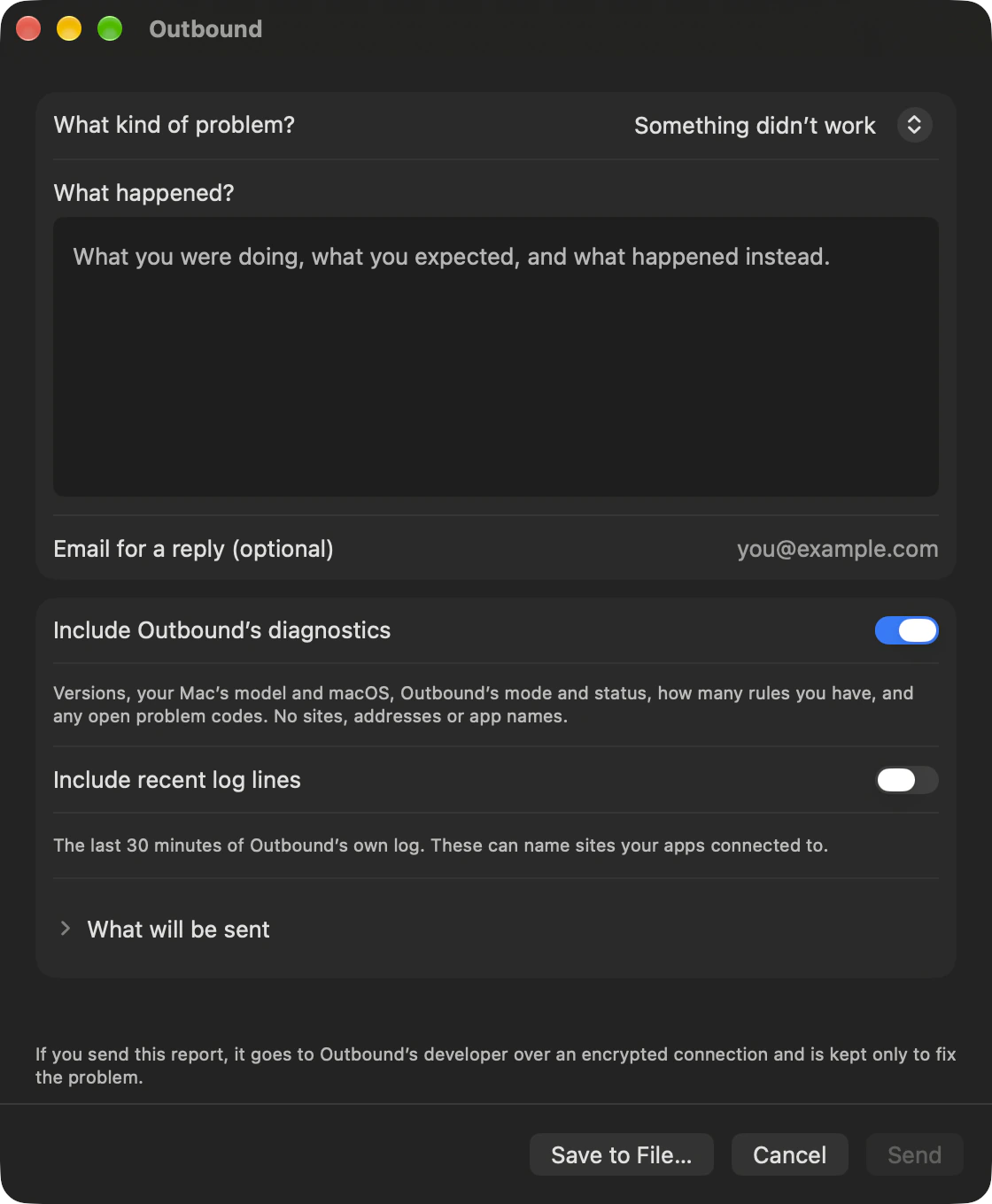
- Diagnostics. Versions, your Mac’s model and macOS, Outbound’s mode and status, how many rules you have and any open problem codes. No sites, addresses or app names.
- Recent log lines. The last 30 minutes of Outbound’s own log, at most 300 lines. They can name sites, so they stay off unless you tick them.
- What will be sent. The exact report, as formatted JSON.
- Save to File… Keep the report, or send it another way.
A report reaches the developer only when you click Send. The website keeps a salted hash of the sender’s network address to limit abuse, never the address itself.
Tech specs
- macOS services
- On by default
- iCloud & Apple services
- On by default
- Apple apps
- On by default
- Apps you already have
- Off by default
- Local network
- Off by default
- VPN apps
- On by default
- Broad-change approval
- Touch ID or password; on by default
- Share anonymous crash reports and usage
- Off unless you turn it on
- Hide my connections from other users
- Off by default
- Default DNS provider
- Quad9
- DNS protocols
- DNS over HTTPS (default), DNS over TLS
- Block plaintext DNS from apps
- Off by default
- Connection history on disk
- Encrypted, key in the Keychain
Questions about trust
Can Outbound read your messages or passwords?
Pages, messages, files and passwords pass through unread. Outbound sees which app connects, who signed it, the server’s name and address, the port and how much data went each way.
Can you block a connection allowed by a trusted group?
Your rules, blocklists and other rule groups take precedence over matching trusted rules. Priority rules are compared first, so a priority trusted rule can beat an ordinary rule of your own.
Do your rules keep working after you quit?
Your rules keep applying after you quit the background agent. Alerts and the menu bar item stay off until you open Outbound, click Start Agent or log in again.
Does encrypted DNS change which connections are blocked?
Encrypted DNS on its own doesn’t change what Outbound allows or blocks. If you turn on Block plaintext DNS from apps, Outbound also blocks apps that send unencrypted DNS themselves while encryption is on.

Choose where your apps connect.
Outbound is $29 for the first 50 licences, then $39. Either way, you pay once.
- 2 Macs, or 5 with Family
- One-time, no subscription
- Full refund within 14 days
- macOS 14 or later