Apple Intelligence
On this Mac. The default.
Answers are written on your Mac, so nothing you see in Analytics leaves it. A Mac without Apple Intelligence shows a plain summary instead.
Rules for each app and each destination, a monitor that shows what connects and how much it sends, a map you can turn into a globe, and the tools to manage many Macs at once. AI apps can ask about your network, and a rule changes only when you allow it.
Alerts name the app and its developer from the app’s Developer ID certificate (“Signed by Google LLC”, “From the Mac App Store”), plus the port and protocol. Outbound shows a hostname when the app connected by name; otherwise it shows the address. It says when a server belongs to the app’s own developer, and says “Outbound doesn’t recognise this server” when it doesn’t.
When an app ships an Internet Access Policy, the alert quotes the developer’s stated purpose and what happens if you deny. This is shown only for apps signed by a developer team or Apple.
Choose Allow or Deny with Once, Until Quit, Until Logout, Until Restart, For 1 Hour or Forever, for only this port, any port, or any port and protocol. VoiceOver announces each alert, and an optional sound can play when one appears.
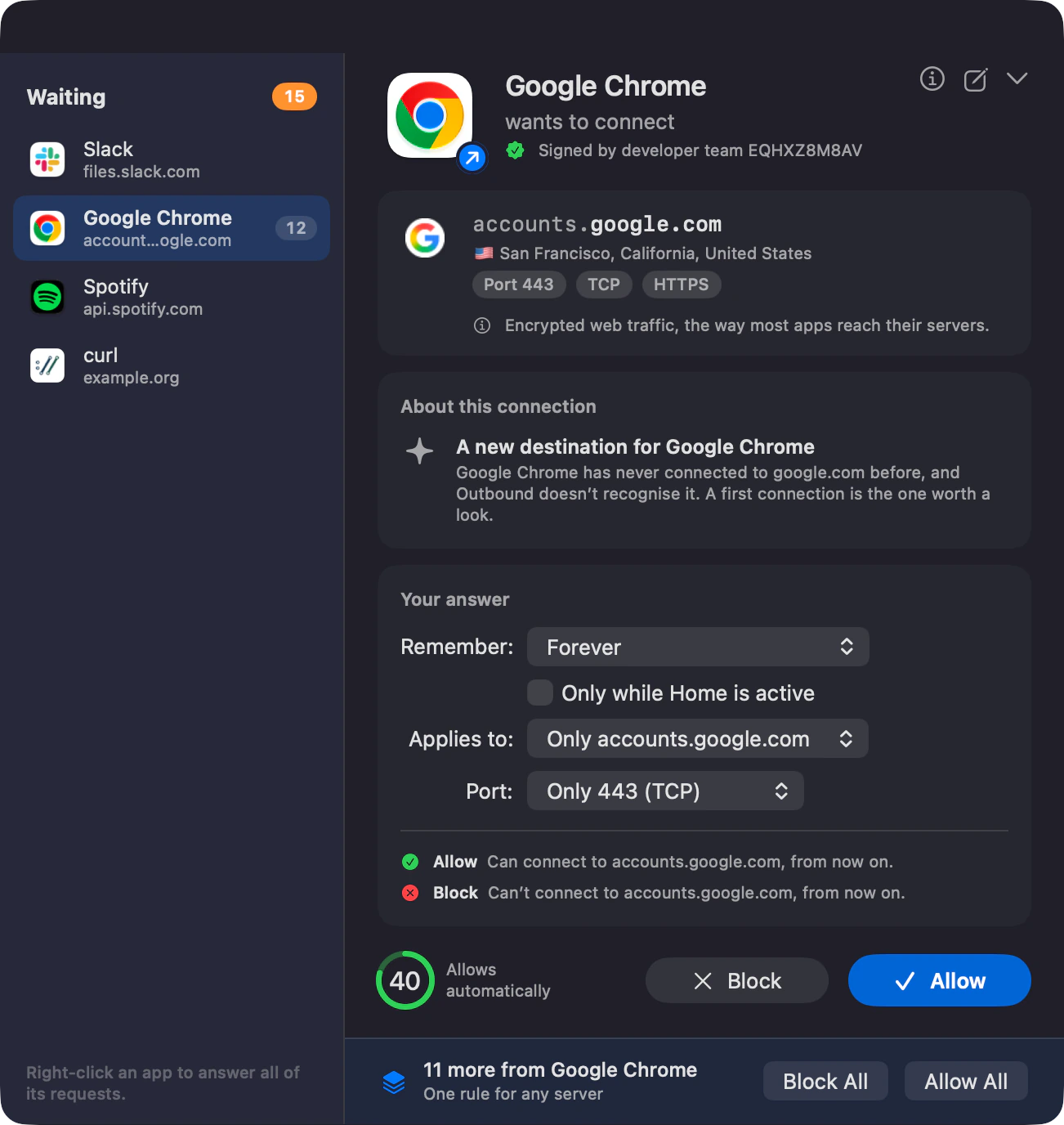
In Ask mode, unanswered connections are allowed after 8 seconds for UDP or 60 seconds for TCP by default, then added to Review. You can change the wait (15–120 seconds for TCP) or have unanswered connections blocked. Strict mode blocks connections that have no matching rule.
Match a signed app by team and signing ID, or use an exact file path. Combine it with a host, domain, IP address, CIDR range or local network, then set ports, protocol, direction and lifetime. Mark a rule as a priority rule and it wins over other rules.
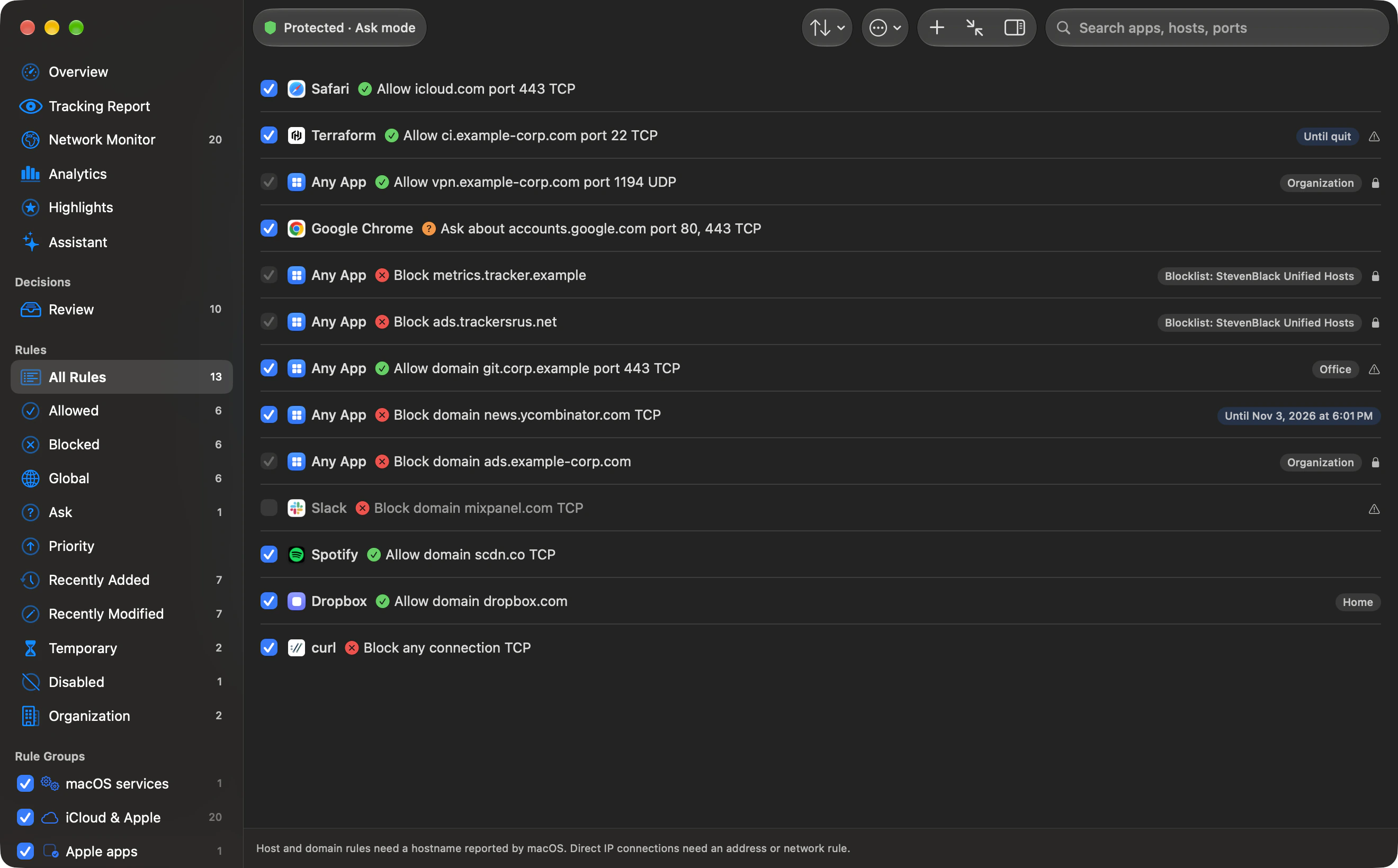
Path rules match exact paths. Wildcard paths are not supported. An updated binary may require reviewing its identity or path rule.
The Network Monitor lists connections under the app they belong to, with Sent, Received and Last Seen columns, live traffic bars for each app, and the map of where servers are beside the list (above it in a narrow window). Review what was allowed or denied before changing a rule. More about the network monitor.
Traffic charts draw upload above the centre line in orange and download below it in blue, each half on its own scale. Hover a column to read the time and rates, or drag across the chart to select a time window: the list and map then show only that window. The charts work from the keyboard and with VoiceOver.
When a connection closes, the filter records exactly how many bytes it sent and received, shown on each destination and domain row and in the inspector. Live traffic for each app still comes from sampling.
Search with scoped words such as app:, host:, port:, proto:, country:, direction: and rule:, with quoted values like app:"Google Chrome". A menu in the search field inserts them.
Smart filters narrow the list with tokens for AI apps, ad and tracking hosts, new apps, unsigned apps, Apple services, local network, abroad and heavy users. Set a daily data limit for an app in the inspector, and Outbound tells you when it goes over. Apps, Apple services, command-line tools and websites show their real icons in one rounded tile.
Outbound v1 does not include encrypted DNS.
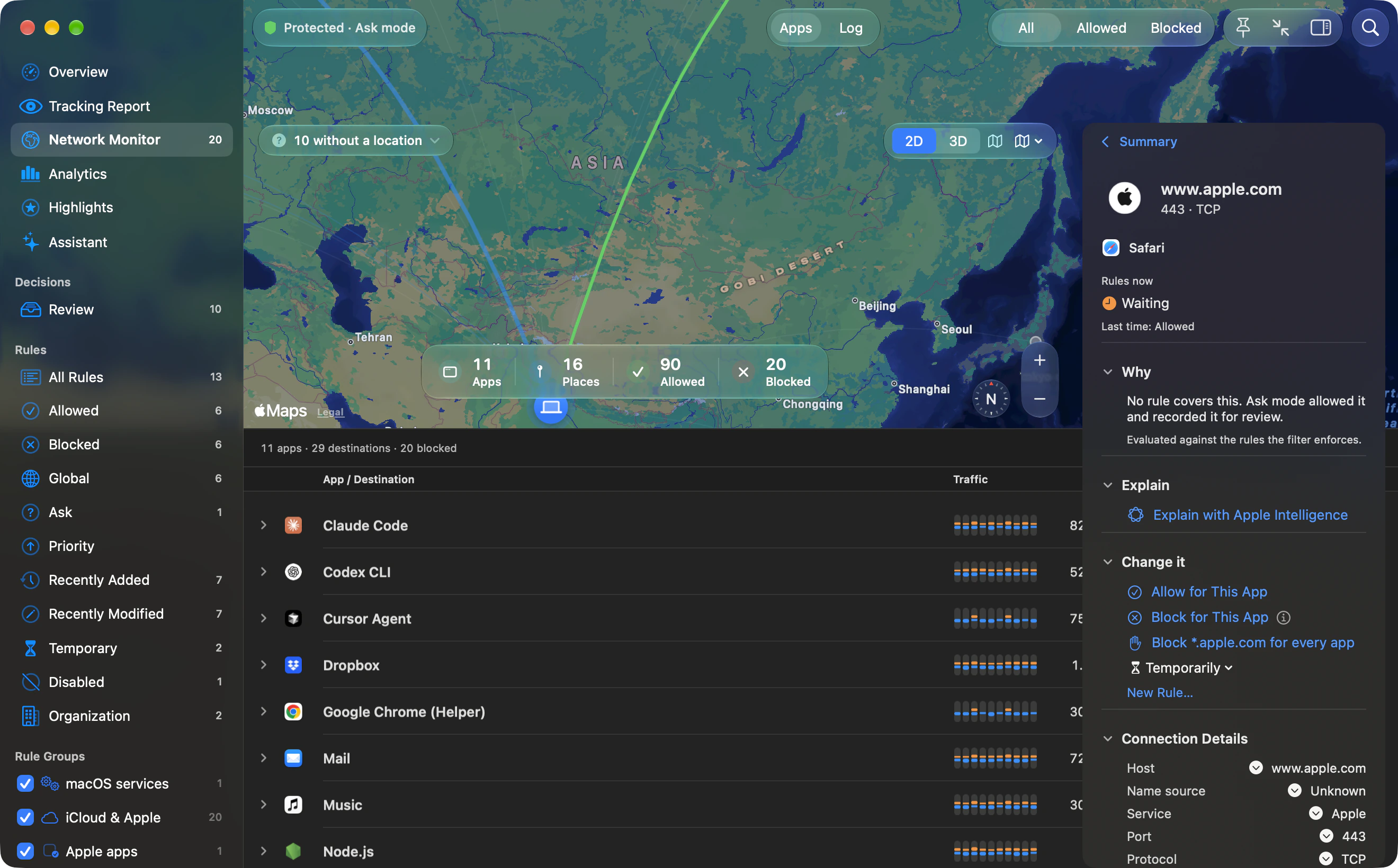
Select any connection and the inspector names the rule that decided it, or says no rule did and which mode stepped in. You can change the decision right there.
macOS services, iCloud and Apple’s own apps are trusted from the start, matched by Apple’s signature and by where macOS keeps them, so a copy of an Apple tool somewhere else is still asked about.
Status, mode, today’s numbers and the latest connections are a click away, with recent blocks and an Allow button beside each.
On a Mac with Apple Intelligence, ask the on-device assistant about this Mac’s network in plain language. Answers come with the records they used, as charts, a traffic timeline, a map or cards you can click to inspect. It highlights the key records and suggests follow-up questions.
Numbers are checked against the connection records. The assistant explains; it never changes your rules. Nothing leaves the Mac.
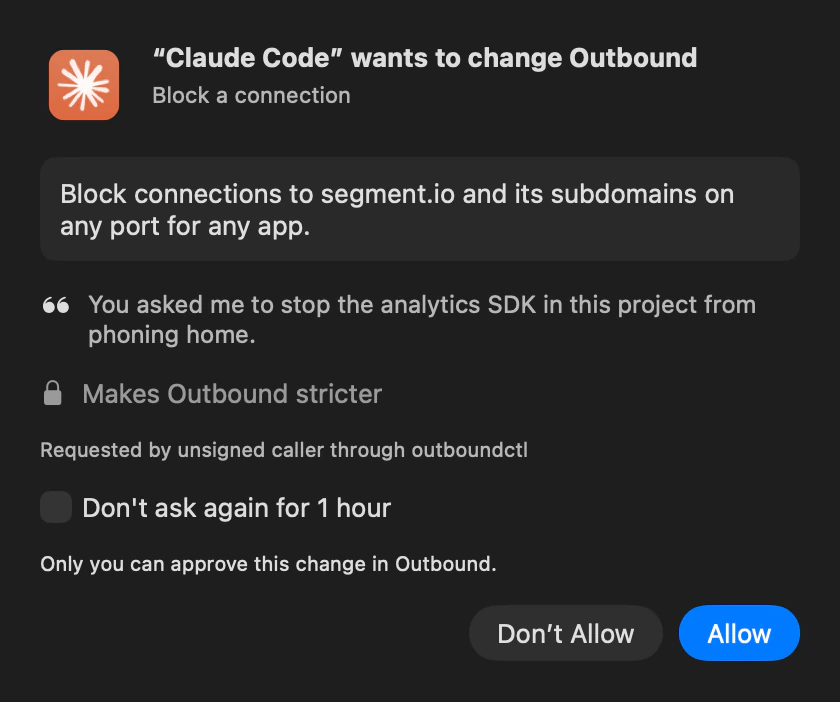
The assistant can instead answer with your own coding agent, such as Claude Code, Codex, Grok or Cursor, on the subscription you already have. Your questions and the figures it reads then go to that agent’s company under your sign-in, and any rule change it asks for waits for your approval. How it works ›
In the Help menu and the menu bar. It shows Outbound’s state with Pause for 15 Minutes and Turn Off, the blocks of the last 30 minutes with one-click Allow, other network filters and VPNs macOS reports, and a note about iCloud Private Relay.
Describe the problem and, if you choose, include diagnostics with no sites, addresses or app names. Outbound’s own log of the last 30 minutes is added only if you tick it. You see exactly what will be sent first, or save it to a file instead.
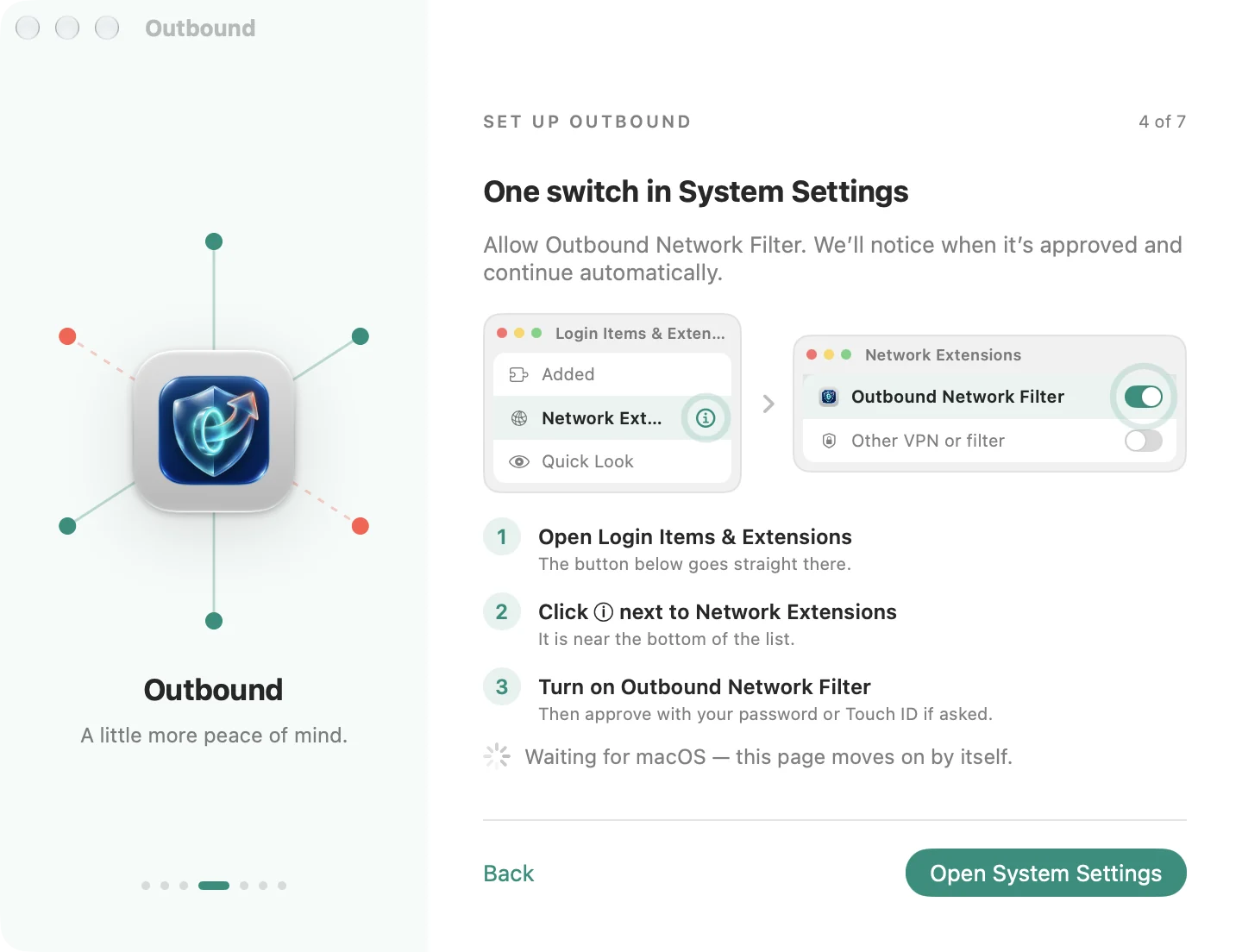
macOS asks you to approve a network filter in System Settings. Outbound shows exactly where the switch is, opens the right page for you, and moves on by itself once macOS confirms it.
No kernel extension. Outbound uses Apple’s Network Extension framework.
Map and globe
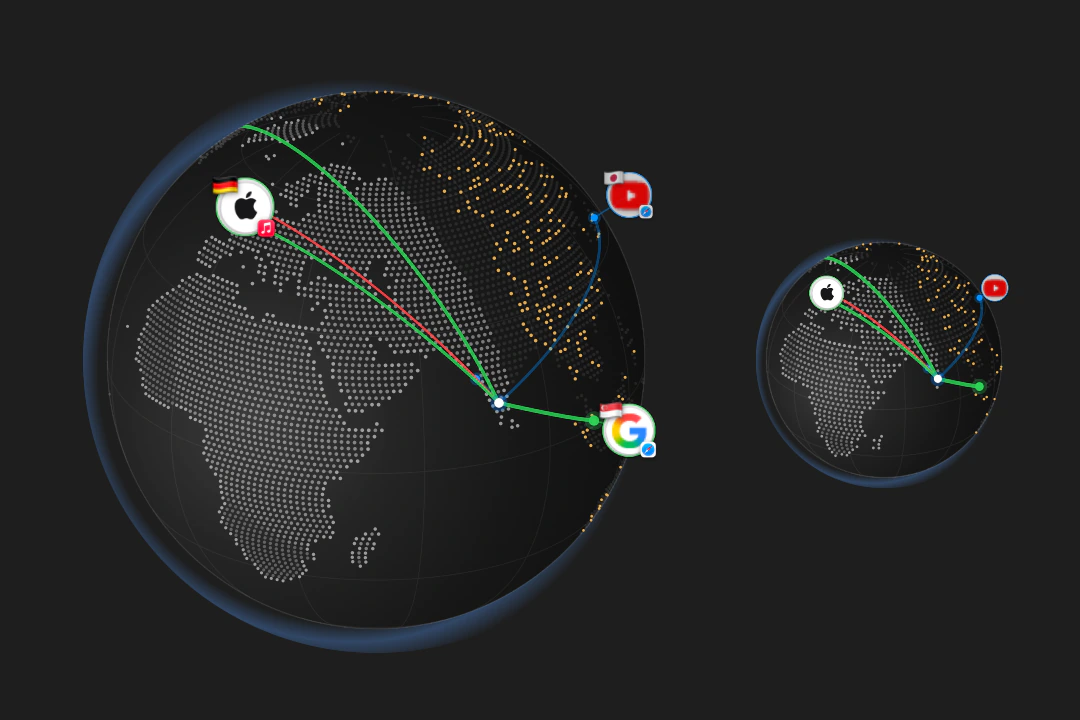
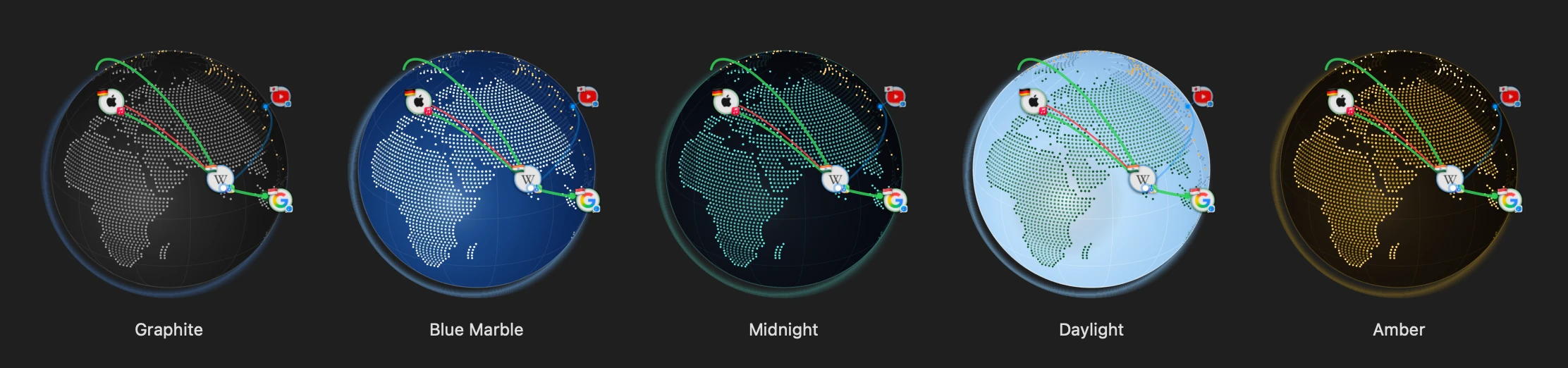
The Network Monitor map has 2D and 3D, with Standard, Muted and Satellite styles. Turn on the floating globe in Settings › Labs and it stays on your desktop: resize it, hold it to move it, and pick a theme.
Intelligence
Assistant answers questions about this Mac’s network in plain language, and Analytics opens with a short written overview. Every number in an answer is checked against your own figures; anything that doesn’t match is replaced by Outbound’s own summary.
On this Mac. The default.
Answers are written on your Mac, so nothing you see in Analytics leaves it. A Mac without Apple Intelligence shows a plain summary instead.
The subscription you already pay for. No API key.
Choose Claude Code, Codex, Grok, Cursor or another agent installed on this Mac. It reads Outbound’s figures through Outbound’s own tools and answers under your own sign-in.
OpenAI, Anthropic, Google Gemini, OpenRouter, or a local server.
Writes the Analytics overview with the model you choose, including Ollama or LM Studio on your own network. Your key stays in your keychain.
Outbound talks to the agent over the Agent Client Protocol, the open standard coding agents use with editors. It finds the agents installed on this Mac, and you turn one on in Settings › Intelligence.
Outbound includes a Model Context Protocol server, outboundctl mcp. Claude, Cursor, Codex, Gemini CLI and VS Code can ask about your apps, the sites and countries they reach, what was blocked and your rules. They see the same figures as Analytics, never the contents of a connection.
Stays on your Mac
Goes only where you point it
Never sent
See the privacy policy for the details.
Also in the app
A privacy score with a daily streak, awards, a network passport of the countries your Mac has reached, and a Year in Review. Share cards are previewed before you share them. Nothing is shared automatically.
See which AI apps connect, which AI services they reach, and the countries those servers are in.
Search tokens for AI apps, ad and tracking hosts, new apps, unsigned apps, Apple services, local network, abroad and heavy users.
Set a daily limit in the inspector. Outbound tells you at 80 % and at the limit, or blocks the app until midnight if you choose.
Apps, Apple services, command-line tools and websites show their real icons in one consistent rounded tile.
The outboundctl command ships inside Outbound: status, rules, ai ask and mcp.
Learn allows new connections and records them for Review. Ask asks first. Strict blocks anything without a rule. Your rules apply in every mode. Learn never re-trusts a program whose code changed: it is asked about like a new one. After a few days in Learn, Outbound suggests reviewing what it saw and switching to Ask, and Allow Verified Developers allows everything from verified developers in one step.
Choose a mode ›Subscribe to hosts, domain or CIDR lists over HTTPS, with up to 200,000 entries per list. A failed fetch keeps the last good list.
Network behavior ›Group rules in profiles. Switch them with outboundctl. Export your rules, import them elsewhere, and retain the previous store version.
Move your rules ›outboundctl ships inside the app. It checks status, manages rules and blocklists, activates profiles, exports audits and validates feeds. outboundctl ai ask asks a question about your network, and outboundctl mcp starts the server that your AI apps connect to. The CLI edits the rule store; it does not speak directly to the extension.
outboundctl status
outboundctl rules list
outboundctl profile list
outboundctl rules export rules.json
outboundctl mcp
Command examples.
The firewall built into macOS handles incoming connections. Outbound decides where your apps can connect out.
| What you need | macOS firewall | Outbound |
|---|---|---|
| Incoming connections | Built into macOS | Rules include direction |
| Outgoing app and host rules | Not its purpose | App, host, domain, address, port |
| How unknown connections are handled | Incoming permissions | Learn, Ask or Strict |
| See where apps connect | Per-app totals in Activity Monitor, no destinations | Activity, map and traffic per app |
| Managed deployment | Apple firewall payload | MDM profiles, rule feed, audit export |
| Price | Included with macOS | $39 USD personal, one time ($29 for the first 50) |
Apple describes its firewall in Firewall settings. Compare Outbound with Little Snitch, LuLu and more ›
Outbound is $29 for the first 50 licences, then $39. Pay once, use it on 2 Macs.