Features · 05 Intelligence
Answers. With records behind them.
Outbound’s Assistant answers questions about your Mac’s network in plain words, from the records Outbound has already collected, and can show the records behind each answer. Apple Intelligence answers on your Mac by default.
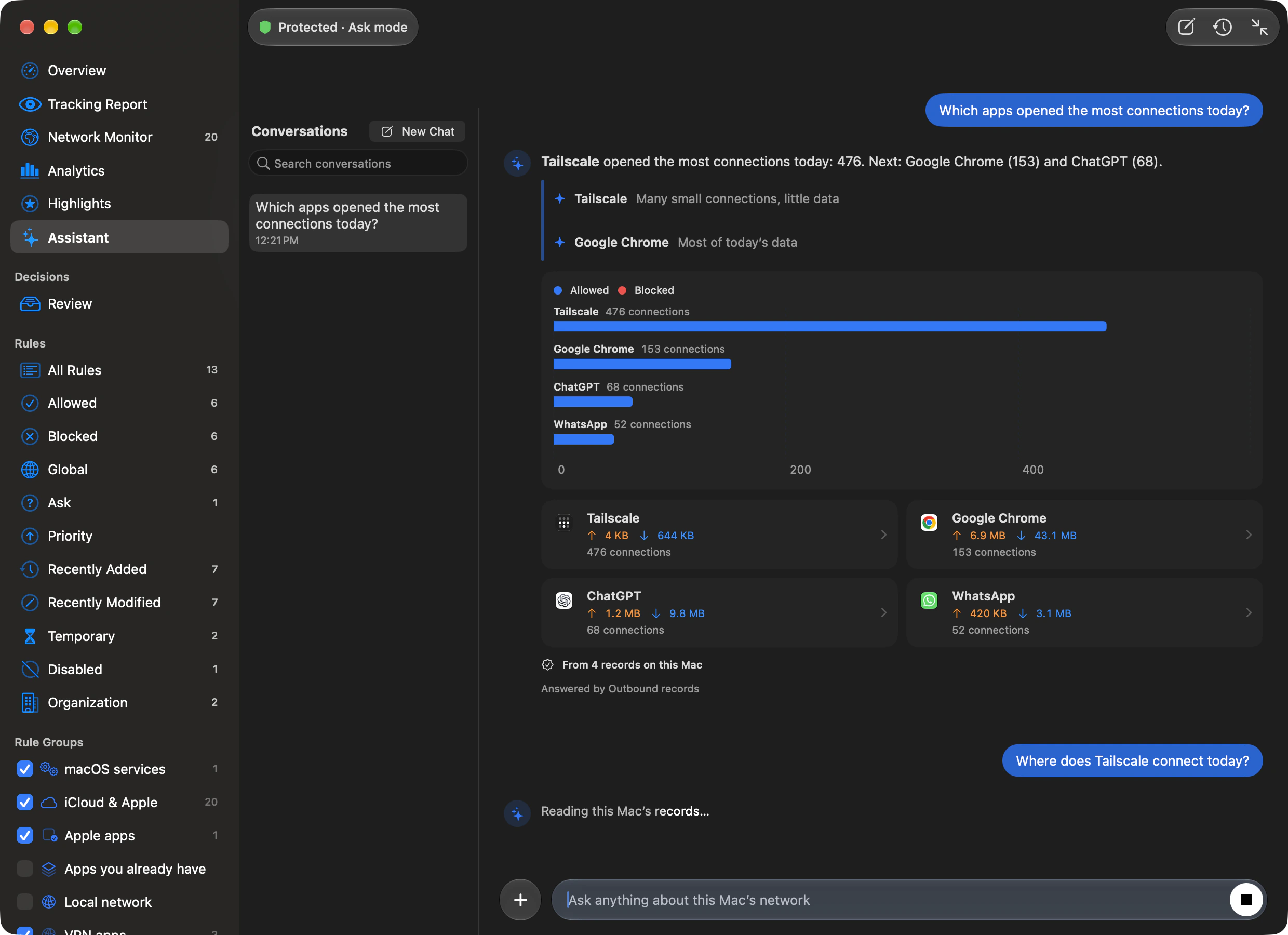
Assistant
Ask. See. Keep going.
By default Apple Intelligence answers on this Mac. See the records behind an answer as a chart, a timeline, a map or cards you can open.
Ask in plain words.
Recognised suggestions read the records directly, even without Apple Intelligence. Change the wording to “this week” or “in the last hour” to change the ranking window.
Explore suggested questions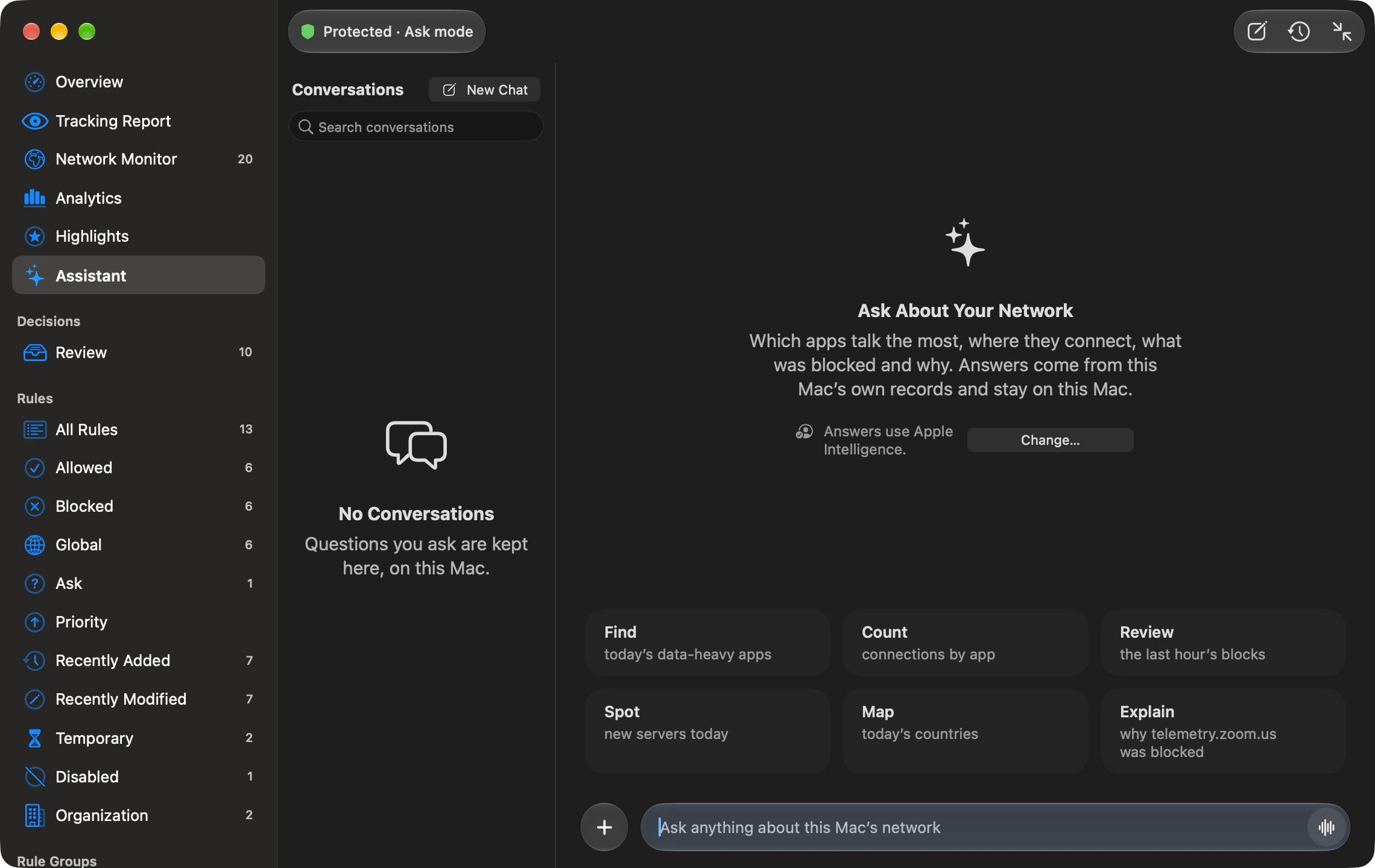
See the records.
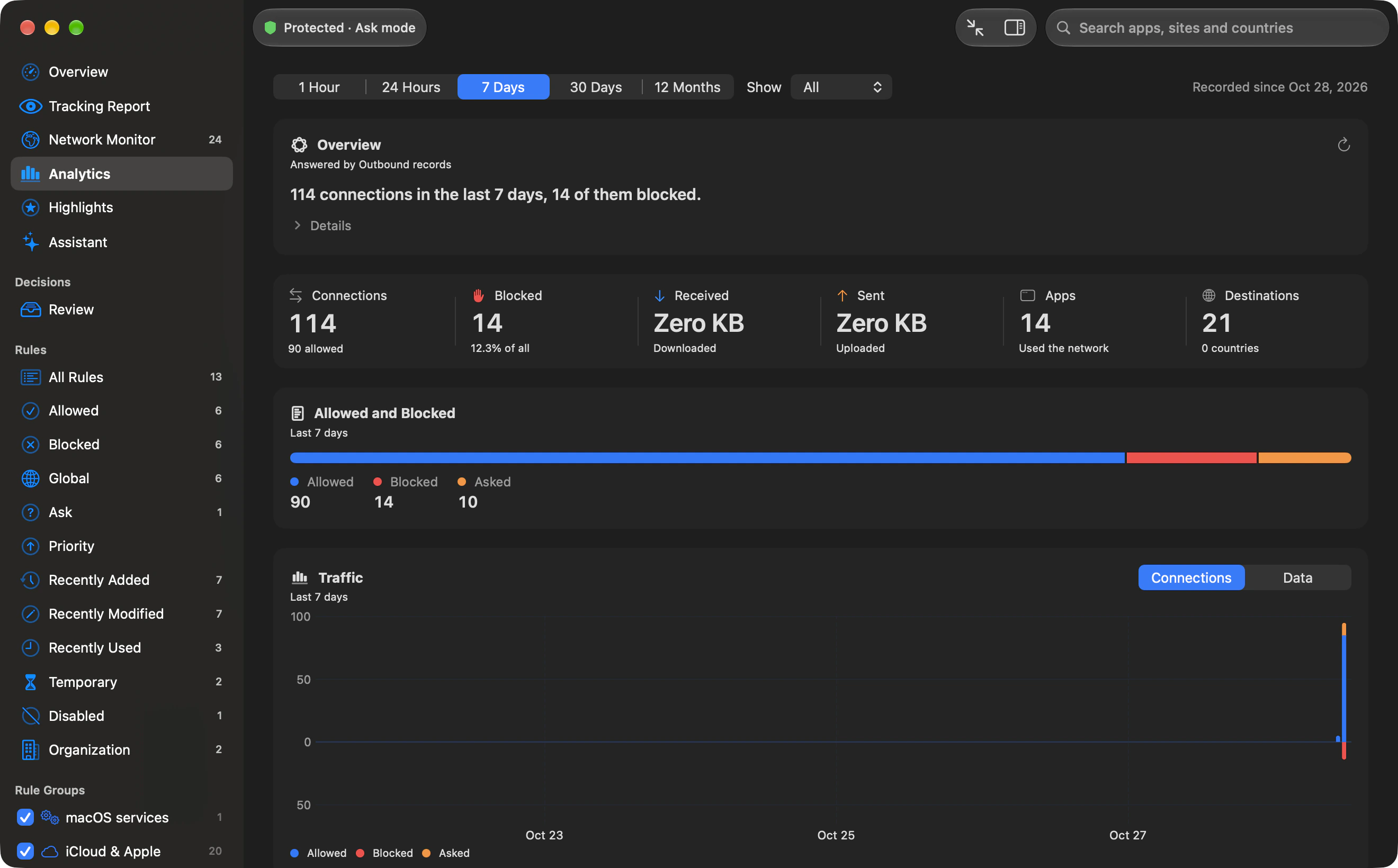
Which apps opened the most connections today? A chart and cards from 4 records. Outbound holds the draft while it checks the figures, not the truth of every sentence.
Read and check an answerFollow the answer.
Which countries did apps connect to today? A map, with Russia’s three attempts blocked. Cards open the matching app, destination or rule in the inspector when available.
Explore questions and history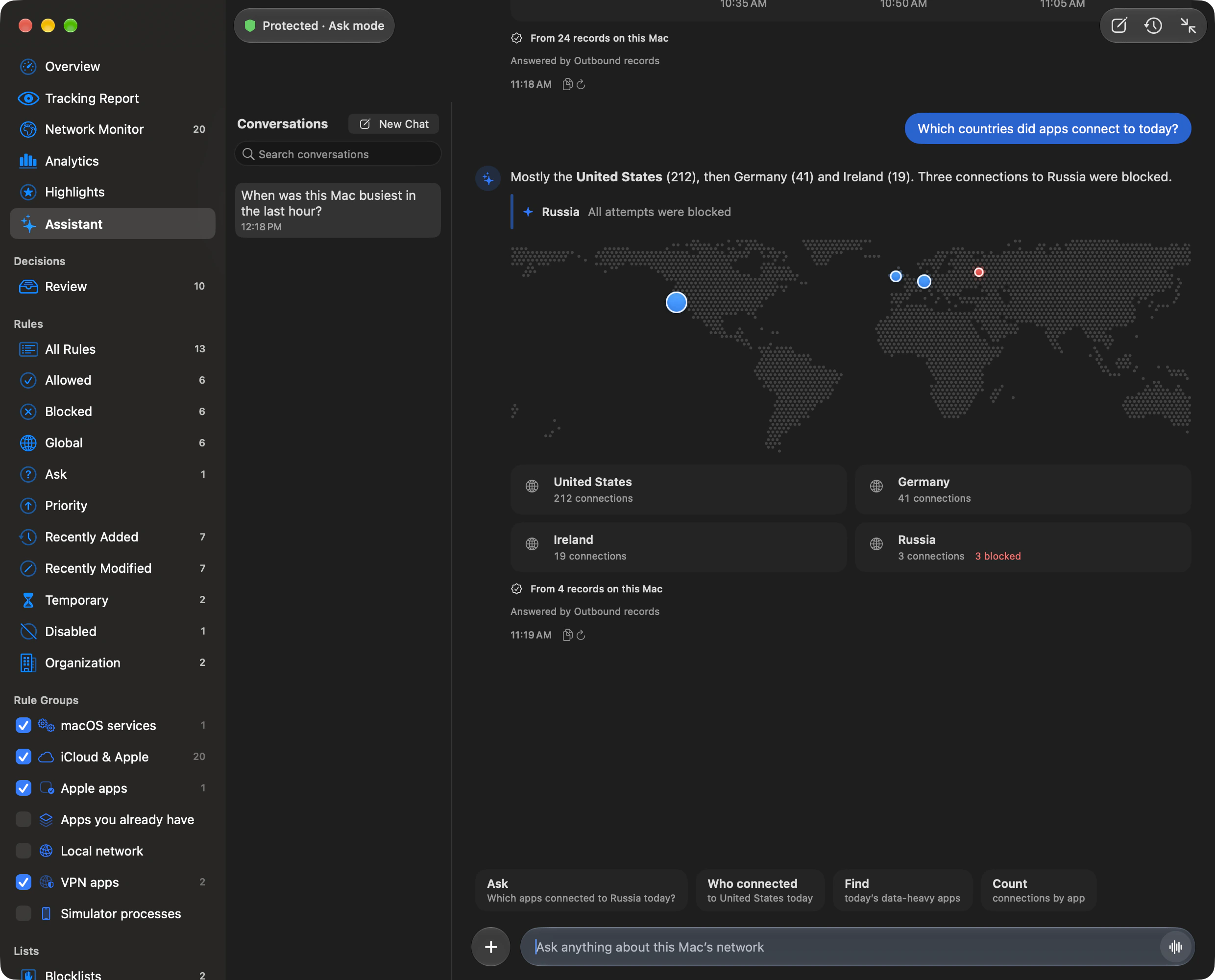
Explain
Explain one connection.
Select a connection and click Explain with Apple Intelligence. The model on your Mac says what the server most likely is, and whether this app usually connects there.
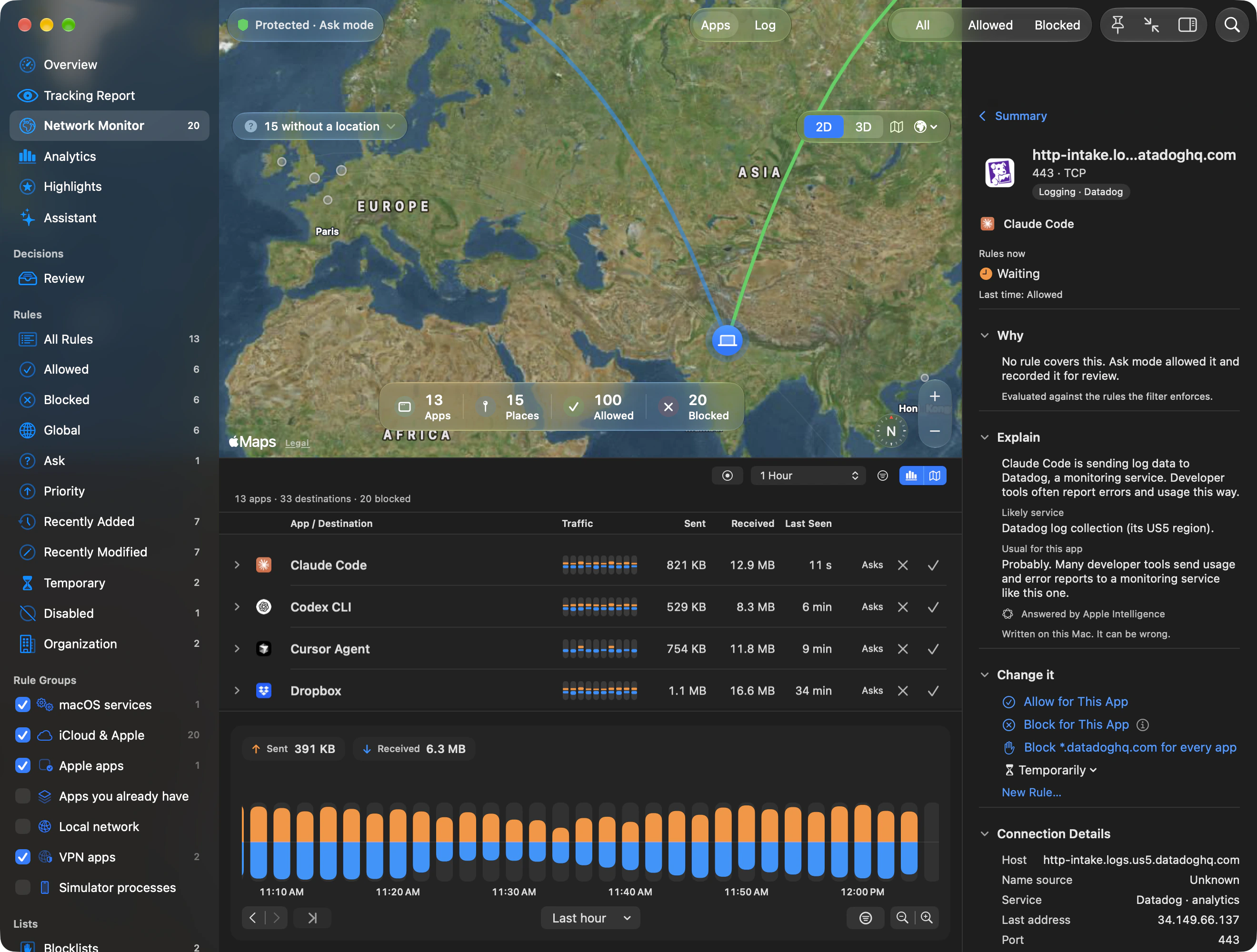
- Tracker label. The category and company from Outbound’s tracker catalogue: “Logging · Datadog”.
- Summary. What the connection is doing, in plain words.
- Likely service. The service or company the host most likely belongs to.
- Usual for this app. One sentence on whether this kind of app connects there.
- The ground rule. “Written on this Mac. It can be wrong.”
Example answer. The summary, Likely service and Usual for this app are generated advice. You can select and copy the text; it never changes a connection decision.
Explore what Explain usesProviders
Choose who answers.
Apple Intelligence on this Mac. Your coding agent on your subscription. Or your own provider for the Analytics overview and alert explanations.
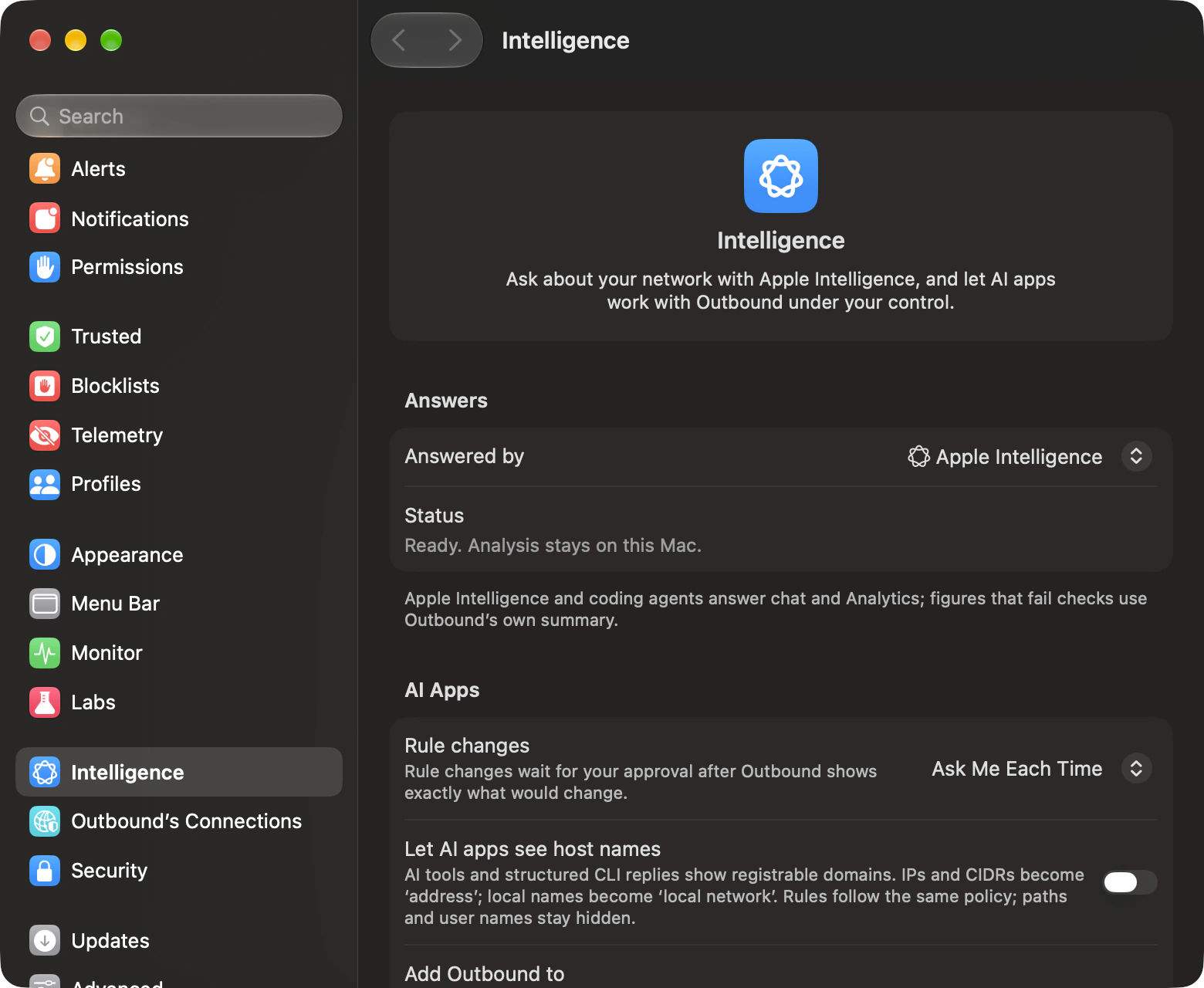
Data choices
Get to know Intelligence.
Choose what leaves your Mac. Settings › Intelligence lets you choose who answers the Assistant and writes the Analytics overview. Explain in the inspector runs on this Mac with Apple Intelligence.
In depth
Assistant
Ask, and see the records behind the answer.
By default Apple Intelligence answers on this Mac. Answers can show the records behind them, as a chart, a timeline, a map or cards you can open.
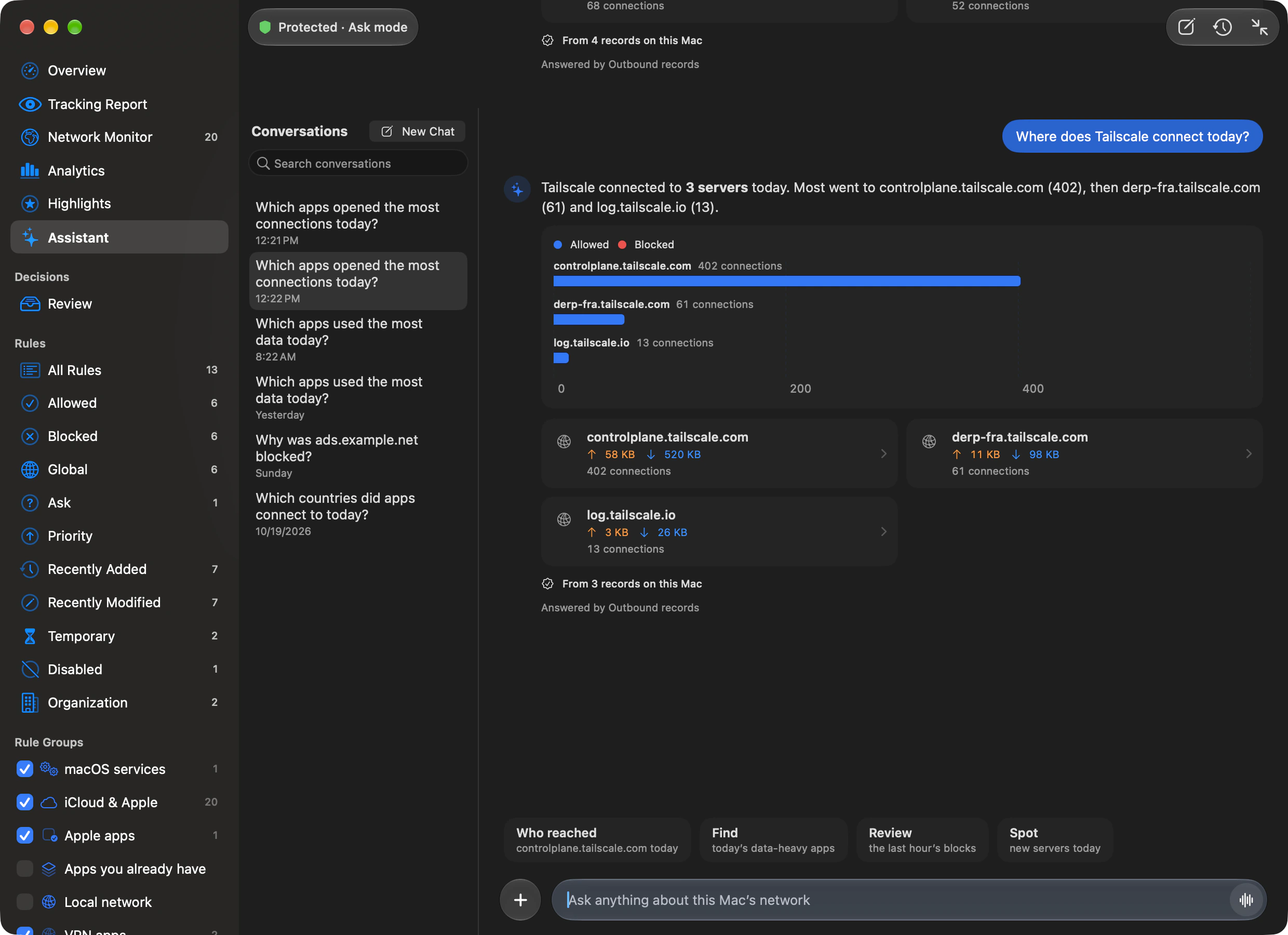
Answers without a model
- “Which apps used the most data today?”
- “Which apps opened the most connections today?”
- “What did Outbound block in the last hour?”
- “Which new servers did apps reach today?”
- “Which countries did apps connect to today?”
- “Why was (a site) blocked?” appears when today’s blocked records include a suitable domain.
Recognised suggestions read the records directly, even without Apple Intelligence. Change the wording to “this week” or “in the last hour” to change the ranking window.
Read and check an answer
- Checked figures
- Outbound holds the draft while it checks the figures (“Checking 12 figures against the records…”). It can try one correction, then show a records-based answer or an error. This checks the figures, not the truth of every sentence.
- Supporting records
- Highlights pick out up to three records. Charts compare figures or show a timeline; maps show countries. Cards open the matching app, destination or rule in the inspector when available.
- Continue the conversation
- Hover over an answer for “Copy answer” and “Ask again”. Up to four follow-up suggestions help you continue. Links in generated answers are removed before display.
- Your coding agent
- It answers on your existing subscription without an API key. Questions and the figures it reads go to its vendor or configured model provider under your sign-in. Outbound checks its figures against a record of the MCP tool results.
- Who answered
- Each answer names the model or agent that wrote it, such as “Answered by Claude Code”, or says “Answered by Outbound records”. If an agent quits mid-answer, its last message stays, such as a request to sign in again.
Which hosts Claude Code, Codex and Grok CLI contact on their own ›
Questions and history
- New Chat
- Open Assistant in the sidebar. Choose New Chat or press ⇧⌘N to start a conversation. Press Escape to stop an answer.
- Dictate a question
- With the input empty, choose Dictate a question. On macOS 26, dictation runs on-device and may download a missing language model before listening. On macOS 14 and 15, system speech recognition is not guaranteed to stay on the Mac.
- Question length
- Questions that need a model allow 1,600 UTF-8 bytes on the on-device model or 8,000 UTF-8 bytes with a coding agent. A character can use more than one byte.
- Find and organise
- Search conversations matches every typed word against titles and messages. Right-click a conversation for Rename… or Delete. Hide History and Show History fold the list away.
- Stored on this Mac
- The list beside the chat keeps conversations locally, with CloudKit syncing disabled. Edit › Undo can restore a deleted conversation while that edit remains undoable.
- Earlier turns
- An agent session can receive a summary of earlier conversation turns. Deleting a local conversation does not retract content already sent to the agent.
Explain
Explain one connection.
Select a connection and click Explain with Apple Intelligence. The model on your Mac says what the server most likely is, and whether this app usually connects there.
Example answer. The summary, Likely service and Usual for this app are generated advice. You can select and copy the text; it never changes a connection decision.
What Explain uses
- Inspector facts
- The app name and signing identity; host, port and transport; direction and decision; allowed and blocked counts; and the location label when known.
- On-device processing
- No packet data, URLs or history beyond those counts. Outbound sends no connection facts to Private Cloud Compute or a cloud provider for Explain.
- Availability
- You need macOS 26 or later with Apple Intelligence turned on. If it is unavailable, a hint explains what you can do where there is a fix.
- Try Again
- A failed explanation offers Try Again. Changing the selected connection facts clears the answer; click Explain with Apple Intelligence to request another.
- In a connection alert
- Open an alert’s details and click Explain this connection. With Apple Intelligence it runs on this Mac. With your coding agent or API-key provider, you see exactly what will be sent, with the website domain rather than the full host name, and nothing leaves until you click Send. Explaining never answers the alert.
Providers
Choose who answers.
Ask Assistant about this Mac’s network in plain words. Your own API key writes the Analytics overview and alert explanations.
Apple Intelligence. The default, and it runs on this Mac. Answers are written on your Mac, so nothing you see in Analytics leaves it. They show the records they used as charts, a timeline or a map, with follow-up questions to try. A Mac without Apple Intelligence shows a plain summary instead.
Your coding agent. Runs on the subscription you already pay for, with no API key. Choose Claude Code, Codex, Grok, Cursor or another agent installed on this Mac. It reads Outbound’s figures through Outbound’s own tools and answers under your own sign-in.
Your own API key. OpenAI, Anthropic, Google Gemini, OpenRouter, or a server you run, such as Ollama or LM Studio. Writes the Analytics overview and alert explanations with the model you choose. A server on this Mac can use http://localhost; any other server needs HTTPS. Your key stays in your keychain.
What your coding agent can and can’t do
Outbound talks to the agent over the Agent Client Protocol, the open standard coding agents use with editors. It finds the agents installed on this Mac, and you turn one on in Settings › Intelligence.
- Outbound gives it Outbound’s tools: your apps, the sites and countries they reach, what was blocked, and your rules.
- Outbound starts it in a folder of its own, allows only Outbound’s tools and refuses its requests for other work. The agent’s own settings still decide what it can do without asking, so this isn’t a sandbox.
- If it asks to change a rule, nothing changes until you approve it.
- Outbound tells you how to sign in when the agent needs it. If the agent doesn’t answer, the Analytics overview shows Outbound’s own summary.
Coding agents Outbound can answer with
- Claude Code
- Codex
- Grok
- Cursor
- Gemini CLI
- GitHub Copilot
- OpenCode
- Factory Droid
- Goose
- Kimi CLI
- Qwen Code
- Kilo
- Cline
- Auggie
And any other agent that supports the Agent Client Protocol.
Data choices
Choose what leaves your Mac.
Settings › Intelligence lets you choose who answers the Assistant and writes the Analytics overview. Explain in the inspector runs on this Mac with Apple Intelligence. Explain in a connection alert can also use your coding agent or API-key provider: you see exactly what will be sent, and nothing leaves until you click Send.
| Feature | Who answers and what is sent |
|---|---|
| Assistant | Apple Intelligence processes typed questions, records and answers locally. An approved coding agent receives your questions, the figures its tools return and a summary of earlier turns when a session starts. |
| Explain in the inspector | Apple Intelligence only. The connection facts stay on this Mac. |
| Explain in an alert | Whoever answers in Settings › Intelligence. A coding agent or API-key provider receives the alert’s facts, with the website domain rather than the full host name, only after you review the request and click Send. |
| Analytics overview | Apple Intelligence by default, or your approved coding agent or API-key provider. API-key requests contain totals, app names, website domains and countries for the range you are viewing. |
| API-key selection | OpenAI, Anthropic, Google Gemini, OpenRouter and OpenAI-Compatible write Analytics overviews and alert explanations. Selecting one does not route Assistant questions to it. The Assistant uses Apple Intelligence unless an approved coding agent is selected. |
- Keys and servers
- App keys stay in the login Keychain. OpenAI-Compatible keys are saved per server address, so changing servers does not send the previous server’s key to the new one. Servers on localhost, 127.0.0.1 or ::1 need no key and can use plain HTTP; any other server needs HTTPS and a key. Outbound refuses a redirect to a different address or transport. Choose your own Model for a custom server.
- Consent
- Send figures to (provider) starts off. A new custom server address asks for consent again. API-key overview figures exclude addresses, full host names, file paths, rules and connection contents.
- Preview and test
- Show What’s Sent… shows the exact request for the range you’re viewing in Analytics, with your key hidden. If Analytics isn’t showing a range, it asks you to choose one first. Choose Test Connection to send a small “Say OK.” request. This test can run even while Send figures to (provider) is off.
- Checked overview
- Numeric values must match the supplied figures or list lengths. A failed draft falls back to Apple Intelligence or a plain summary. The check does not prove every sentence.
- Agent setup
- Answer with (agent) starts off. Claude Code and Codex need Node.js and can download pinned adapters through
npx. Codex also starts in read-only mode; the agent’s own settings still govern what it can do without asking. - Agent profiles and tests
- Claude Code shows Profile when more than one profile folder exists. Test (agent) starts a session asking for OK and waits up to 120 seconds. If sign-in is needed, Outbound tells you which command to run in Terminal.
Where your data goes
Stays on your Mac.
- Your rules and connection history.
- Answers from Apple Intelligence, and the check of their numbers.
- Server locations, from a database stored on the Mac.
Goes only where you point it.
- Your questions and the figures your coding agent reads, to the agent’s vendor or the model provider it is set up with, under your sign-in, once you turn it on.
- Figures to the model behind your API key, after you turn on Send figures to it. Show What’s Sent… shows the exact request for the range you’re viewing, and
outboundctl ai ask --previewprints the exact request without sending it. - An alert’s facts to your coding agent or API-key provider, only after you click Send under What will be sent.
- The same figures as Analytics, and your rules, to AI apps you add.
Never sent.
- The contents of any connection.
- To a model behind an API key: addresses, full host names, file paths or rules.
- Your figures, until you choose an AI and turn it on. A connection test sends a test request only.
The privacy policy has the details.
MCP tools
Let an AI app read the records.
The AI apps you connect see the same figures as Analytics and can read your rules. Nothing leaves through MCP by itself, and connection contents are never part of its results.
| Tool | What it reports |
|---|---|
network_summary | Connections, blocks, data sent and received, top apps, domains and countries, and new apps. |
top_apps | Apps ranked by data, then connections. |
top_domains | Website domains ranked by connections. |
top_countries | Countries whose servers were reached, as ISO codes. |
blocked | Block totals and the apps and domains blocked most. |
new_apps | Apps first seen in the chosen window, newest first. |
firewall_status | Whether the filter is configured and on, plus the rule count. |
rules | Action, remote, ports, protocol, program and enabled state. |
And 18 more, from traffic over time to the review queue, in the manual.
- Time ranges. Activity tools take
hour,day,week,monthoryear; the default isday. - Row limits. Ranking tools,
blockedandnew_appsaccept 1–20 rows, defaulting to 10.rulesaccepts 1–200, defaulting to 50.network_summarytakes only a window;firewall_statustakes no parameters. - Client setup. Add Outbound to merges the entry into the client’s existing configuration. Claude and VS Code need a restart afterwards. Codex’s TOML configuration is only appended to; existing lines are never rewritten or removed.
AI apps can query Outbound over MCP
Outbound includes a Model Context Protocol server, outboundctl mcp. Claude Code, Claude, Cursor, Codex, Gemini CLI and VS Code can ask about your apps, the sites and countries they reach, what was blocked and your rules. They see the same figures as Analytics. The contents of your connections aren’t part of it.
- Settings › Intelligence has an Add Outbound to button for each of them.
- An AI app can ask to add, remove, turn on or turn off a rule, switch profiles or block an app’s trackers. Nothing changes unless you allow it. For a rule, the approval panel says “Only you can approve this.” The AI app waits up to 180 seconds for your answer, and Edit › Undo takes an approved change back.
- You can switch rule changes off, so AI apps can only read. Or start the server with
--read-only, which offers no tools that change anything.
What AI tools can see
By default AI tools see website domains, not full host names. Addresses show as “address”, local names as “local network” and app paths as app names. Your user name is never included. To share full host names, turn on Let AI apps see host names in Settings › Intelligence and start the server with --detail hosts. outboundctl mcp --print-disclosure prints the policy in effect.
AI approvals
Approve each requested rule change.
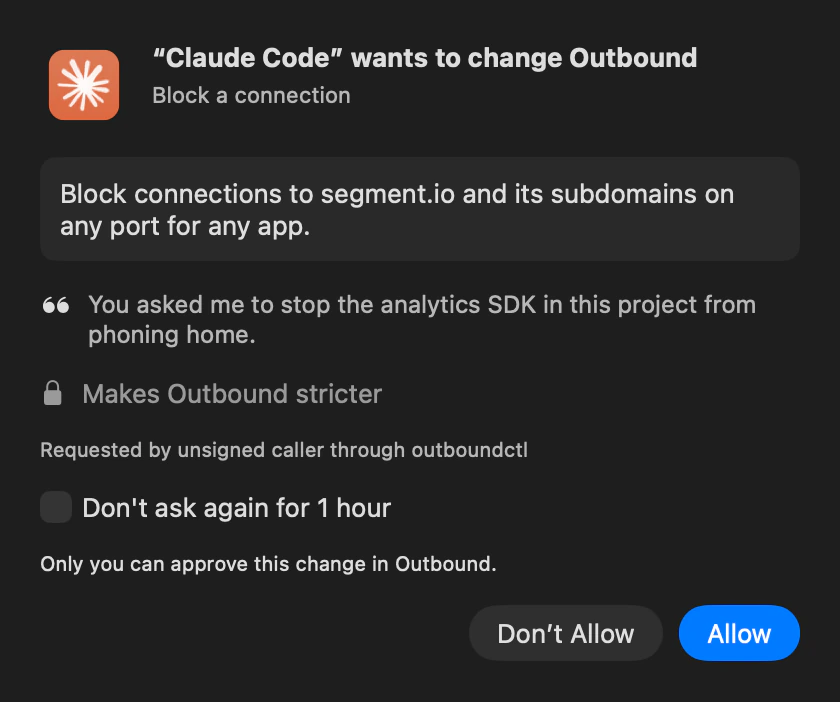
The on-device Assistant does not change rules. A coding agent answering in Assistant can request a change through MCP. The tools add_rule, remove_rule and set_rule_enabled file requests; Outbound’s background agent applies a change only after you allow it.
- Ask Me Each Time or Off
- Rule changes defaults to Ask Me Each Time, showing valid requests one at a time. Off keeps AI apps able to read but automatically refuses their rule-change requests.
- Read the request
- The panel names the AI app, shows the exact change and quotes its reason when supplied. Choose Don’t Allow (Escape) or Allow (Return). Invalid rules are rejected before they reach you.
- Wait for the change
- Allowing… stays visible until the change is applied. A change that loosens protection still gets the usual confirmation. Edit › Undo reverses an approved change.
- Waiting requests
- Each MCP server process allows three waiting rule changes. A fourth request is refused until you answer one.
- Unanswered requests
- The caller waits 180 seconds. If it withdraws an unclaimed request, a later click cannot apply it. The panel checks when you answer; it does not automatically close at the deadline.
- Changes already claimed
- If Outbound has claimed the request, the caller waits up to 120 seconds more. If that also expires, check Rules to see whether the change was applied.
Command line
Inspect a request before you send it.
outboundctl ai ask is a separate, read-only way to ask a provider about your network. It sends your question verbatim with the automatic figures, so anything you type in the question is sent too.
| Command | What it does |
|---|---|
outboundctl ai providers | Lists providers, default models and the environment variable used for each key. |
outboundctl ai ask | Sends your question and network rollups to a provider or custom server. It cannot change rules or settings, and runs no tools at the provider’s request. |
outboundctl ai ask --preview | Prints the exact method, headers and body with the key hidden. Sends nothing. |
outboundctl mcp | Starts the MCP server on standard input and output. |
outboundctl mcp install --client cursor --dry-run | Previews the Cursor configuration without writing it. Choose another supported client with --client. |
outboundctl mcp --print-disclosure | Prints what AI apps would see, domains or full host names, without starting the server. |
outboundctl mcp --ledger <file> | Records successful tool results for the Assistant’s numeric checks. |
For ai ask, --window accepts hour, day, week, month or year and defaults to week. The CLI reads keys from environment variables; the app keeps its keys in Keychain.
Manual
Related in the manual
Keep exploring the Assistant, connection explanations, providers and AI apps.
AI approvals
180 s.
Only you can approve this.
The caller waits for your answer. If it withdraws an unclaimed request at that deadline, a later click cannot apply it. A request Outbound has already claimed can wait up to 120 seconds more.
Explore AI approvalsTech specs
- Default Assistant
- Apple Intelligence
- Explain in the inspector requires
- macOS 26 or later with Apple Intelligence switched on
- Explain in an alert
- Apple Intelligence, or your coding agent or API-key provider after you review the request and click Send
- Remote AI servers
- HTTPS required; plain HTTP only for a server on this Mac
- AI tools see
- Website domains, not full host names, unless you allow host names
- On-device question limit
- 1,600 UTF-8 bytes for an on-device question that needs a model
- Agent question limit
- 8,000 UTF-8 bytes for a question that needs a coding agent
- New Chat
- ⇧⌘N
- Stop answering
- Escape
- Rule changes default
- Ask Me Each Time
- Waiting rule changes
- Up to three per MCP server process
- Approval wait
- The caller waits 180 seconds. If it withdraws an unclaimed request at that deadline, a later click cannot apply it. A request Outbound has already claimed can wait up to 120 seconds more.
- Provider key storage
- Login Keychain
Questions about intelligence
Can you use the Assistant without Apple Intelligence?
You can use the suggested questions and recognised ranking or block questions without a model.
Do your questions leave your Mac?
With Apple Intelligence selected, typed questions, records and generated answers stay on the Mac. Dictated questions on macOS 14 and 15 are not guaranteed to stay on the Mac. A coding agent sends your question, a summary of earlier turns when a session starts, and the figures its tools return to that agent’s vendor or configured provider under your sign-in.
Can you use an API-key provider for the Assistant?
API-key providers write Analytics overviews and alert explanations. Your Assistant uses Apple Intelligence unless you select an approved coding agent.
Can an AI app change your rules without approval?
Outbound applies a requested change only after you allow it. Set Rule changes to Off in Settings › Intelligence to refuse requests while letting AI apps read your figures.

Choose where your apps connect.
Outbound is $29 for the first 50 licences, then $39. Either way, you pay once.
- 2 Macs, or 5 with Family
- One-time, no subscription
- Full refund within 14 days
- macOS 14 or later