
The connection alert
What the connection alert shows, when it appears, and how Allow and Block answer the connection.
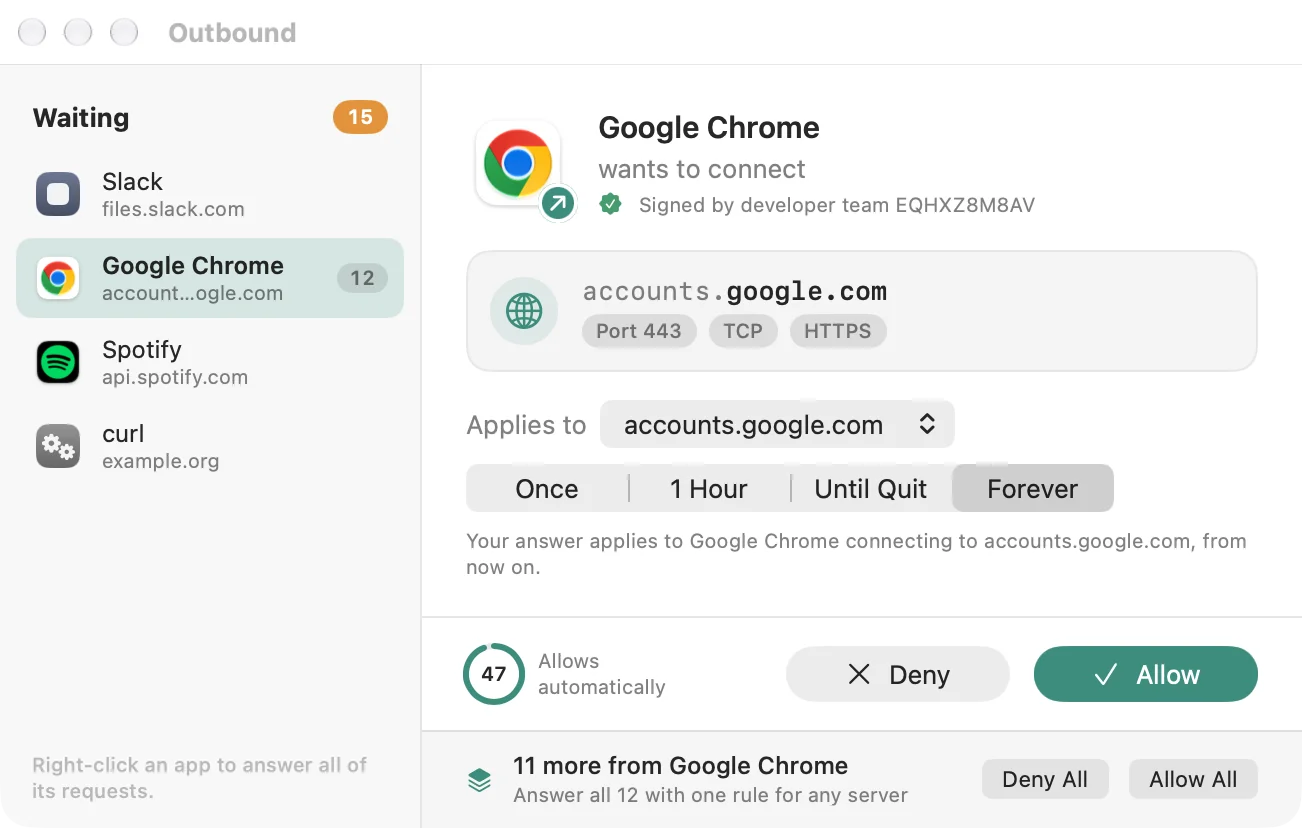
When a program tries to connect and no Allow or Block rule decides it, Outbound can pause the connection and ask. The alert names the program, shows where it wants to go, and gives two large answers: Block and Allow. An answer you choose to remember becomes a rule, at the width the pickers show (Choosing what to allow).
When an alert appears
Section titled “When an alert appears”Alerts are what Ask mode does with a connection no rule has decided. A Mac that has never saved settings starts in Learn, which allows that connection and records it in Review, so the first hour produces no alerts. Switch to Ask when you want the question.
A rule set to Allow or Block decides on its own. A rule set to Ask still asks. In Learn, a new connection is allowed without asking, unless a program named by a path rule pinned to its approved build has been replaced with different code: that one is asked, so you can approve the new copy. A signed app’s normal update still matches its rule. In Strict, a new connection is blocked and filed in Review. While filtering is paused, connections are allowed and no alert appears (Pausing and turning filtering off).
One panel holds every waiting question, whichever app it comes from. When several apps are waiting, a list at the side moves between them (Several alerts at once).
Reading the alert
Section titled “Reading the alert”The alert reads top to bottom.
The program. Its icon, its name, and one line under the name: “wants to connect” for an outgoing connection, “is receiving a connection” for an incoming one. Under that, who signed it: “Apple system software”, “Signed by” the developer’s name, “From the Mac App Store”, “Signed by developer team” with the team ID, “Signature not verified”, or “Not signed”. A small badge on the icon’s corner shows the direction.
The destination. The server, with the registrable domain in full weight and the rest of the name quieter. If there is no name, the address is shown, or “Unknown server”. Chips add the port, the protocol, and the address when it differs from the name. A chip names a well-known service on that port: HTTPS (443), HTTP (80), DNS (53), DNS over TLS (853), SSH (22), IMAP (993), SMTP (587 and 465), NTP (123), or Apple Push (5223). A short sentence under the card says what that kind of connection is, when Outbound knows: encrypted web traffic, a name lookup, mail, a remote login, network time, Apple’s push service, or a call being set up. UDP on port 443 is described as encrypted web traffic over QUIC. When the location database knows the address, the city and country appear with a flag. A program’s own DNS lookup is titled “DNS lookups via” the server it asked. If the server is in the tracker database, a badge on this card says so (Trackers and telemetry).
About this connection. One plain title for the situation, then the facts behind it. It is a read of what Outbound knows, never a verdict. Typical titles:
- “(App) changed since you last decided”, when the code no longer matches the copy an earlier rule was made for.
- “macOS can’t confirm who made this program”, when it is not signed by Apple and has no team ID.
- “Possibly telemetry”, when the name only looks like analytics.
- A catalogue category and company, when the tracker database knows the server.
- “Checking what Outbound knows”, while history is still loading, with “Reading (App)’s connection history…”.
- “Apple software reaching Apple”, or “(App)’s own server”.
- “A known service: (name)”.
- “A new destination for (App)”, “Somewhere (App) was stopped before”, “Somewhere (App) has been before”, or “An unrecognised server”.
Fact lines under the title, when they add something, include “(App) says:” and the developer’s own purpose, “First connection to (domain)”, how many times it connected or was blocked here, “A new server under (domain)”, “Already connects to N other (domain) servers”, and “(name) is run by (owner)” for a catalogued company.
Your answer. The pickers for how far the answer reaches and how long it lasts, then one line each for what Allow and Block will do. With the usual pickers (this server, this port, forever) the Allow line reads “Can connect to files.slack.com, from now on.” The words “on any port” appear only after you choose Any port. A domain choice says “every server under” that domain. If the developer documented what breaks when the server is blocked, the Block line adds “The developer says:” and their words.
The first alert you ever see adds one line under the buttons, once: Allow lets it connect and remembers. Not sure? Choose “Once”.
Answering
Section titled “Answering”Block stops the connection. Allow lets it through. Both can remember the answer as a rule. Once remembers nothing.
For 0.8 seconds after an alert appears, Block and Allow ignore clicks and keystrokes. Anything you were doing in another window cannot answer by accident. While an answer is applied, its button shows “Allowing…” or “Blocking…” with a spinner, and the other button is disabled.
A note you type is saved on the rule. Leave it empty and the rule is noted “Created from alert”.
If you do nothing
Section titled “If you do nothing”The gauge beside the answers counts down and says “Allows automatically” or “Blocks automatically”, tinted to match. In the last ten seconds it fades on each even second, unless Reduce Motion is on. At zero it reads “Already decided” and “Your answer sets a rule”: the connection has already been allowed or blocked once, and an answer now only stores a rule. What zero does is in When you don’t answer.
After you answer
Section titled “After you answer”A single answer needs no extra confirmation: when the alert closes, your answer is applied and any rule it makes is saved. Answering all of an app’s requests together posts one notification, with Show Rule, when Rule activity is on in Settings › Notifications.
If the filter has not taken your answers a minute later, because it is reconnecting, Outbound posts “Answers are waiting for the filter” once, with Open Outbound. Show a notification when an answer cannot be applied in Settings › Notifications turns this off.
If the answer was applied but the rule could not be saved, the alert is replaced by “The rule was not saved”, with the sentence that you chose Allow or Block, that this connection was already handled, and that Outbound will ask again next time. OK dismisses it.
If the filter refuses the answer, the request stays on the alert with an error: the filter did not accept the answer, and you can try again.
Small controls in the header
Section titled “Small controls in the header”At the top right, as icon buttons:
- Show details (⌘I): an info icon. Its help is “Show the program’s path, signature and the connection’s address (⌘I)”. The same button hides them. See Connection details.
- Note: a pencil. Its help is “Add a note to the rule this answer creates”. It is hidden when rules cannot be saved.
- Minimize (⌘M): shrinks the alert to a small panel that keeps counting down; click it to come back. Connections still get the timeout answer if nobody decides in time. See Several alerts at once.
- Edit Rules… (⌘R): in the Your answer row. It opens this program’s rules.
When rules cannot be saved
Section titled “When rules cannot be saved”When this Mac is not allowed to save rules (an organization policy, or the settings lock), the pickers are gone. The alert says: “Your organization does not allow saving rules, so this answer applies to this connection only.” Block and Allow still decide the connection in front of you. See Security and Locking settings.