
Review in the main window
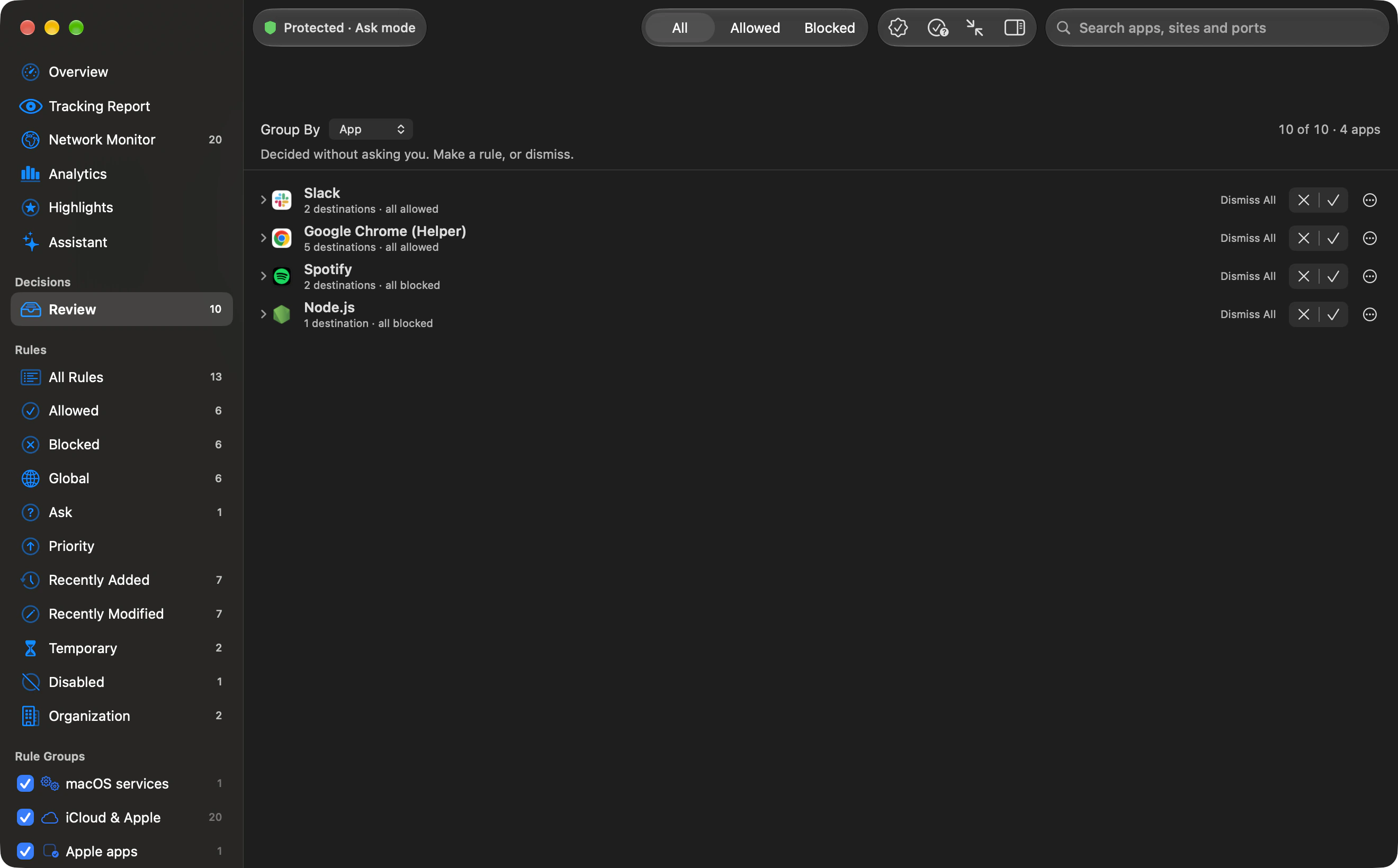
The Review inbox: connections decided without asking, grouped by app, domain, host or port, with allow, block, broader rules, ended temporary decisions and dismiss.
Review is the inbox for connections Outbound decided without you. Learn allowed them, Strict blocked them, an alert timed out, or a program’s code changed since you last decided. Each entry waits until you make it a rule or dismiss it.
Open it from the sidebar under Decisions. The sidebar shows the number of waiting items when there is at least one. macOS can notify you when new ones land (Notifications): the notice is titled “Connections waiting in Review”, and Outbound posts at most one of them every 10 minutes. The switch is Connections waiting in Review.
How the list is arranged
Section titled “How the list is arranged”The list has one row per app. Click an app to open its destinations under it, so a long inbox stays one screen of apps. An app’s row shows its icon and name, and a summary such as “3 destinations · 2 allowed, 1 blocked”, or “3 destinations · all allowed”, or “3 destinations · all blocked”. When a search hides some of that app’s destinations, the summary adds “1 more doesn’t match” or “N more don’t match”.
Each destination row names the host (or the address, or “Unknown server”), a line such as “Learned · port 443 · TCP · 3×”, and the age of the last attempt. A single event says “once”, not “1×”. The port in that line is the remote port. A small badge on the site icon is a tick when the connection was allowed and a cross when it was blocked. Its help says Allowed or Blocked.
Grouping the list
Section titled “Grouping the list”Group By, above the list, is a segmented control: App (the default arrangement above), Domain, Host, Port or None. Domain, Host and Port gather every app’s connections under that domain, server or port, with a count such as “12 connections”. None shows every destination in one list.
Each group has a Group Actions menu (“Preview a broader rule or create a custom rule for this group”):
- Allow All to (domain): one permanent rule that lets every app reach that domain and its subdomains, on every port.
- Block Port (N): one permanent rule that blocks that port at every destination. For incoming connections this is the local service port.
- Create Custom Rule…: opens the rule editor, filled in from the group, so you can narrow it before saving.
Choosing Allow All or Block Port opens a preview first. It says the rule covers every app, including future apps and connections, in both directions and on every protocol, and that existing rules keep their precedence. It then lists the apps and connections waiting in Review that the rule would cover, “Includes matches hidden by search or the Show filter.” Create One Rule saves it, and Undo takes it back.
The Show filter
Section titled “The Show filter”A segmented control narrows the list. Its choices are All, Allowed, and Blocked. Beside it: “Decided without asking you. Make a rule, or dismiss.” Whenever the inbox is not empty, a count on the right reads “12 of 40 · 3 apps” (or “1 app”). The first number is how many items the filter and the search still show.
When the filter matches nothing, the empty title is “Nothing allowed” or “Nothing denied”. The Blocked segment still produces “Nothing denied”, because that title uses the filter’s Denied name. The description is “Every item to review is in the other list.” When the inbox itself is empty, the title is “All caught up”. The description under it says connections Outbound allowed or blocked without asking, in Learn or Strict or when an alert timed out, appear here for a decision.
Deciding
Section titled “Deciding”On the right of every app row and every destination row is an Allow and Block control.
On an app row, when nothing of that app is hidden, Allow keeps the reviewed destinations (related allowed destinations can be combined into one rule) and Block makes one rule for every connection from that app. The help says: “Allow the reviewed destinations or block every connection from (App), forever.”
When a search or the Show filter hides some of the app’s items, both buttons answer only what is shown, one rule each, and the others stay for review. The help says so, and the dismiss button changes with it. Items you cannot see are never decided.
On a destination row the control makes one rule for that destination, forever. Its help is “Allow or block (destination), forever”.
While a decision is in flight the row stays and shows “Allowing…” or “Blocking…”. A refusal comes back with the reason. The confirmation banner says what happened, for example “Allowed 3 connections from Safari.” Every decision can be undone with Edit › Undo, and the banner offers the same Undo.
If Outbound cannot name the program, or cannot name the destination for a rule that needs one, the decision is refused: “Outbound cannot make a rule for this connection: the program or destination is not identified.” A block that cannot name the program uses the shorter form, about the program only.
Temporary decisions that ended
Section titled “Temporary decisions that ended”When a temporary allow or block runs out, it appears at the top of Review under Temporary decisions that ended, with a count and a Dismiss button for all of them. Each row names the app and server and what the decision was, such as “Allowed for 1 hour” and when it ended.
- Make Permanent saves the same decision as a permanent rule.
- Keep As Is leaves it ended and removes the row.
Temporary rules are described in Temporary rules and lifetimes.
Older blocklist exceptions
Section titled “Older blocklist exceptions”Earlier versions of Outbound made a blocklist exception for every app, and did not record which app it was for. When such exceptions exist, Review shows Review Existing Blocklist Exceptions at the top: “These older exceptions allow every app. Their original app was not recorded. Review each rule to choose its app; existing behavior is preserved until you change it.” Each exception has Review Rule…, which opens it so you can choose its app, and Keep Every App, which confirms it should keep allowing every app and takes it off this list.
Dismissing
Section titled “Dismissing”The X at the end of a destination row appears on hover. Its help is “Dismiss without making a rule”. On an app row the button is Dismiss All, or Dismiss Shown when some of that app’s items are hidden. Dismissing does not change the connection, which was already allowed or blocked. It only drops the inbox entry. Dismissal can be undone.
Bulk actions
Section titled “Bulk actions”The toolbar has two buttons. Both answer exactly the items still shown, and both are disabled when this Mac cannot edit rules.
- Allow Verified Developers: allows every shown connection from an app signed by a developer with a team ID, or by Apple. Unsigned programs and programs with no team stay in the list. While the Show filter or a search hides anything, the help says it makes one rule per destination, and anything not shown stays for review. While nothing is hidden, related allowed destinations are combined, and the help does not promise one rule per destination.
- Keep All as Rules: keeps every shown verdict as a permanent rule. While nothing is hidden, related allowed destinations are combined. While something is hidden, the help says one rule per destination, and anything not shown stays for review.
While they run, the buttons read “Allowing verified apps…” and “Keeping rules…”.
Searching
Section titled “Searching”Once the inbox is longer than 8 items, or while a query is typed, a search field appears in the toolbar. Its prompt is “Search apps, sites and ports”. Every word must appear somewhere in the app name, the host, the address, the port, the protocol, or the reason. The reason words are the ones on the row, and “timed out” also matches No answer in time. While a search is active, an app found through one of its destinations opens, because a match inside a closed app would be invisible. An app found by its own name stays as you left it. A search that matches nothing uses the system search-empty view.
Why each item is here
Section titled “Why each item is here”The reason word on each row:
- Learned: Learn mode let an unknown connection through.
- Blocked by Strict: Strict mode blocked an unknown connection.
- No answer in time: nobody answered the alert before its deadline, or no app was there to answer.
- Changed binary: the program’s code differs from the copy an earlier rule was made for, so that rule no longer applies. See Code identity.
When rules cannot be edited
Section titled “When rules cannot be edited”If rules cannot be edited on this Mac, the bar shows Rules are managed and the decision controls are disabled. That is the organization policy and the settings lock together. See Security and Locking settings.
Learn and Strict both file their unanswered decisions here, so the rules you make in Review are what you take with you when you change mode.