
Rules in the main window
The Rules pane: every rule as a sentence, the sidebar scopes, search and sorting, editing many rules at once, copy and paste, tidy, import and export, and insights.
Rules decide connections before they are asked about. The Rules pane lists them grouped by app, each as a short sentence, with an on/off checkbox on every row. It sits in the main window’s sidebar under Rules. The same store opens in a separate rules window, from an alert’s Edit Rules… or Show Rule, or from a rule group. See Rules.
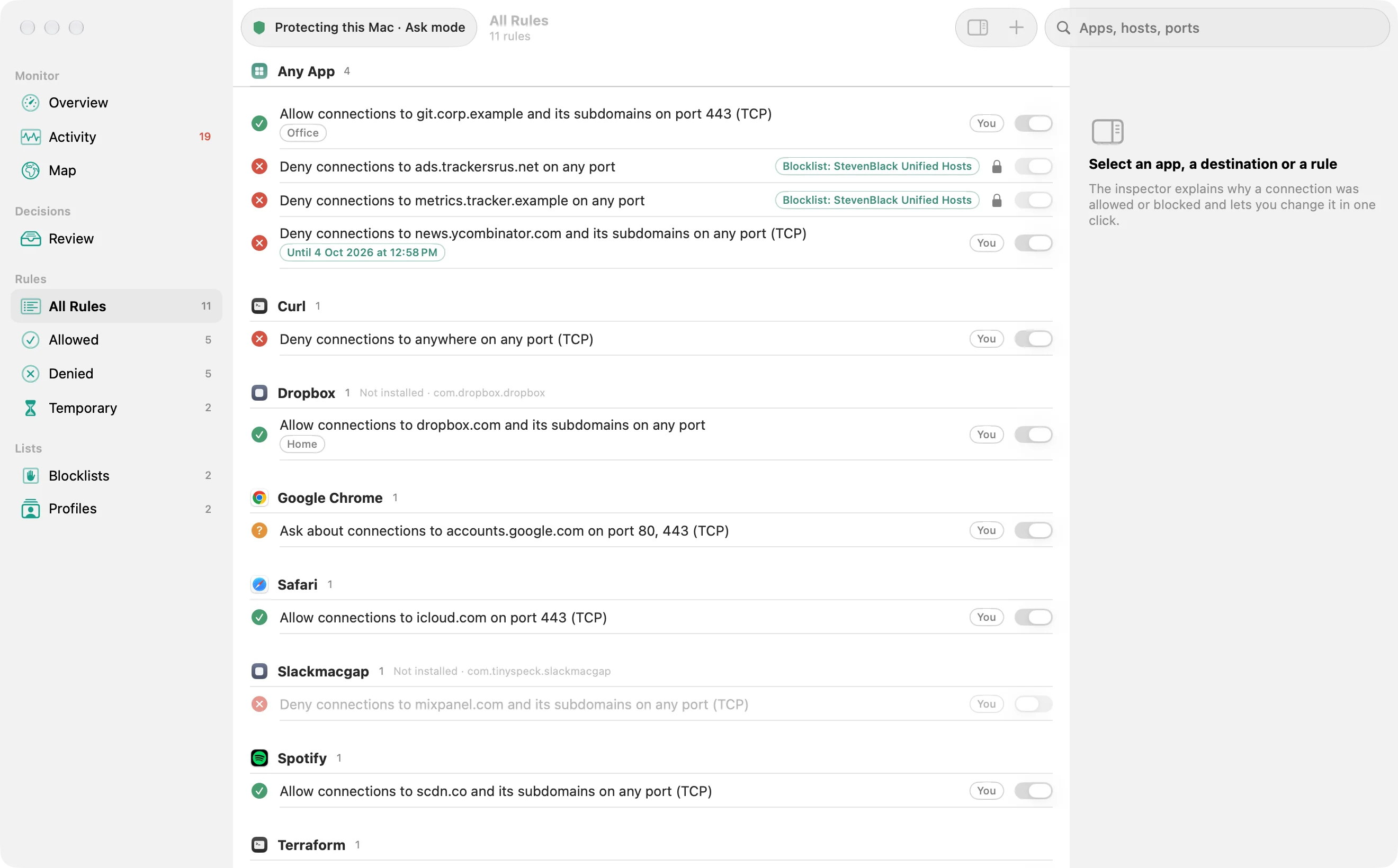
The window subtitle is the count of rules in the list you are looking at: “1 rule” or “N rules”.
With nothing selected, the Summary inspector shows traffic totals, connection counts, and the top apps, domains and countries.

The rule scopes
Section titled “The rule scopes”The sidebar’s Rules section offers:
- All Rules: everything.
- Allowed: allow rules.
- Blocked: block rules.
- Temporary: any lifetime other than Forever.
- Recently Added: created in the last 7 days.
- Recently Modified: changed in the last 7 days. Until a rule is edited, that date is the day it was created.
- Recently Used: matched a connection in the last 7 days. Outbound records matches on its own. There is no switch to turn that record off.
- Unapproved: a rule you created that Outbound has not seen you approve. That includes rules made while a change was still waiting for approval, and rules written by another program such as
outboundctl. - Disabled: rules switched off.
- Organization: managed rules.
All Rules, Allowed, Blocked, and Temporary are always in the sidebar. The other six appear only when they contain at least one rule. The separate rules window lists every scope even when it is empty, plus a Rule Groups section, the rules in the middle, and an inspector on the right when one rule is selected.
Two controls in the Rules section of Settings › Advanced feed Unapproved. Mark new rules for review is off by default. Clear the mark when I select a rule is on by default: selecting a rule adopts it. See Advanced.
Reading a rule
Section titled “Reading a rule”The row has two parts. The process column names the app once per group, with its icon. The rule column holds an Enabled checkbox (the word is hidden; you see the box), a symbol for the action (a green tick for allow, a red cross for block, an orange question mark for ask), the site’s icon when the rule names a host or a domain, and the rule as a compact sentence.
The compact form is what the table shows: “Allow domain example.com”, or “Allow domain example.com port 443 TCP” when the rule names ports, or “Block incoming address 203.0.113.7 port 443”. The word “port” is part of that sentence whenever a port is set. Hovering the row, and VoiceOver, get the full sentence: “Allow connections to example.com and its subdomains on any port”, “Block connections to anywhere on port 23 (TCP)”, “Allow incoming connections from 203.0.113.7 on port 443”. Ask rules start “Ask about”.
Badges after the sentence:
- Priority, for a priority rule: it wins over rules without priority that match the same connection.
- The lifetime, for anything that is not Forever: “Until quit”, “Until logout”, “Until restart”, “Until” a date and time, or the schedule’s days and hours.
- The profile name, for a rule scoped to one profile.
- The source, for any rule that is not yours: “Organization”, “Trusted by default”, “Known telemetry”, “Rule group” plus the first eight characters of its id, or “Blocklist: (name)” (or “Blocklist” if the list has no name).
- A padlock, when the rule cannot be edited here. Its help says exactly why: managed by your organization, part of a blocklist or a trusted group, settings locked, or a read-only rules file.
- A symbol for Not in effect, when the rule matches nothing right now. The rule inspector gives the reason.
A rule you wrote has no source badge. The checkbox help says whether the rule is on, and that unchecking turns it off (or checking turns it on).
Making and changing rules
Section titled “Making and changing rules”- Add Rule in the toolbar opens the editor on a new Block rule (Creating and editing rules). An empty list also offers Add Rule….
- Double-click a rule you are allowed to edit to open the editor. The right-click menu for one rule is Edit…, Enable or Disable, the copy and selection commands below, Repair Process Path… for a rule that names a program by path, and Delete.
- Select several rules with ⌘-click or ⇧-click. The right-click menu becomes Edit N Rules…, Turn On N Rules, Turn Off N Rules, and Delete N Rules. A bar under the list reads “1 rule selected” or “N rules selected”, adds “N managed” when some of the shown selection cannot be edited, and “1 hidden rule left out” or “N hidden rules left out” when the search or the scope hides part of the selection. Its buttons are Edit…, Turn On, Turn Off, and Delete. Hidden rules are not changed.
- The Delete key deletes the editable rules among the selection that is still shown. Rows show “Deleting…” until that settles.
- Every change can be undone with Edit › Undo. The confirmation banner offers the same Undo.
Editing several rules at once
Section titled “Editing several rules at once”Edit N Rules… opens a sheet titled “Edit N Rules”. Each field starts at No Change, which leaves that field as it is on every rule:
- Action: Allow, Block or Ask.
- Lasts: Forever, or Until a Date with the date and time.
- State: On or Off.
- Profile: All profiles, or one profile, when you have profiles.
- Replace notes, with the new Note.
The sheet says what the change will do before you save. If it unblocks connections, you approve it once for all the rules, and one Edit › Undo reverses all of it. When the edit would make some rules identical, Outbound offers to merge them, as the editor does for one rule.
Copy, duplicate and paste
Section titled “Copy, duplicate and paste”The right-click menu and the Edit menu have:
- Copy Rule, Copy Process Path, Copy Bundle/Signing ID and Copy Destinations.
- Duplicate: opens the editor on a copy of the rule, with the same matching fields, ready to change and save.
- Paste Rules: asks before it adds rules you copied. Pasted
.lsrulestext opens the import sheet. - New Rule for Selection…: opens the editor on a new Block rule for the app the selected rules are for.
- Turn into Global Rule: makes a profile rule apply in every profile.
Selecting a rule in Unapproved clears its mark when Clear the mark when I select a rule is on.
Tidy Rules
Section titled “Tidy Rules”Tidy Rules… in the toolbar asks before it changes anything. The message is: “Tidy all user rules: remove exact duplicates and combine three or more hosts of the same app into their registrable domain. Domain rules include other hosts in that domain. Managed, priority, and temporary rules stay as they are. Changes that unblock connections require your usual approval.” The button is Replace N Rules with M Domain Rules. When it finishes, the banner reads “Removed N rules and added M domain rules.” and offers Undo.
Import and export
Section titled “Import and export”The toolbar menu Import or Export Rules reads and writes rule groups in the .lsrules format:
- The import command opens a panel for a rule group (
.lsrules, or the same format saved as.json). Nothing changes until you confirm: an import sheet counts what the file adds, changes and already has, lists conflicts with your rules and entries it can’t read with the reason for each, and lets you choose Keep my rules, Use the imported rules or Replace my rules with the file. Importing the same file again adds nothing, and Edit › Undo reverses the whole import. A file it cannot read is reported as “(file) is not a rule group Outbound can read”, with the reason. - Export as .lsrules… opens a sheet first: export the selected rules, the rules in this view or all your rules, give the group a name and description, and see which rules the format can’t carry and why. The file’s default name is “Outbound Rules.lsrules”.
See .lsrules rule files for what maps and what is left out.
Rule Insights
Section titled “Rule Insights”Insights opens a sheet headed Rule Insights. Its groups are Broad Grants, Duplicates, Never Decide, Covered by a Broader Rule, Unused, Unnecessary Priority (a priority rule whose priority changes no decision today) and Program Not Found (a rule for a program path where nothing is installed now). The introduction says: “Review cleanup suggestions before deleting. Unused rules may still be needed. Uncertain comparisons are excluded.” When usage has been recorded, a line says “Usage tracking since (date). Unused checks require 14 days per rule.” Unused is reported only after that tracking has itself been running for 14 days, and only for a rule that has had 14 days to be observed since it was created or since tracking began, whichever is later. The explanation says there are no recorded matches since that date, that tracking only sees events while Outbound is running, and that unused does not mean safe to delete.
Each row names the rule and why it was flagged, and the related rule when there is one, with Select in Rules and Show Related Rule. Where Outbound can fix the finding in place, the row offers it: Raise Priority… for a rule another rule keeps from deciding, Remove Priority…, or Turn Off…, each with a line that says what it will change. You can also delete the rule. Deleting still asks, and still needs the usual approval when the change would unblock something. Only enabled user rules are reported. The empty sheet says “No problems found in N rules”, with “Only enabled user rules are reported. Some comparisons require runtime information and cannot be proven here.” Search inside the sheet, once there is enough to search, uses “Search apps and rules”. No match says “No insight mentions “(query)”.” Done closes the sheet. While it works, the sheet shows “Analyzing rules…”.
Searching, sorting and filtering
Section titled “Searching, sorting and filtering”The field above the list, prompt “Apps, hosts, ports”, is always there. Its menu narrows where the words are looked for: All, Process Name, Signing ID, Folder, Destination or Note. Every word you type must appear somewhere in the full sentence, the app name, the identifier or path, the destination, the port, or the note. “safari apple.com” finds Safari’s rule for apple.com. A rule for Apple’s own apps names no single app, so it also answers for each app it covers: “Safari” finds the rule that decides Safari’s traffic. A query that would hide a rule you just jumped to (from Open Quickly, Show Rule, or an insight) is cleared so the row can be seen.
The Arrange menu sorts the list by Name, Precedence, Last Used, Usage Count, Date Added or Date Modified. It also filters by Destination (Any Destination, Host, Domain, IP Address or Anywhere) and Direction (Any Direction, Outgoing, Incoming or Both Directions), and Combine Equivalent Rules shows rules that decide the same thing as one row. Sorting and filtering change only what you see, never what is decided.
Rules Affecting app, from the Network Monitor or the inspector, lists the rules that apply to that app. Back returns to the full list.
A note at the bottom
Section titled “A note at the bottom”The pane ends with a fixed line: “Host and domain rules need a hostname reported by macOS. Direct IP connections need an address or network rule.” That is why a rule sometimes reads as an address where you expected a name. If the rules file could not be read, the error is shown above the list and the rows are the last copy Outbound could read.