
The notch island
The capsule that grows out of the notch to announce a first contact or a block.
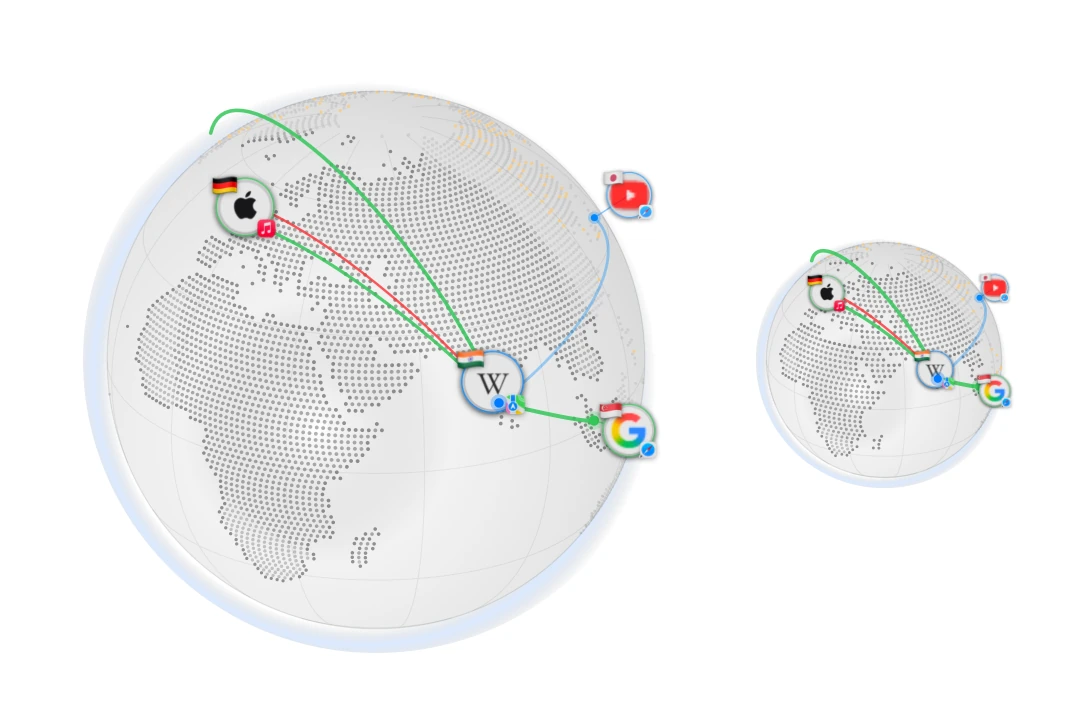
With “Notch island” enabled, Outbound can show a capsule for a newly reached country. With “Show blocked connections in the island” enabled, it can also show recent blocks. The capsule grows out of the notch at the top of the screen. It names who went where on one line, draws the route on a small dotted world, and folds back into the notch after a few seconds. It is sized to fit around the camera notch, and its text and map stay readable in light and dark appearances. On a display without a notch the same capsule hangs from the menu bar’s centre in glass.
What it shows
Section titled “What it shows”A first contact reads the app’s name and icon, an arrow, the country’s flag and name, and beneath that “First time today · Frankfurt”. A block names the server instead, for example “Blocked · ads.example.com”, beside a blocked-colour symbol. Blocks come from the decisions the filter actually made, so connections stopped by a blocklist are announced too. The small map is framed on the route from this Mac to the destination. First contacts are tracked by country across apps, not separately for each app or city. The initial observation after launch learns existing traffic without announcing it; the seen-country set resets each day.
Pointing at the island holds it open and changes the second line to “Open in Network Monitor”. A pointer that was already resting where the island appeared doesn’t hold it, and once the capsule starts to fold away the pointer can’t bring it back. Pointing at the menu bar beside the notch sends the island away at once, so your click reaches the menu bar. Clicking it opens the Network Monitor on that destination and dismisses the capsule. The island is drawn above the menu bar but below menus and alerts, and it never takes keyboard focus.
Pacing
Section titled “Pacing”Ordinary events show one island at a time, at least eight seconds apart. After the island shows a block for an app, that app’s next blocks skip the island for ten minutes; Network Monitor still lists every one. If the pointer is where the island would appear, it waits, and skips the event if the pointer is still there after ten seconds. Only one pending event is retained: the newest wins, except that a block takes priority over a first contact. “Show a Sample” bypasses the spacing and replaces an island already on screen. How long the capsule stays is set in Settings › Labs, “Island stays for”, from 2 to 10 seconds in 0.5-second steps, 4 seconds by default.
Turning it on and off
Section titled “Turning it on and off”Settings › Labs has two switches:
- Notch island: first-contact announcements, on by default. Turning it on plays a sample.
- Show blocked connections in the island: on by default, and only meaningful while the island is on. It also plays a blocked sample when switched on.
Each switch has a “Show a Sample” button that plays one immediately: Safari reaching Frankfurt, or a blocked connection to a tracker in Dublin.
The setup finale
Section titled “The setup finale”Setup’s last page uses the same world for its closing moment. It folds the three permissions into one line, shows the dotted world with this Mac in the middle, and draws routes for up to 24 located places. A pill on the world counts the connections and countries (“3 connections · 2 countries”) and, beside it, known trackers among those connections, counting up live. Each of the first eight routes plays a soft chime. The switch “Setup ends on a live world” in Settings › Labs controls it, and “Sounds during setup” controls the music and chimes, which follow the Mac’s “Play user interface sound effects” setting. VoiceOver suppresses the background music and reduces the volume of cues.