The globe and world views
The dotted world maps and the 3D globe Outbound draws, where each appears, and its themes.
Outbound draws your traffic as places on a world. There are two drawings: a flat dotted world map, used where space or power is tight, and a 3D globe used where there is room to turn it. They show located destinations and routes from this Mac when its location is available. Views limit the places they display. Blocked routes use the blocked colour; their moving packets stop short and break.
The experiments and their switches live in Settings › Labs. None of them changes what is allowed or blocked; they are ways of watching.
The dotted world
Section titled “The dotted world”The flat map draws land as a lattice of dots. Arcs grow out of this Mac, each place glows while it is being reached, and packets ride the ten busiest live arcs. It appears:
- at the top of the menu bar panel, showing the busiest places plus the newest few, with a headline such as “Talking to 3 countries now”. With no located connections it says “No located connections yet”, or “Install locations to see the map” while the location database is missing
- in the widget named “Outbound World”
- on the notch island, cropped to the route’s two endpoints
- in Setup’s closing moment, showing its located routes
Some share cards use a still 3D globe in the Amber theme.
The flat map animates only while visible, with live routes or a newly drawing route, and with Reduce Motion off.
The menu bar can also show a tiny world beside its meter. “Live world in the menu bar” controls it in Labs.
The globe
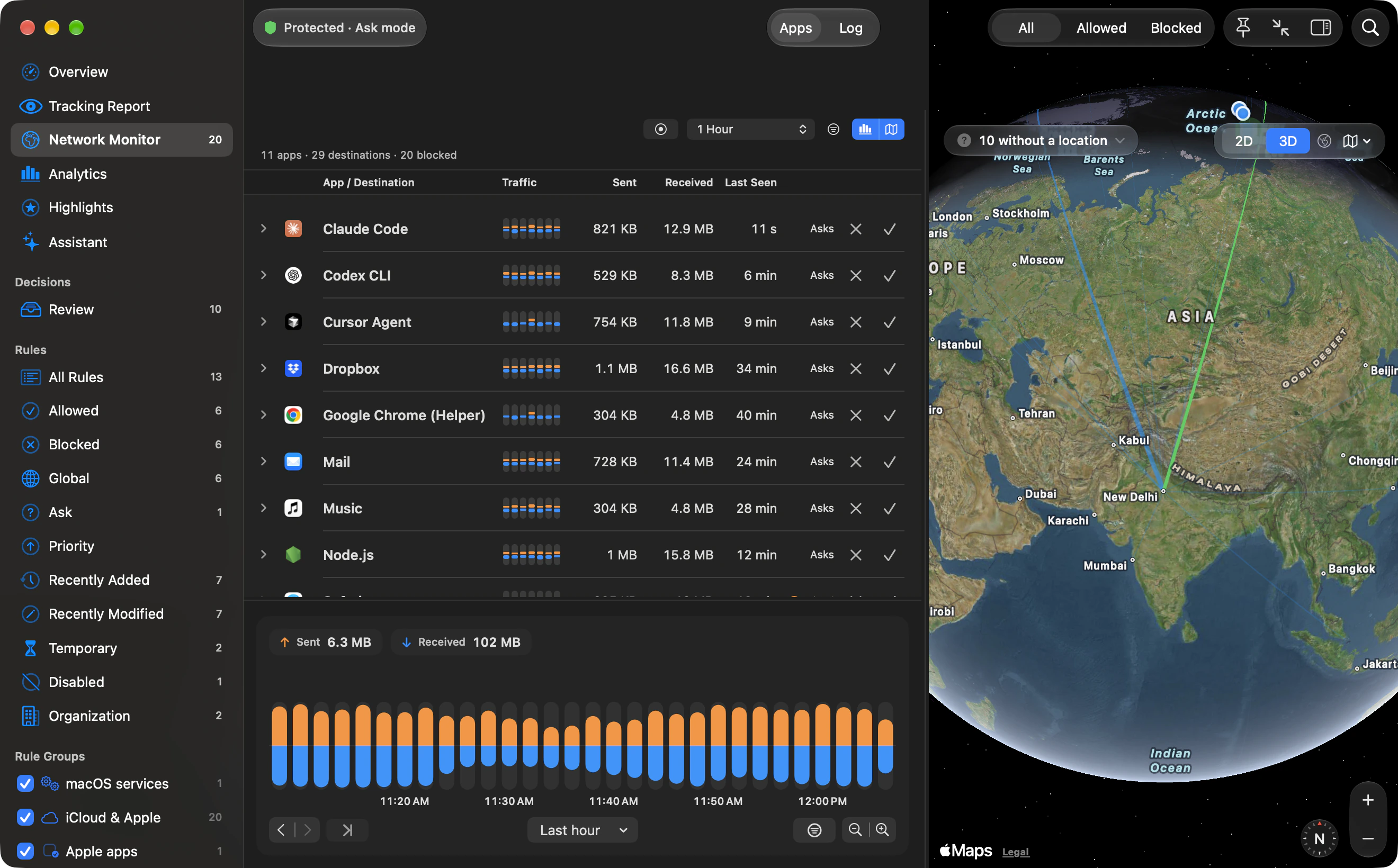
Section titled “The globe”The globe draws curved routes over a sphere. Labs controls let you enable real sunlight, city lights at night and atmosphere glow. The sunlight effect uses the sun’s position at the displayed time.
Floating icons mark destinations, newest first, using site or app icons and optional country flags. “Icons shown” allows 0 to 10, with 6 by default. The panel globe caps this at 4; efficient mode reduces an unchanged default to 3. Destinations within 6 degrees of home do not get an icon.
You can grab the globe and turn it; let go mid-turn and it coasts to a stop under friction. On a Force Touch trackpad, a light tap ticks each time a coastline passes under the centre. Dragging and coasting use a 60-frame-per-second target. Automatic motion uses the Labs smoothness setting: “Battery saver” (15 frames per second), “Balanced” (30) or “Smoothest” (60). With Reduce Motion on, the globe does not keep animating on its own. Dragging and hover responses can still redraw it.
VoiceOver reads it as “Globe. 12 places reached.”
The floating globe
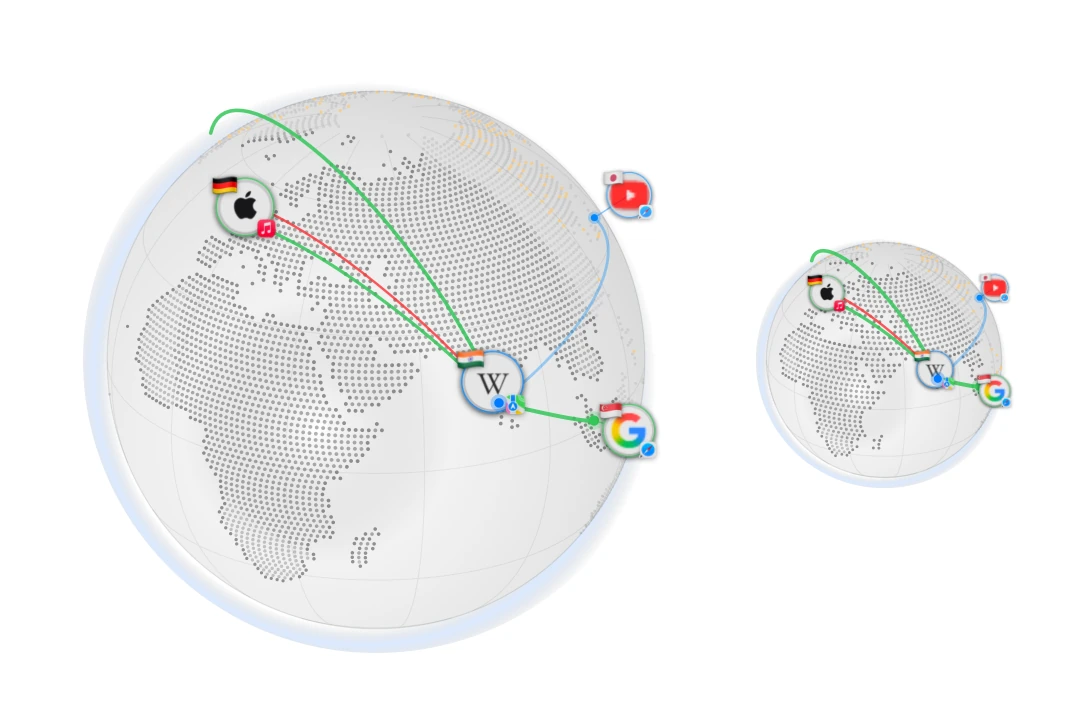
Section titled “The floating globe”The floating globe (the orb) is a small always-on-top globe anywhere on the desktop, with routes from the monitor’s selected time range and current upload and download rates in a pill beneath. The background agent owns it, so it stays while the main window is closed. It is off by default; turn on “Floating globe” in Settings › Labs.
- Drag it anywhere; it remembers where. Hold the globe still for a moment and drag, or drag the rate pill, to move the window while the globe itself keeps facing you.
- Double-click it to open the Network Monitor.
- A pinch on the trackpad resizes it, like a photo. Sizes run from 140 to 480 points.
- Hovering shows a small toolbar: hide, smaller, larger, and a handle for moving it.
- Right-click for its menu: “Open Network Monitor”, “Larger”, “Smaller”, “Minimize to a Dot”, “Maximize Globe”, a “Size” submenu (Small 160, Medium 220, Large 300, Extra Large 420 points), a “Theme” submenu, “Turn Slowly”, and “Hide Globe”.
Minimised it collapses to a 60-point dot that stays live. A click or “Restore Globe” restores it. “Maximize Globe” selects the 420-point preset; pinching or the Labs size slider can reach 480 points.
Themes
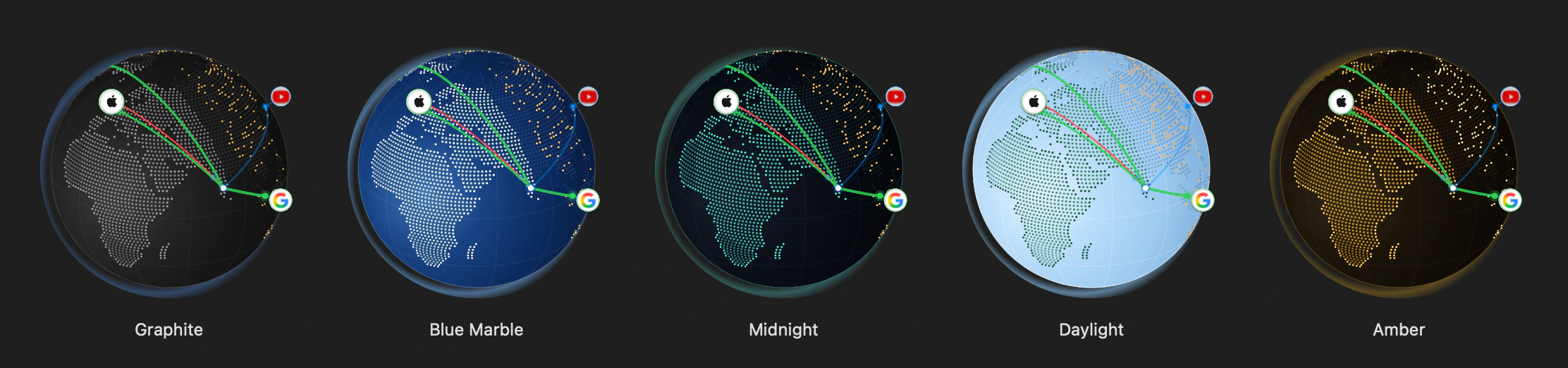
Section titled “Themes”The “Theme” setting in Labs colours the globe; the picker shows a small sphere in each:
- Graphite: follows your Mac’s light or dark appearance (the default)
- Blue Marble: blue oceans, pale land, like the classic photograph
- Midnight: near-black seas with teal land and coasts
- Daylight: pale blue daylight all round
- Amber: the brand’s warm gold on near-black
Graphite follows the Mac’s appearance; the others keep their own palette. The menu bar panel can use either a flat map or a globe: choose “Flat” or “Globe” under “Panel map” in Labs.