Mac firewall guides
How to block an app from accessing the internet on Mac
To stop a Mac app connecting out, use an outbound application firewall. The built-in macOS firewall controls incoming connections; its app list is not an outbound block list.
Updated
Step by step
- Identify the process. Open the app you want to restrict. Check its process in Activity Monitor, including any helper that makes the connection. Save work before changing its network access.
- Create a narrow rule. In Outbound’s rules editor, select the app identity or exact executable path, choose Deny and scope the rule to a host or to any destination. Set the protocol and ports you intend to block.
- Choose a lifetime. For an initial check, use a temporary rule. Use Forever only when the restriction has been tested. An app may need a separate helper process rule.
- Test a new connection. Repeat the action that caused the app to go online. In the Network Monitor, search app: followed by the app’s name (quoted if it has spaces, such as app:"Google Chrome") and check the denied destination. Check sign-in, sync and updates separately.
- Undo if the app stops working. Disable or remove the new rule and test again. Help › Network Not Working? lists the blocks of the last 30 minutes with one-click Allow, and can pause Outbound for 15 minutes or turn it off. If you cannot restore connectivity, turn off the filter in System Settings → Network → Filters.
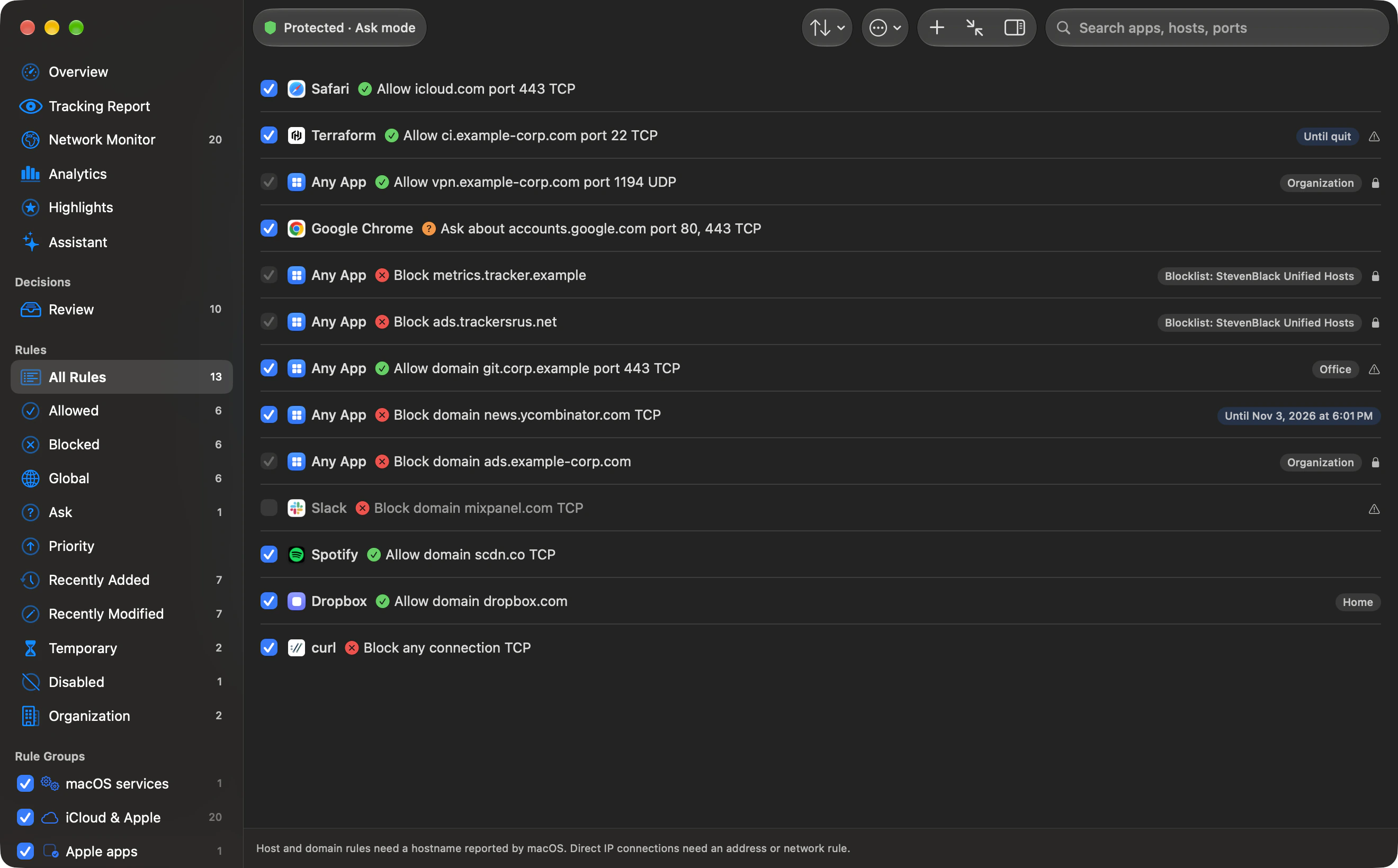
Which tool should you use?
Apple’s Firewall settings guide documents incoming permissions. A per-app outbound firewall adds a different control: what a local app may contact. These Outbound steps describe Outbound 1.0.
If you need a downloadable option now, LuLu’s official documentation describes a free firewall with app and endpoint rules. Follow its current documentation rather than assuming its controls match Outbound.
What about pf?
The macOS packet filter, pf, operates on network traffic rather than a friendly app-permission list. A destination block can affect several apps sharing the same address. For this task, an application firewall makes the process association easier to inspect. Do not paste a system-wide packet-filter ruleset just to block one app.
Verify the result
A denied connection confirms that a particular flow was blocked; it does not prove that the app made no other connections. Review helpers and other destinations. Allow required licence checks and updates when your use of the app depends on them.
Outbound instructions are based on Outbound 1.0 and its command-line help. Download Outbound. External product and platform sources are linked beside the relevant guidance.