Mac firewall guides
See which apps use the internet on your Mac
Activity Monitor shows network usage by process. For destination details and allow/deny decisions, use a connection monitor such as Outbound’s.
Updated
Step by step
- Open Activity Monitor. Open Applications → Utilities → Activity Monitor and select Network. Start the app or task you want to investigate.
- Inspect the process list. Look at sent and received data for the relevant process. Data totals help identify activity, but do not explain why a service was contacted.
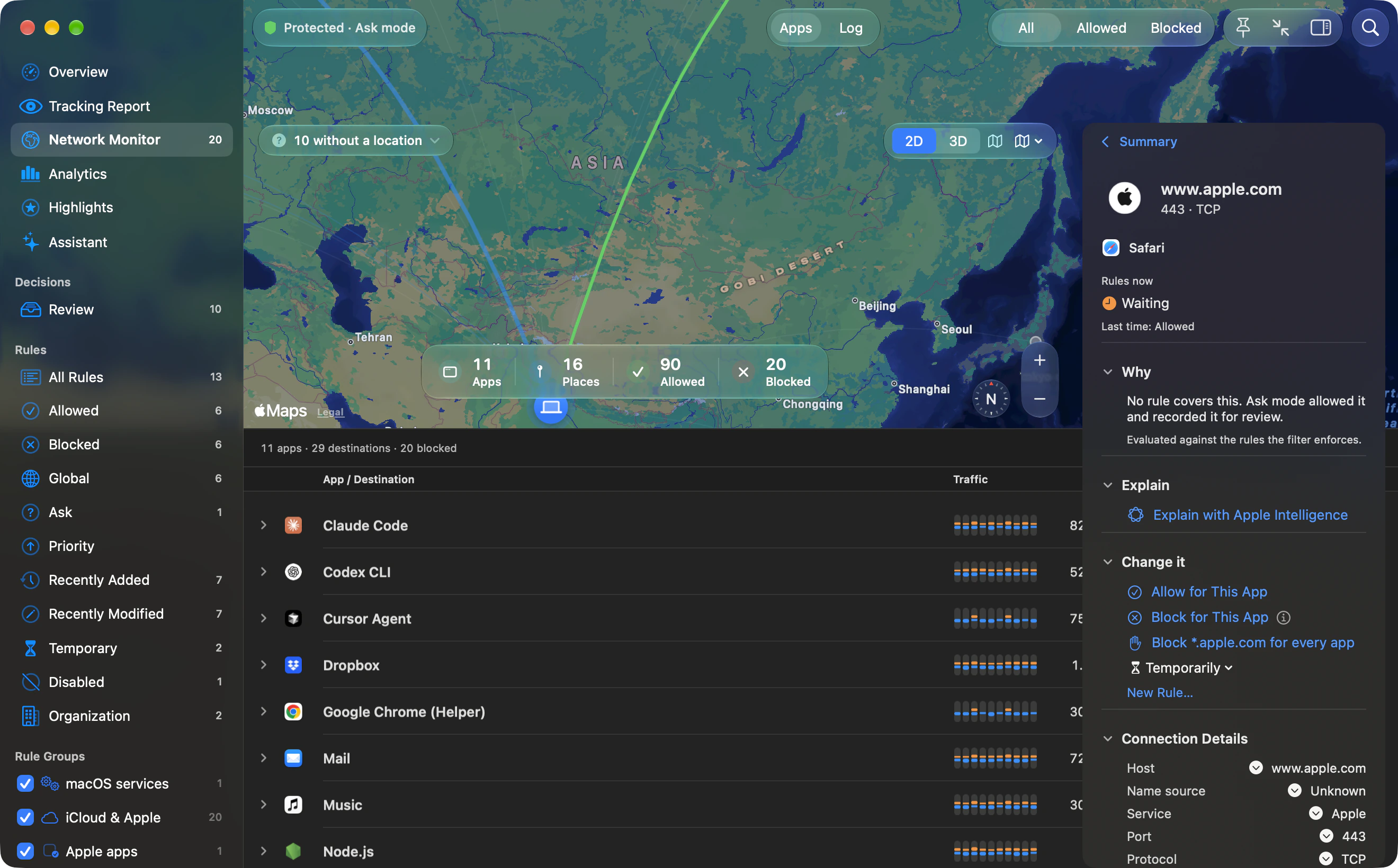
- Inspect destinations. In Outbound’s Network Monitor, search with words such as app:, host: or port:, then read Sent, Received and Last Seen for each destination and inspect the port, protocol and verdict. Outbound keeps this history on your Mac.
- Repeat a controlled task. Perform one action, such as syncing a document, and watch for new connections. Drag across the traffic chart to select that moment; the list and map then show only that window. Distinguish the main app from helpers.
- Decide whether a rule is appropriate. Consult the app vendor’s documentation before classifying a destination. If you create a deny rule, test the app again and be ready to undo it.
What Activity Monitor measures
Apple’s Activity Monitor network guide explains the Network view’s data and packet measurements. The values tell you about transfer activity, not the contents or purpose of a connection.
To see destinations, data per app and per destination, and server locations in one window, see the Outbound network monitor.
Use Terminal when you need another view
The built-in nettop command gives an interactive view of network activity. Run man nettop to read the options installed on your Mac, then nettop. Press q to leave the display. Some details depend on permissions.
Why a hostname may be missing
Outbound can show a host name when an app opened a connection by name. An address-only flow will show the address. Shared hosting and content delivery networks also mean an IP address does not uniquely identify a service.
Outbound instructions are based on Outbound 1.0 and its command-line help. Download Outbound. External product and platform sources are linked beside the relevant guidance.